
Prepare the show for a call: Call Return, the devices in the call app, and each app's settings.
Make a show ready for a Microsoft Teams, Zoom, Google Meet or Webex call in one press, then set the call app so it leaves the program alone. See Live Producer Mic and Return.
Before you start
Section titled “Before you start”- Live Producer Camera, Mic and Return are installed. See Install the camera.
- The call app is installed on this Mac, and for Google Meet, Google Chrome.
Step 1: Set up the show
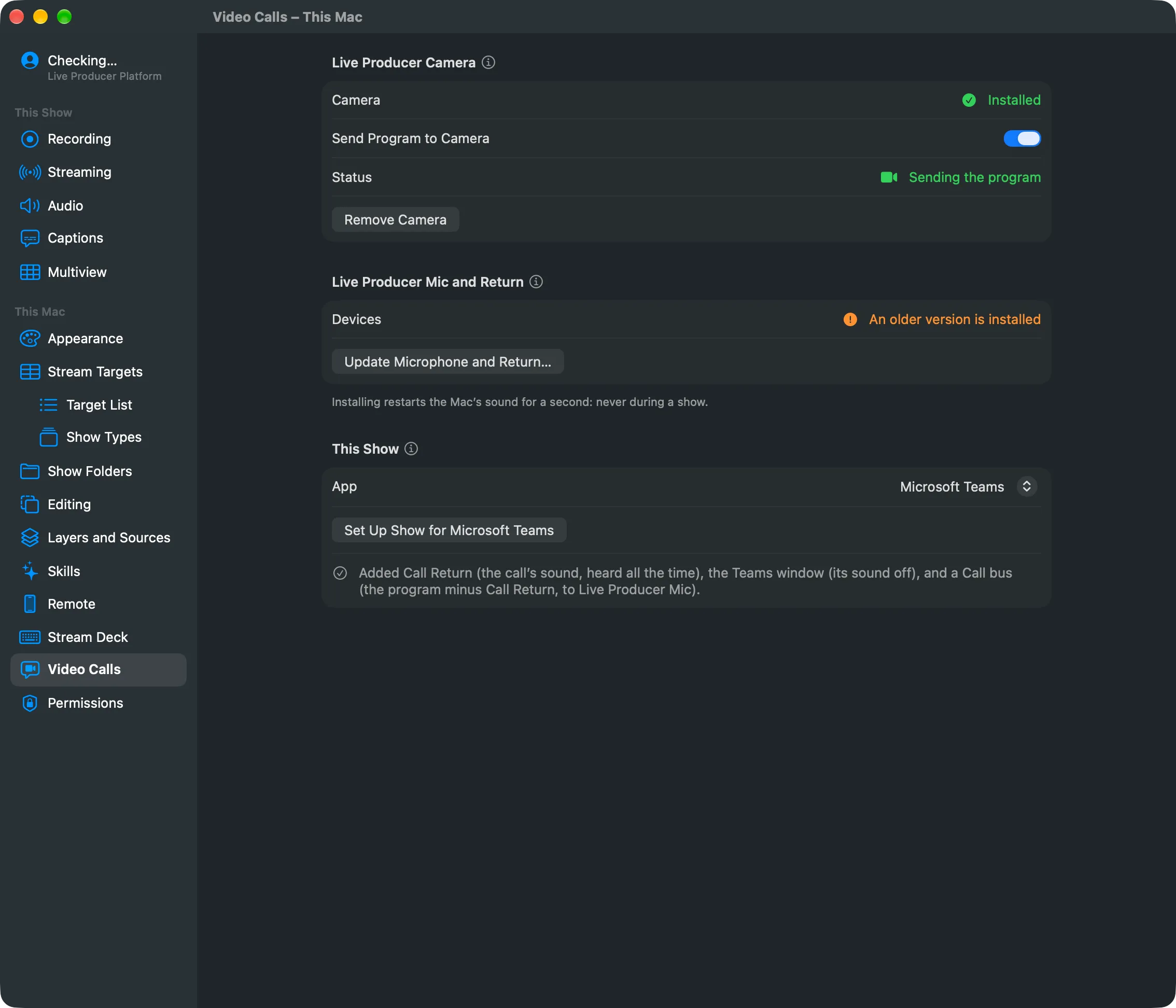
Section titled “Step 1: Set up the show”Open Settings › This Mac › Video Calls. Under This Show, choose the App and click Set Up Show for that app, for example Set Up Show for Microsoft Teams. The same is in Switcher › Set Up Show for Video Call.
It changes the open show in one step you can undo, and says what it added:
| Added | What it does |
|---|---|
| Call Return | The call’s sound, as an audio input heard all the time |
| The app’s window | The remote people’s picture, as a source with its sound off |
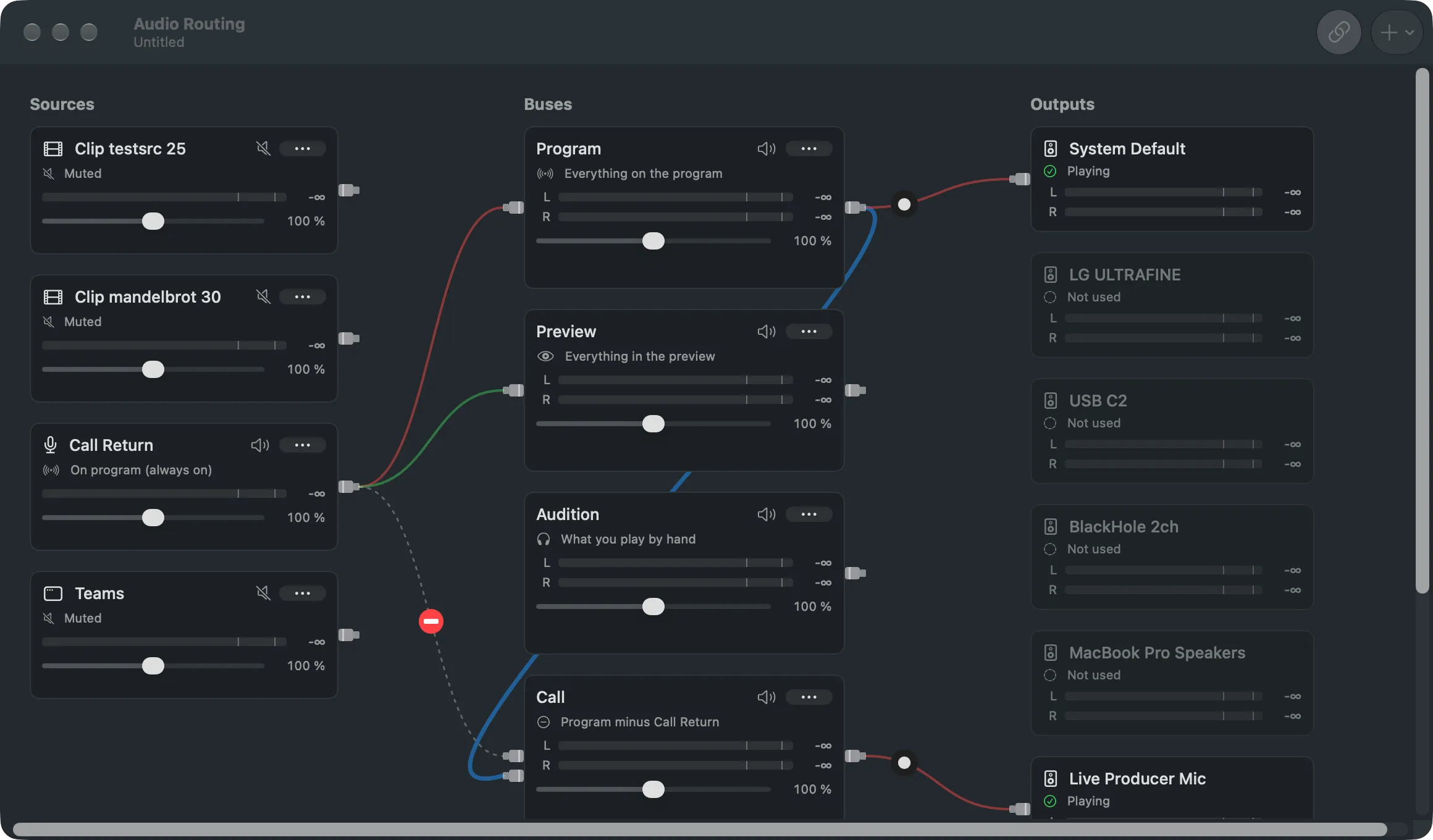
| Call bus | Everything on the program minus Call Return, playing to Live Producer Mic |
Pressing it again repairs rather than duplicates. For a second app it adds only that app’s window.
Step 2: Send the program
Section titled “Step 2: Send the program”Turn on Send Program to Camera on the same page, or in the Switcher menu.
Step 3: Choose the devices in the call app
Section titled “Step 3: Choose the devices in the call app”In every app, pick the same three devices:
| In the call app | Choose |
|---|---|
| Camera | Live Producer |
| Microphone | Live Producer Mic |
| Speaker | Live Producer Return |
Step 4: Set the call app
Section titled “Step 4: Set the call app”Each call app has its own settings that would change the program or its sound. Set them once:
Microsoft Teams
Section titled “Microsoft Teams”- Open Settings › Devices, or the arrow next to Camera in a meeting, and choose the devices.
- Turn background effects off.
- Set noise suppression to Off and turn on high-fidelity music mode (the arrow next to Mic › More audio settings), so Teams leaves the show’s sound alone.
- Spotlight this Mac’s participant for everyone.
Teams treats the microphone as speech unless music mode is on.
- Open Settings › Video and Settings › Audio, and choose the devices.
- In Video, turn on HD and turn off Touch Up My Appearance and Adjust for Low Light.
- In Audio, turn off Automatically Adjust Microphone Volume and turn on Original Sound for Musicians. Then turn Original Sound on in the meeting (top left).
- Spotlight this Mac’s video for everyone.
Without Original Sound, Zoom treats the program as speech and cuts music and quiet passages.
Google Meet
Section titled “Google Meet”- Meet runs in Google Chrome: allow it the camera and the microphone when it asks.
- In the call, open More Options › Settings › Audio and Video, and choose the devices.
- In Video, set Send Resolution to the highest offered.
- In Audio, turn noise cancellation off.
- Pin or spotlight this Mac’s tile.
The Meet window source is Chrome’s largest window: keep the meeting there.
- Open Settings › Video and Settings › Audio, and choose the devices.
- In Video, turn off virtual backgrounds and appearance touch-ups.
- In Audio, choose Music Mode, or turn off noise removal.
- Lock this Mac’s video for everyone.
If the Webex window source stays empty, choose the Webex window in the source’s settings.
Verify
Section titled “Verify”Open Window › Audio Routing (⌥⌘A). The Call bus reads “Program minus Call Return” and plays to Live Producer Mic. In a test call from a second device, you see the program, hear the show, and do not hear yourself back.
Related
Section titled “Related”Describes Live Producer 0.305 · 29 October 2026