
How a shot's elements are placed, sized, turned, cropped and styled in the preview and the inspector, with the grid, guides and safe zones to line them up.
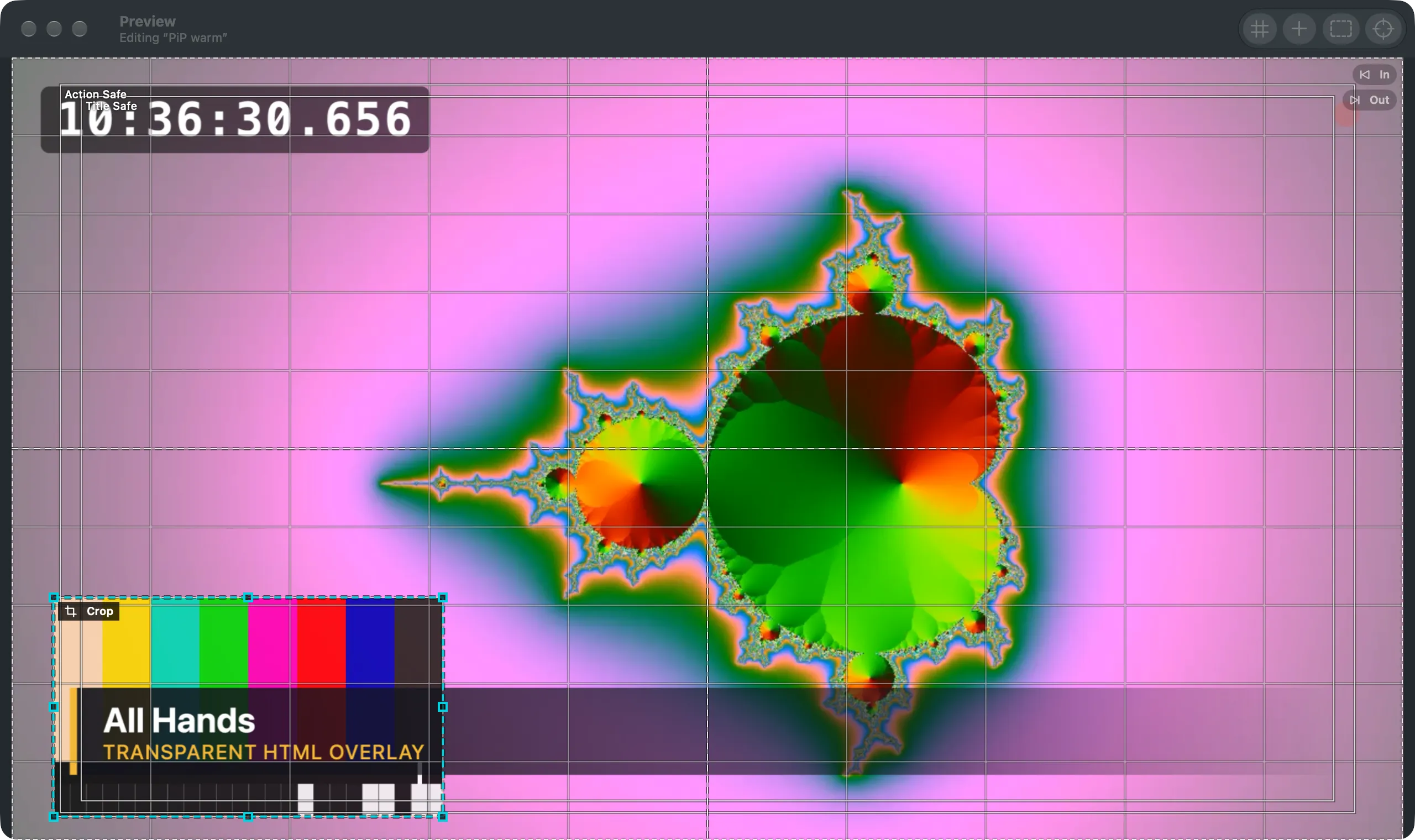
The editing canvas is the preview: the picture where you place what a shot shows. Every element visible in the preview can be selected and changed there, whatever layer or shot it is in, and the inspector on the right shows the same element’s settings as numbers. Edits are never live: they change the preview, and the next Take sends them to the program.
Selecting
Section titled “Selecting”Click selects the front element under the pointer. Click again in the same place to select the one beneath it, down through all layers and back to the front, so an element behind a full-frame one is still reachable. The selection box takes the colour of the element’s layer, and its tag names the layer. The inspector follows to the element’s shot.
Placing and sizing
Section titled “Placing and sizing”Drag the selected element to move it, or a corner handle to resize it from the opposite corner. Resizing keeps the box’s proportions unless Keep Proportions is off; Shift while dragging does the other for one drag. An element may reach past the frame’s edges, or lie wholly outside.
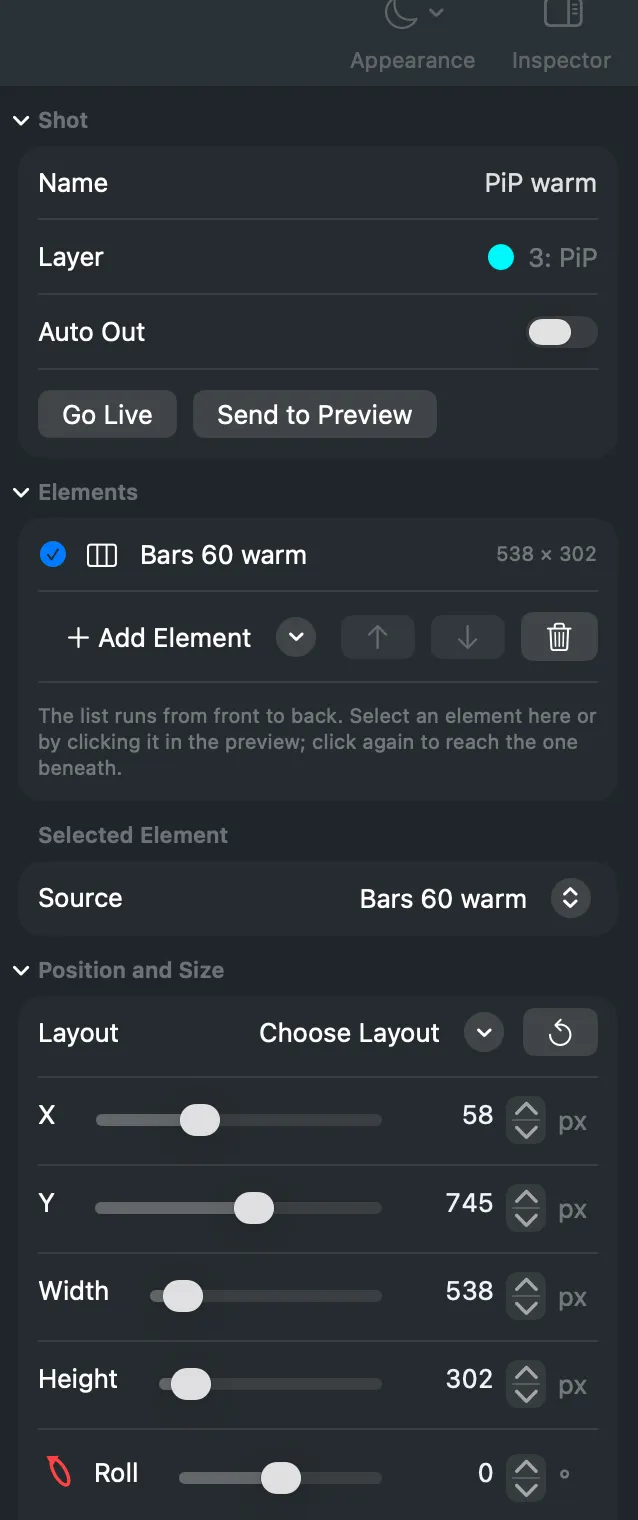
The inspector’s Position and Size section has the same as numbers: X, Y, Width and Height, and Choose Layout with presets such as Full Frame, Picture in Picture, Top Right or Left Half. Fit Box to Picture shrinks the box to the shape of what it shows. Reset puts the element back to the full frame, centred and upright.
Turning in perspective
Section titled “Turning in perspective”The round handle above the box rolls the element (Shift for steps of 15°), as does Roll. Pitch tips it forward or back and Yaw turns it left or right, so it stands in perspective; Perspective sets how strong that depth looks.
Cropping
Section titled “Cropping”Hold Option over the preview to crop: drag an edge or a corner of the picture, or inside it to slide the picture under its box. Auto Crop in the inspector removes flat borders, and for a window its title bar and toolbar. Crop To… asks Spelvin to find the part to keep; see Crop to.
Look and effects
Section titled “Look and effects”Look holds the element’s Opacity and Scaling: Fit keeps the whole picture visible, Fill crops it to cover the box, Stretch ignores its shape.
Effects adds one of each kind, each with its own settings and an On checkbox to try the picture without it: Crop, Flip, Colour, Chroma Key, Rounded Corners, Border, Shadow and Reflection.
Values and units
Section titled “Values and units”Every number can be typed, or dragged: press on the number and drag left or right, finer than its slider; hold Option for big steps. Position and size show in pixels of the program format, or in percent. Set the unit and both drag speeds in Settings › This Mac › Editing.
Grid, guides and safe zones
Section titled “Grid, guides and safe zones”The Preview window shows a grid, centre guides and the action-safe and title-safe zones, each switched on in its toolbar or the View menu. With Snap to Grid on, elements snap to the grid, and to guides and safe zones while they are shown. The grid has 10 columns and 10 rows until you change them in Settings › This Mac › Editing.
Read more
Section titled “Read more”Describes Live Producer 0.305 · 29 October 2026