
Open the phone remote or the prompter on an iPhone in seconds, with the token already in the address. See The remote and its token.
Before you start
Section titled “Before you start”- The iPhone is on the same network as this Mac.
- For AirDrop, AirDrop is on for both. An iPhone signed in to the same Apple ID as the Mac opens the page at once; another iPhone is asked first.
Step 1: Open the code
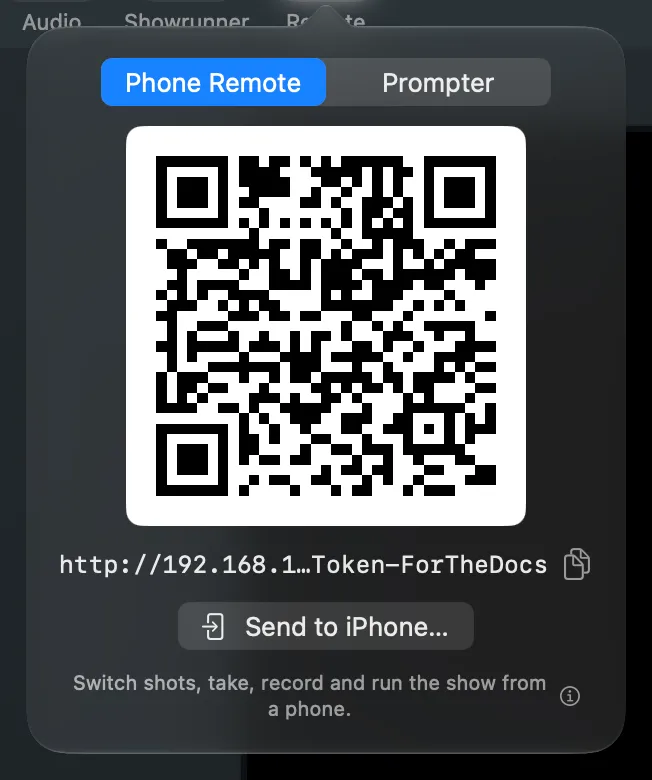
Section titled “Step 1: Open the code”Click Remote in the toolbar, or choose Window › Phone Remote Code (⌥⌘R). For the prompter, choose Window › Prompter Code.
Step 2: Choose the page
Section titled “Step 2: Choose the page”At the top of the popover, choose Phone Remote or Prompter.
Step 3: Send it
Section titled “Step 3: Send it”Click Send to iPhone… and pick the iPhone in the AirDrop window. The button is not shown where AirDrop is not available.
Or point the iPhone’s camera at the code and tap the link it shows. Or click the copy button beside the address and paste it on the iPhone.
Verify
Section titled “Verify”The page opens in Safari on the iPhone. The phone remote shows the program picture and the layers’ shots. If it says to scan the code again, the token has changed since: send the code again.
Related
Section titled “Related”Describes Live Producer 0.305 · 29 October 2026