
Replace a stand-in’s drawing with the real camera, file, page, window or input, without changing any shot. See Stand-ins and linking.
Before you start
Section titled “Before you start”- Open the show that has the stand-ins.
- Connect the camera or audio interface, open the window to capture, or have the file at hand.
Step 1: Find the stand-ins
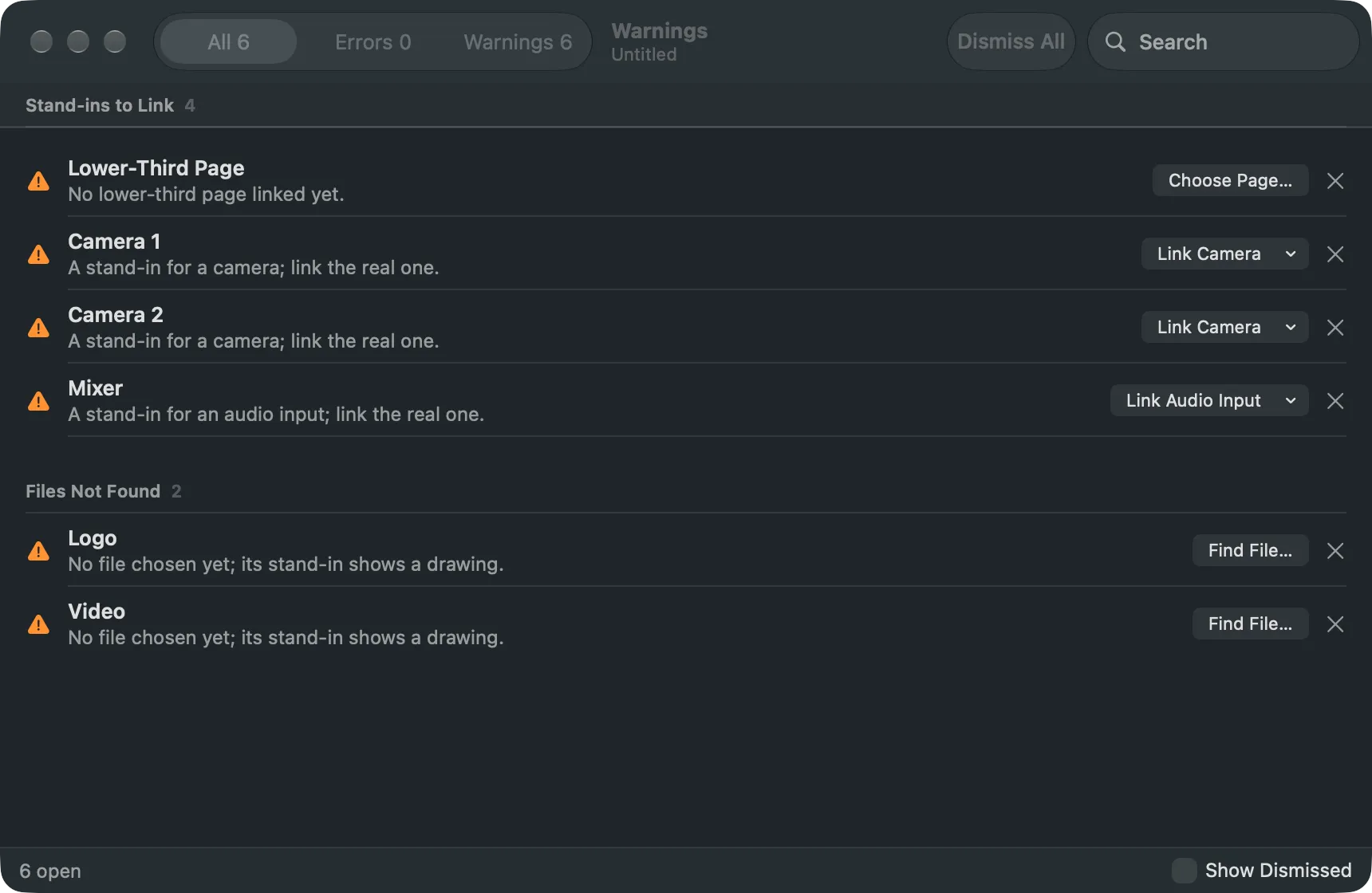
Section titled “Step 1: Find the stand-ins”Choose Window › Warnings (⌥⌘’). The Stand-ins to Link group lists every stand-in, and Files Not Found lists every file the show cannot find.
Step 2: Link from the Warnings window
Section titled “Step 2: Link from the Warnings window”Click the fix button on the stand-in’s row:
| Button | What happens |
|---|---|
| Link Camera | a menu of the cameras connected now; choose one |
| Link Audio Input | a menu of this Mac’s audio inputs; choose one |
| Link Window… | the window picker opens on the main window |
| Link Page… | the address sheet opens on the main window |
| Choose Page… | an open panel for the lower-third HTML file |
| Find File… | an open panel for the file |
Step 3: Or link from the sidebar or the inspector
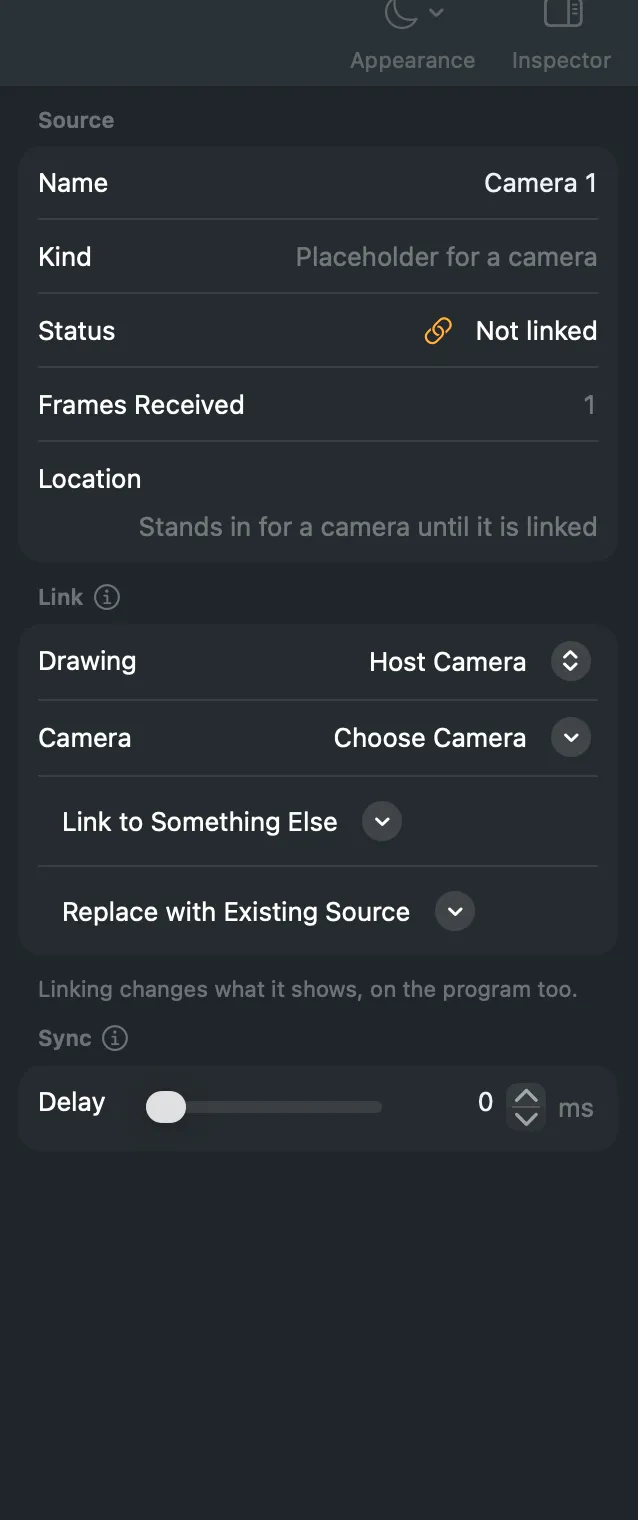
Section titled “Step 3: Or link from the sidebar or the inspector”Right-click the stand-in’s tile in the sidebar. The first item fits what it expects, for example Link to Media File… or Link to Camera. Link to Something Else offers every other kind.
Or select the tile and use the inspector’s Link section. Replace with Existing Source there uses another source of the show in every shot instead, and removes the stand-in.
You can also drag a file from Finder onto the stand-in’s tile.
Verify
Section titled “Verify”- The tile shows the real picture instead of the drawing.
- The inspector’s Status no longer says Not linked.
- The stand-in’s warning is gone from the Warnings window.
Related
Section titled “Related”Describes Live Producer 0.305 · 29 October 2026