
Switch captions on for the show, choose the language, size and background, and turn them off at once when needed.
Put live captions on the program and set how they look. See Live captions.
Before you start
Section titled “Before you start”- Open the show. Captions are saved with it.
- Make sure the speech language you need is installed on this Mac.
- Have speech in the program sound to test with: a microphone shot that is live, or a clip.
Step 1: Open the captions settings
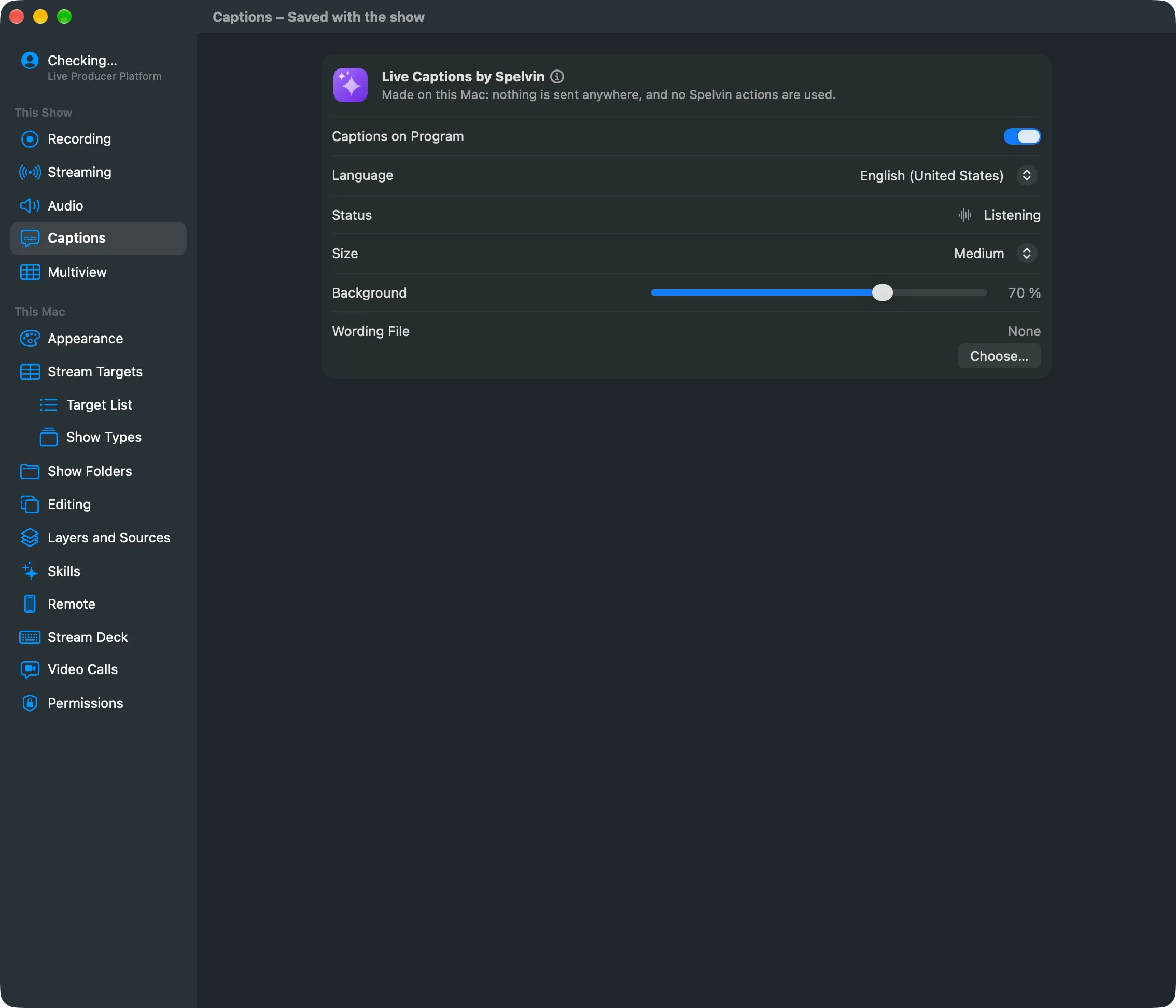
Section titled “Step 1: Open the captions settings”Choose Settings… in the app menu (⌘,) and click Captions under This Show.
Step 2: Choose the language
Section titled “Step 2: Choose the language”Choose the spoken language in Language. Only the speech languages installed on this Mac are listed.
Step 3: Set the look
Section titled “Step 3: Set the look”| Setting | Choose |
|---|---|
| Size | Small, Medium or Large |
| Background | how dark the bar behind the text is; 0 % shows no bar and edges the text instead |
Step 4: Turn captions on
Section titled “Step 4: Turn captions on”Turn on Captions on Program. Or click Captions in the main window’s toolbar, or choose Switcher › Captions on Program (⇧⌘C). All three do the same.
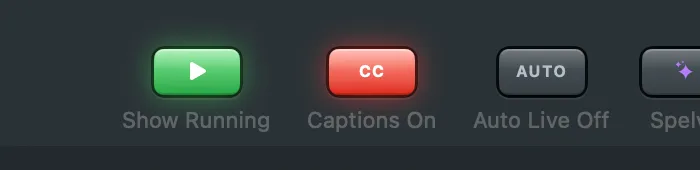
Status shows whether the captions are listening.
Step 5: Turn them off when needed
Section titled “Step 5: Turn them off when needed”The text cannot be corrected. If it goes wrong on air, press ⇧⌘C or click Captions in the toolbar: they go off at once.
Verify
Section titled “Verify”- Status says Listening, and the toolbar button says Captions On.
- Speak, or play a clip with speech, on the program: a line of text builds along the bottom of the program, one to two seconds behind.
If the button says Captions Stopped, rest the pointer on it for the reason.
Related
Section titled “Related”Describes Live Producer 0.305 · 29 October 2026