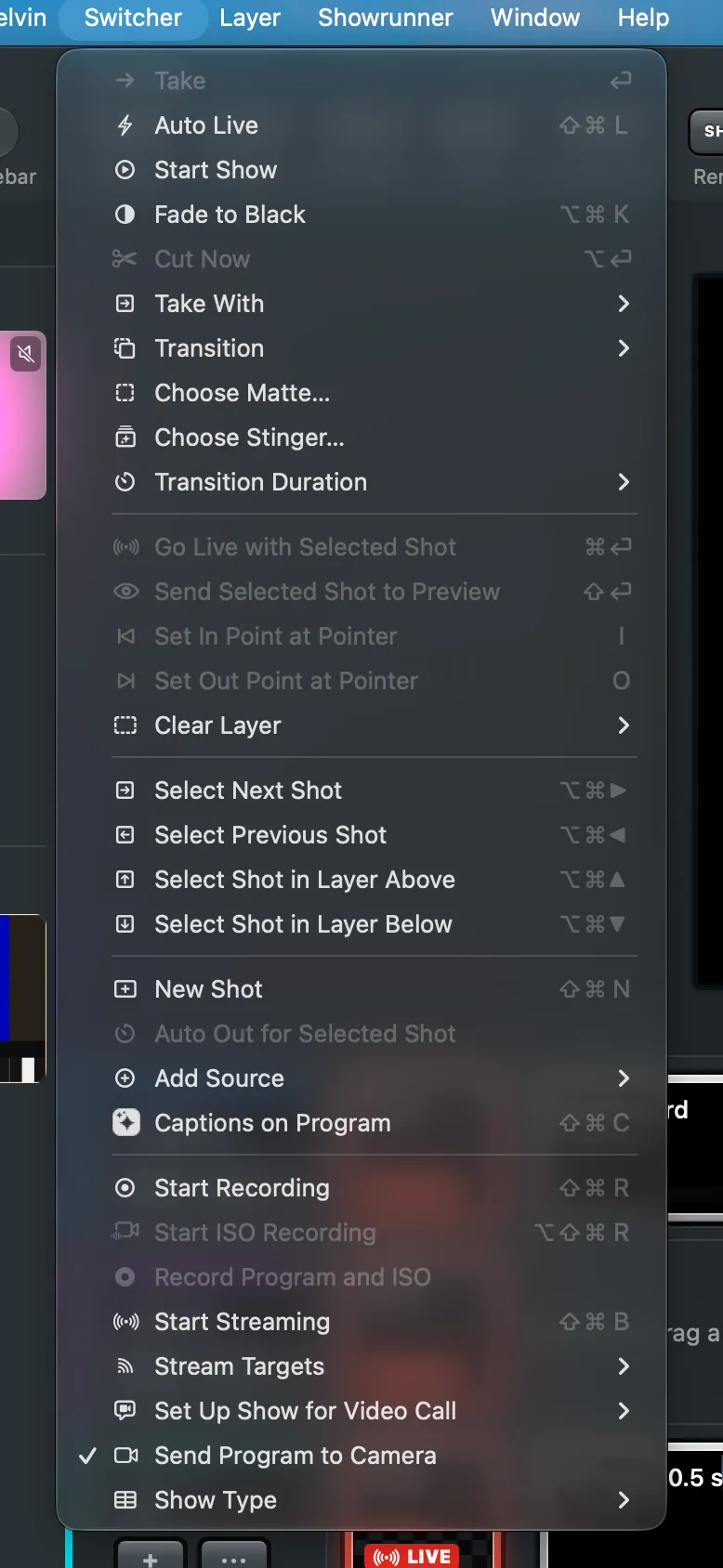
The shortcuts of Live Producer Studio, by menu in the menu bar. A menu item without a shortcut is
left out. The menus also show each shortcut beside its item.
Command
Shortcut
Settings…
⌘,
Command
Shortcut
New Show…
⌘N
Open…
⌘O
Save
⌘S
Save As…
⇧⌘S
Command
Shortcut
Undo
⌘Z
Redo
⇧⌘Z
Delete (the selected shot, source or element)
⌘⌫
Command
Shortcut
Show Status Bar / Hide Status Bar
⌘/
Layer Height › Smaller Layers
⌃⌘-
Layer Height › Larger Layers
⌃⌘=
Show Grid / Hide Grid
⌘’
Show Guides / Hide Guides
⌘;
Snap to Grid
⇧⌘;
Command
Shortcut
Take
Return
Auto Live
⇧⌘L
Fade to Black / Fade Up from Black
⌥⌘K
Cut Now
⌥Return
Go Live with Selected Shot
⌘Return
Send Selected Shot to Preview
⇧Return
Set In Point at Pointer / Clear In Point
I
Set Out Point at Pointer / Clear Out Point
O
Select Next Shot
⌥⌘→
Select Previous Shot
⌥⌘←
Select Shot in Layer Above
⌥⌘↑
Select Shot in Layer Below
⌥⌘↓
New Shot
⇧⌘N
Captions on Program
⇧⌘C
Start Recording / Stop Recording…
⇧⌘R
Start ISO Recording / Stop ISO Recording…
⌥⇧⌘R
Start Streaming / Stop Streaming…
⇧⌘B
I and O work while the pointer rests on a clip in the preview.
Command
Shortcut
New Layer
⌥⌘N
Command
Shortcut
Next Part
⌘]
Previous Part
⌘[
Next Section
⌥⌘]
Previous Section
⌥⌘[
Deck One Click On
⌃⌘]
Deck One Click Back
⌃⌘[
Command
Shortcut
Audio Routing
⌥⌘A
Preview Window
⌥⌘E
Program Window
⌥⌘P
Multiview
⌥⌘V
Showrunner
⌥⌘S
Phone Remote Code
⌥⌘R
Live Producer Platform
⌥⌘L
Spelvin
⌥⌘J
Warnings
⌥⌘’
Audio Routing Left Third, Switcher Two Thirds
⌃⌥⌘←
Switcher Two Thirds, Audio Routing Right Third
⌃⌥⌘→
Command
Shortcut
Live Producer Documentation
⌘?
Do
To
Click, then click again in the same place
select the element in front, then the one beneath
Shift while dragging a corner
switch Keep Proportions for this drag
Shift while dragging the round handle
roll in steps of 15°
Hold Option
crop the selected element
Option while dragging a value’s number
change it in big steps
On the computer or tablet that shows the prompter, with a keyboard or a presenter clicker:
Key
Does
Space
start or pause auto-scroll
Page Down or →
move half a screen on
Page Up or ←
move half a screen back
↓ or .
move two lines on
↑ or ,
move two lines back
Home
jump to the part on air
F
Follow on or off
M
mirror, for beam-splitter glass
+ and −
text larger or smaller
] and [
auto-scroll faster or slower, 10 words a minute at a time