
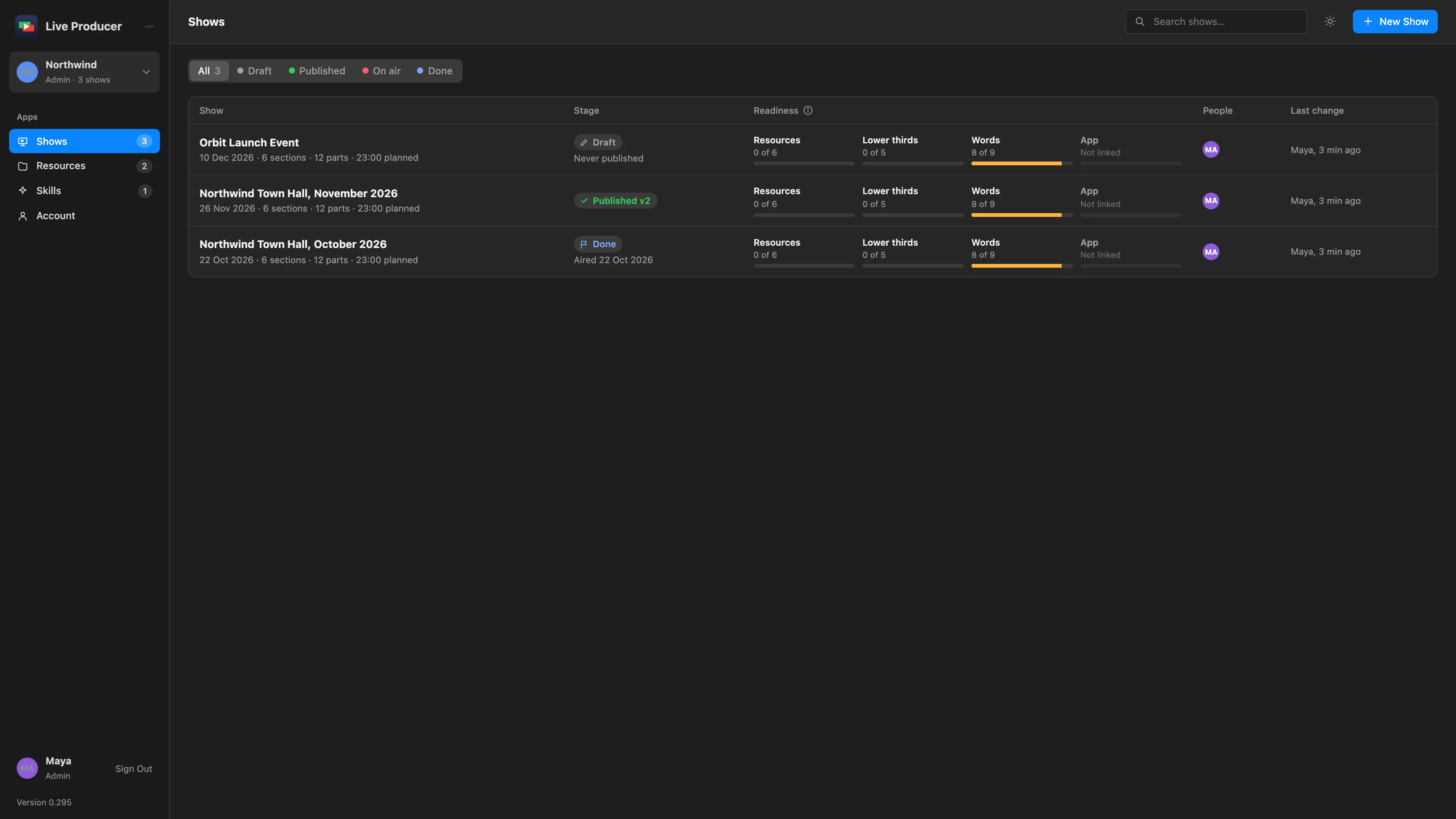
The Shows page lists every show of your company. It is the first page you see after you sign in. Click a row to open the show in the show editor.
The rail
Section titled “The rail”The column on the left of every page. At the top is your company, with your role and its number of shows. Click it to switch to another company you belong to, or to make one with New Company…. Below it are the apps: Shows, Resources, Skills and Spelvin, then Account. Your name, Sign Out and the platform’s version sit at the bottom. See Companies, people and roles.
The top bar
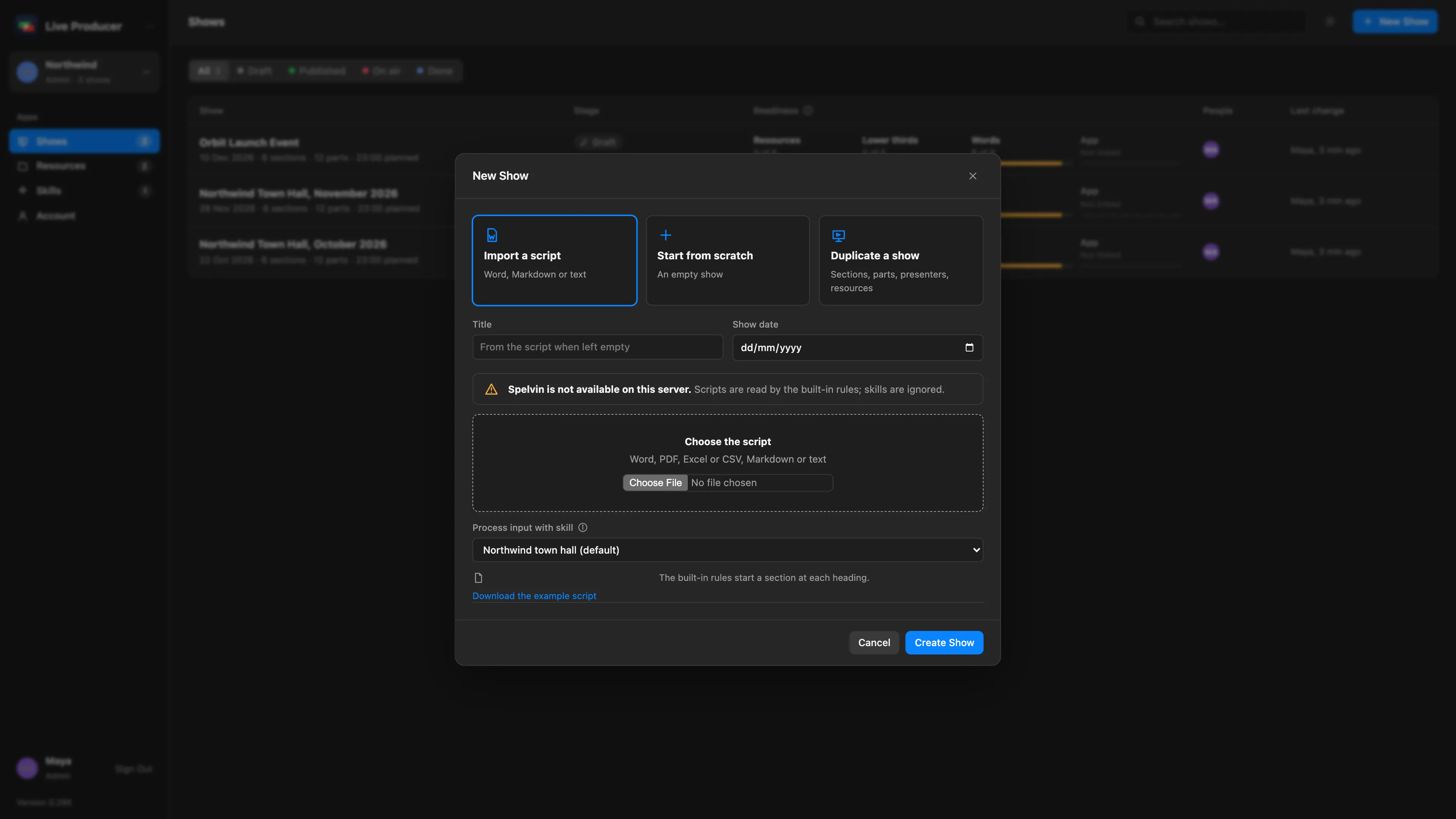
Section titled “The top bar”Search shows… filters the list as you type. The sun button switches between light and dark. New Show opens the dialog that makes a show; only admins and showrunners see it. See Create a show on the web.
The filters
Section titled “The filters”All, Draft, Published, On air and Done show the shows in that stage.
| Stage | Means |
|---|---|
| Draft | Never published. |
| Published vN | Version N is published for the Studio to pull. |
| On air | A Mac that runs the show reports its clock running. See Live status. |
| Done | The show’s date has passed. |
A Draft differs chip under the stage means the draft has changes nobody published yet.
The list
Section titled “The list”Each row shows the show’s title and date, its stage, its readiness, the people working on it and the last change. Readiness is four meters:
| Meter | Counts |
|---|---|
| Resources | The files the show needs: a file for every recording and video. |
| Lower thirds | Presenters with a title and a photo. |
| Words | Spoken parts that have words for the prompter. |
| App | Whether a Mac has linked the show and pulled the newest version. |
See also
Section titled “See also”Describes Live Producer 0.305 · 29 October 2026