
Check a clip’s sound, or a microphone, on your own headset while the program carries on. See Listening privately.
Before you start
Section titled “Before you start”- Connect your headset to this Mac.
- Have the clip or audio input in the show.
Step 1: Connect Audition to your headset
Section titled “Step 1: Connect Audition to your headset”Open Window › Audio Routing (⌥⌘A). Drag from the Audition bus’s port to your headset’s card, or tick the headset under Outputs in the bus’s … menu. You do this once per show.
Step 2: Select the clip
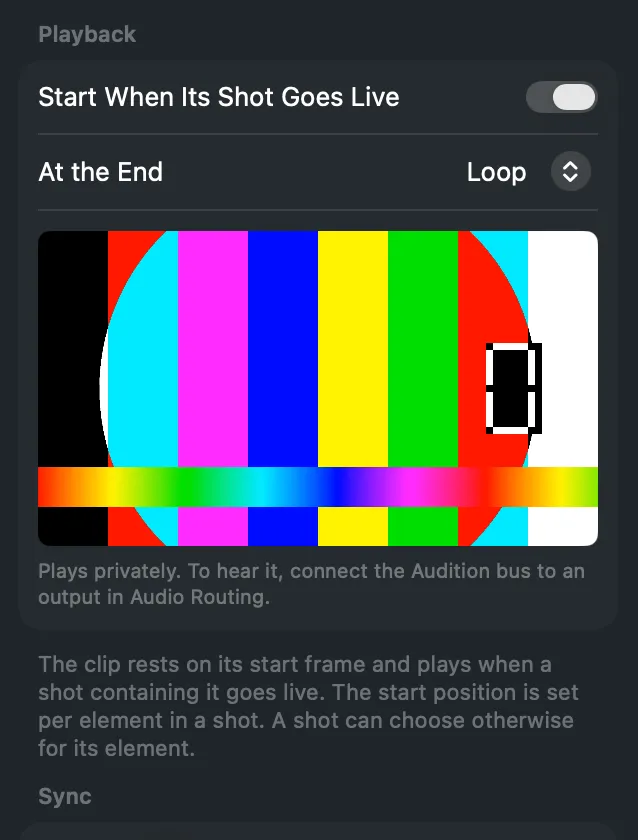
Section titled “Step 2: Select the clip”Select the clip in the sidebar, or select a shot and the element that shows it. The inspector shows a private player under Playback (for the source) or Clip (for a shot’s element). The note under it should say it plays privately on the Audition bus.
Step 3: Play it
Section titled “Step 3: Play it”Play, pause, skip back and forward, or scrub. For a shot’s element, the player starts at that shot’s in-point.
Step 4: Or listen to a live input
Section titled “Step 4: Or listen to a live input”For a microphone or a test tone, select the source and turn on Listen Privately in the inspector. Turn it off when you are done.
Verify
Section titled “Verify”- You hear the clip or input in your headset.
- The program monitor and the Program bus’s meters do not change.
- In Audio Routing, the source’s card says Listening privately for a live input.
Related
Section titled “Related”Describes Live Producer 0.305 · 29 October 2026