
You edit a show’s draft on the web; the Studio pulls only published versions. Publishing makes the draft the show’s next version. To read how versions work, see Published versions.
Before you start
Section titled “Before you start”- You are an admin or a showrunner.
- The draft has changes: the show’s header says Draft differs and what changed.
Step 1: Check what changed
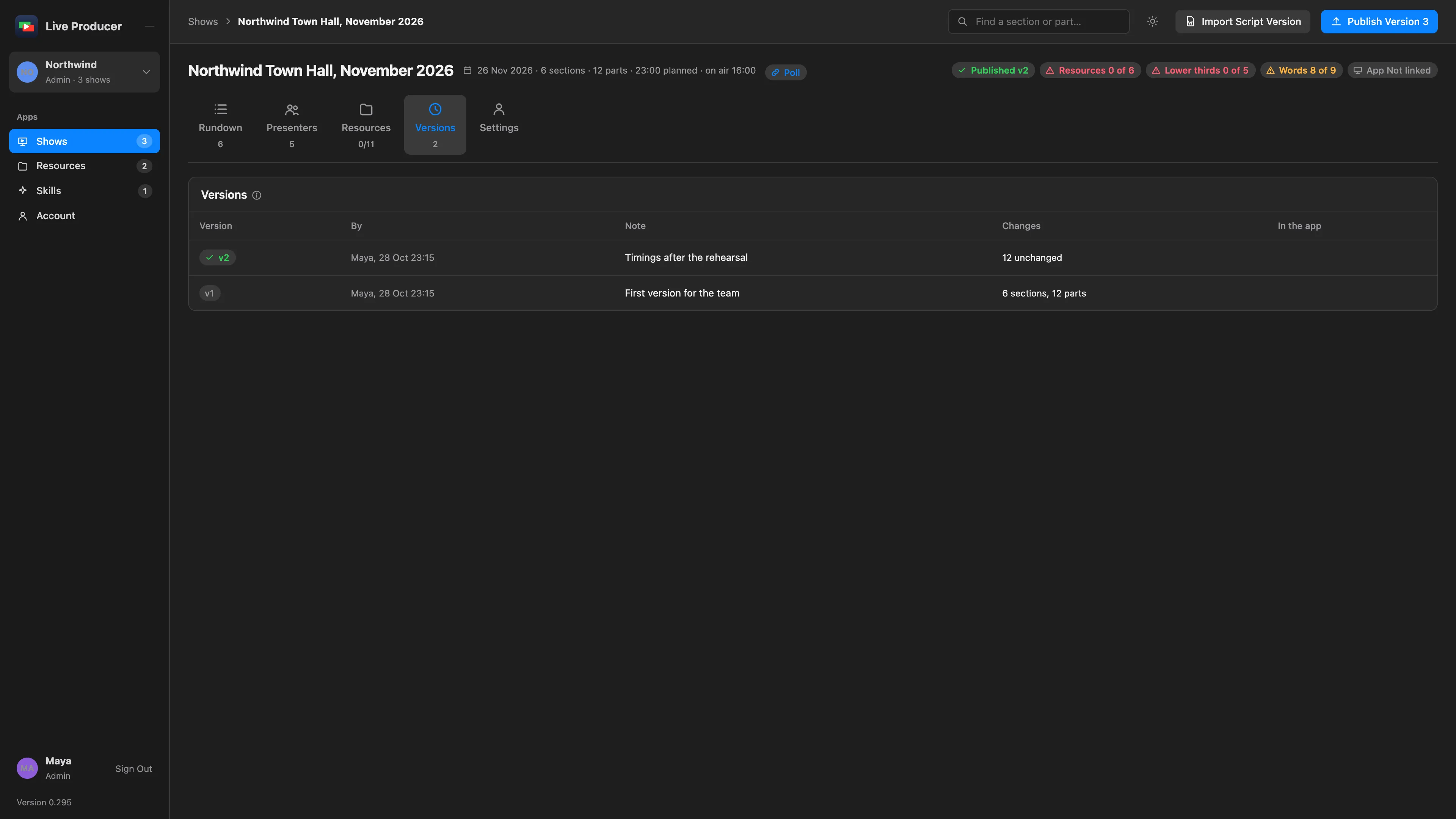
Section titled “Step 1: Check what changed”Open the show and click the Versions tab. The top row, Draft, lists the changes nobody published yet.
Step 2: Publish
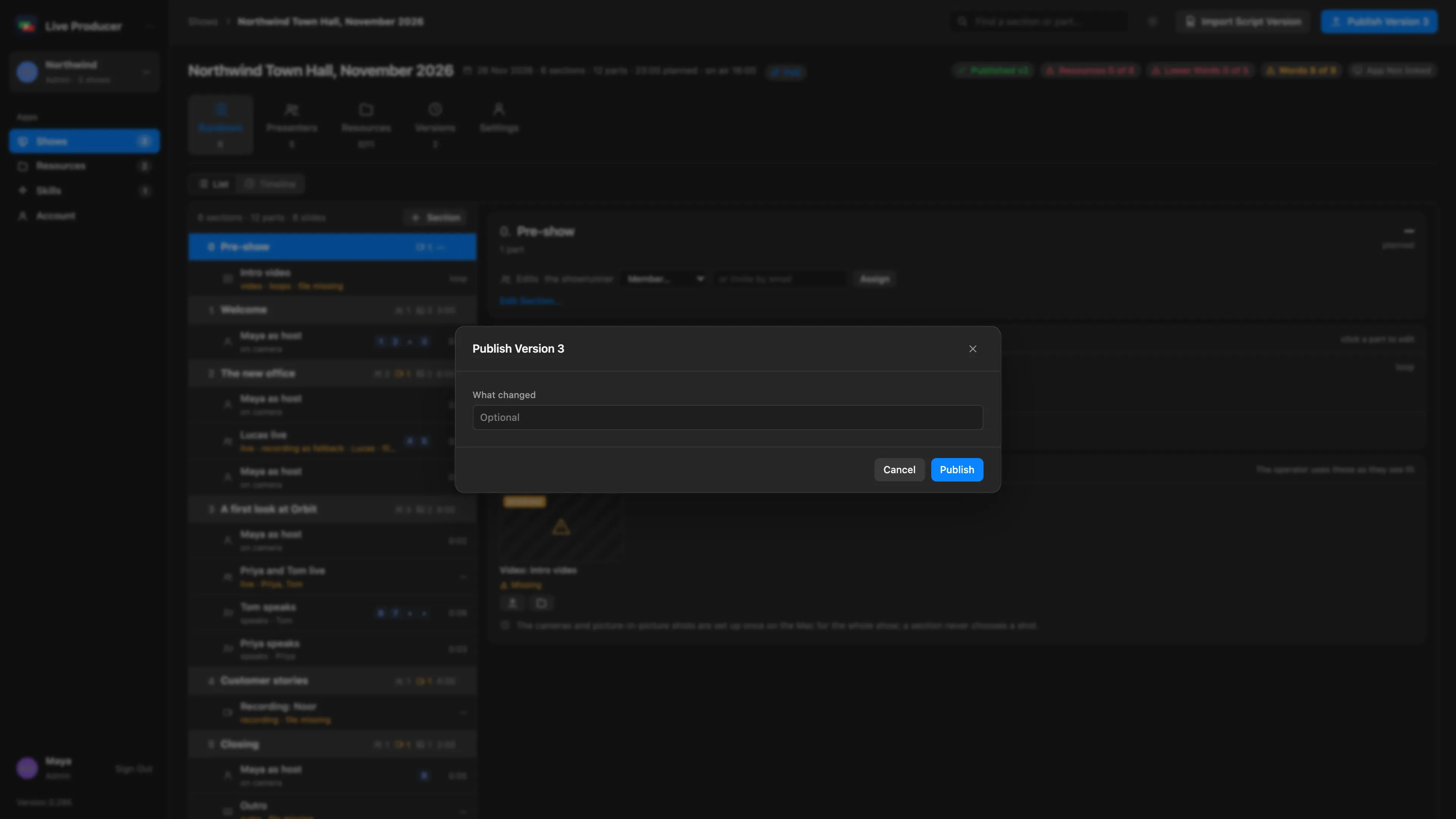
Section titled “Step 2: Publish”Click Publish Version N at the top right. Type a note under What changed if you like; it is optional. Click Publish.
Step 3: Let the Studio take it
Section titled “Step 3: Let the Studio take it”A Mac linked to the show sees the new version:
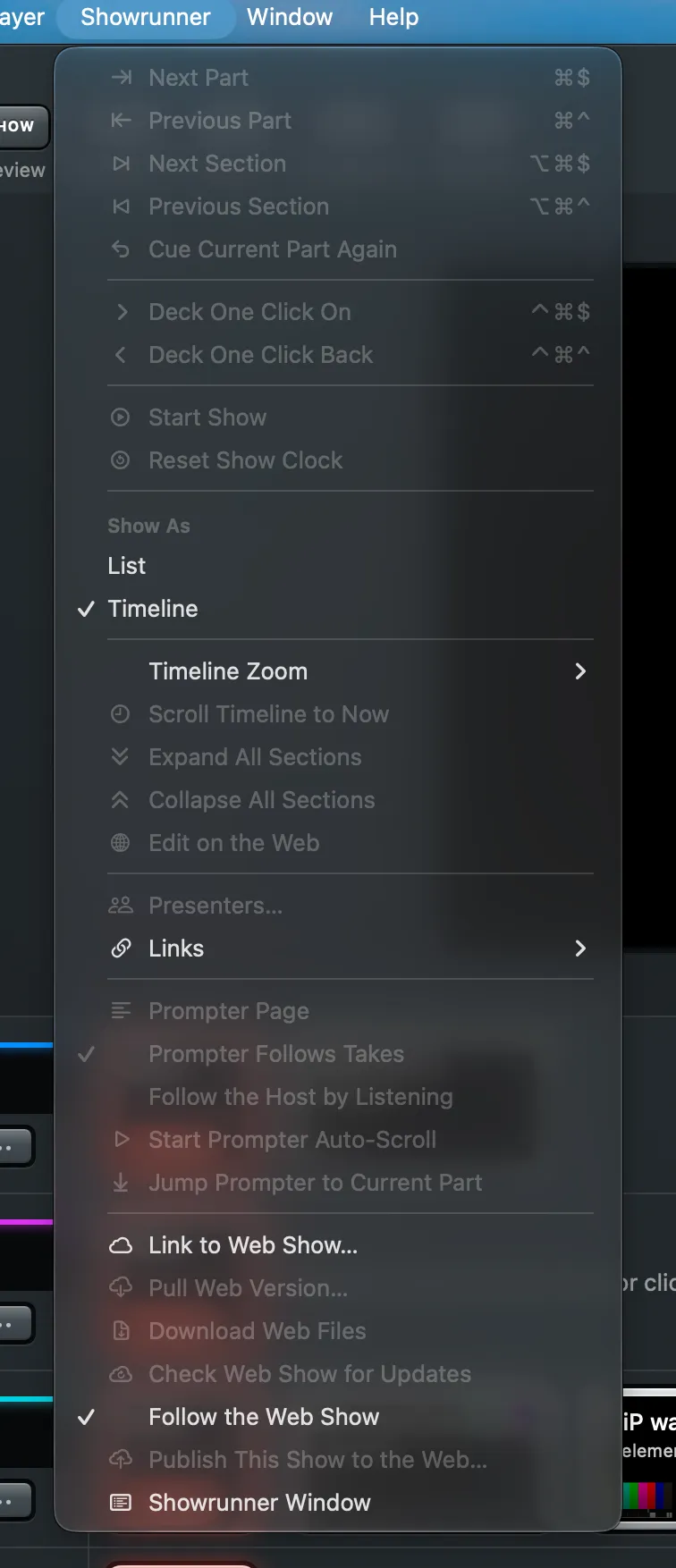
- With Showrunner › Follow the Web Show on, the version lands in the show by itself, also during the show, between Takes.
- With it off, choose Showrunner › Pull Version N…. The changes come in through the import sheet, and nothing changes before you confirm.
Nothing on the program changes until the operator’s next Take.
Verify
Section titled “Verify”- The show’s stage on the Shows page is Published vN.
- On the Versions tab, the new version lists the Macs that pulled it.
- The App meter says Linked, vN pulled.
Related
Section titled “Related”Describes Live Producer 0.305 · 29 October 2026