
Set what Take does, how the transition looks and how long it takes, and keep your own preset durations.
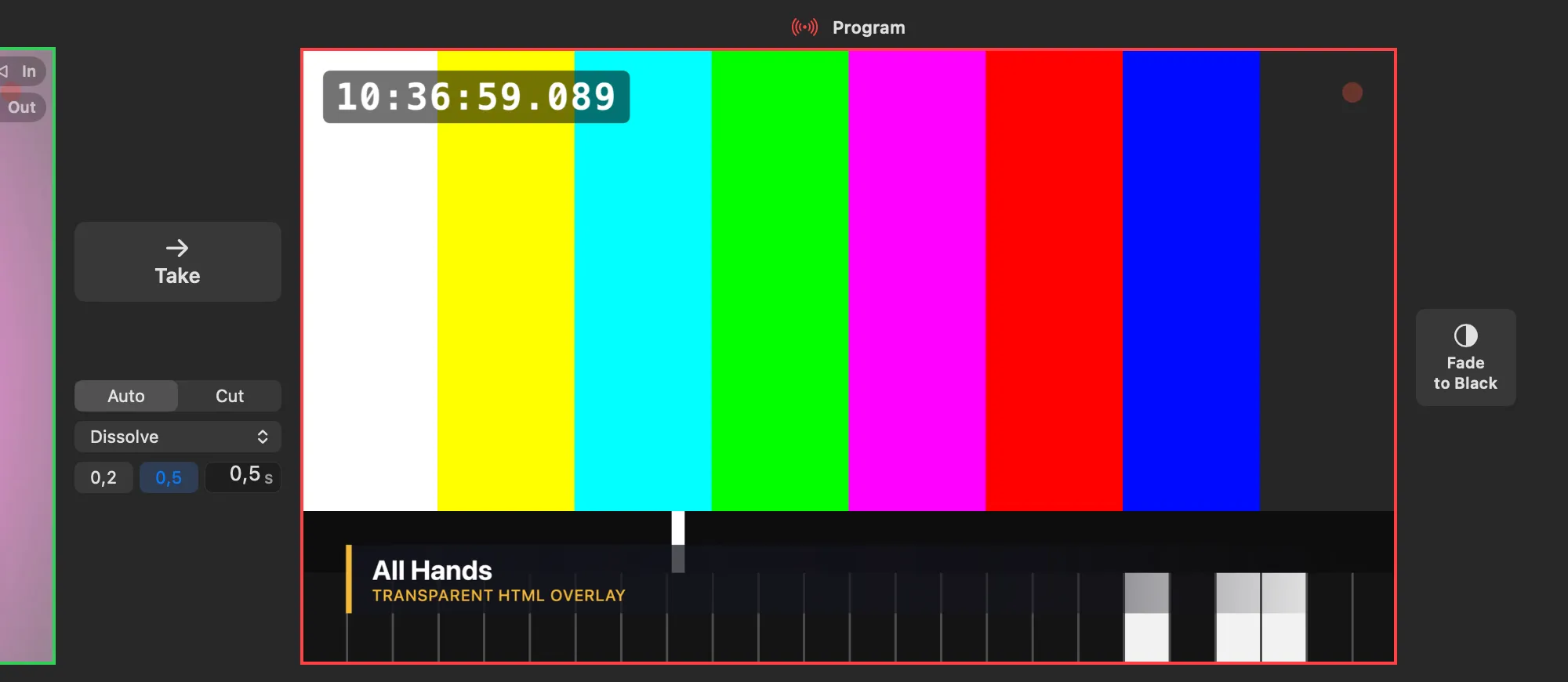
Set the show’s transition in the column between the preview and program monitors. What each choice does is explained in Transitions.
Before you start
Section titled “Before you start”- The column looks different in the two looks (View › Look: Console or Plain), but holds the same controls in the same order. The Switcher menu has them too.
Step 1: Choose Auto or Cut
Section titled “Step 1: Choose Auto or Cut”Click AUTO to take with the transition, or CUT to change the program at once (Plain: Auto | Cut). Same in the menu: Switcher › Take With. While Cut is chosen, the look and the duration rest, dimmed.
Step 2: Choose the look
Section titled “Step 2: Choose the look”Click the transition’s name (Dissolve to start with) and choose another from the menu, or use Switcher › Transition. Choosing a look sets Take With to Auto.
For Matte Wipe or Stinger, choose the file with Switcher › Choose Matte… or Choose Stinger…: an image, a folder of frames, a movie or an HTML page. A stinger keeps its own length.
Step 3: Set the duration
Section titled “Step 3: Set the duration”- Click a preset, 0.2 or 0.5, or
- type a duration in the field, or drag left and right on it: 0.1 to 5 seconds.
Switcher › Transition Duration lists the presets too.
Step 4: Keep a duration on a preset (optional)
Section titled “Step 4: Keep a duration on a preset (optional)”Right-click a preset and choose Keep Current Duration Here. The preset now holds the current duration on this Mac, for every show.
Verify
Section titled “Verify”- Select a shot for the preview and press Take: the program changes with the look and in the time you chose. In the Console look the T-bar travels along.
- Your choices are saved with the show; Edit › Undo takes one back.
Related
Section titled “Related”Describes Live Producer 0.305 · 29 October 2026