
Open the prompter on the presenter's device and let it follow the show or the host.
Put the script in front of the presenter, on a prompter screen, an iPad or a phone. See Follow Host and The prompter.
Before you start
Section titled “Before you start”- The show has a rundown. See Import a script.
- The prompter device is on the same network as this Mac.
Step 1: Get the address to the device
Section titled “Step 1: Get the address to the device”Choose Window › Prompter Code. The Remote popover opens on Prompter with a QR code.
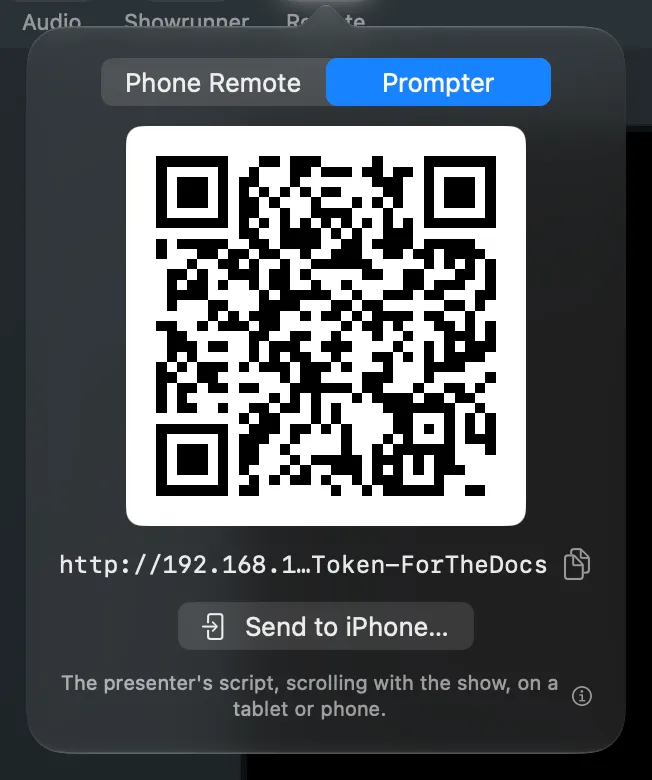
- Point the device’s camera at the code, or
- click Send to iPhone… to send it with AirDrop, or
- copy the address and open it on the device.
The address carries the token another device needs. To open the prompter on this Mac, click Open Page in the Showrunner’s prompter bar, or choose Showrunner › Prompter Page.
Step 2: Set up the page
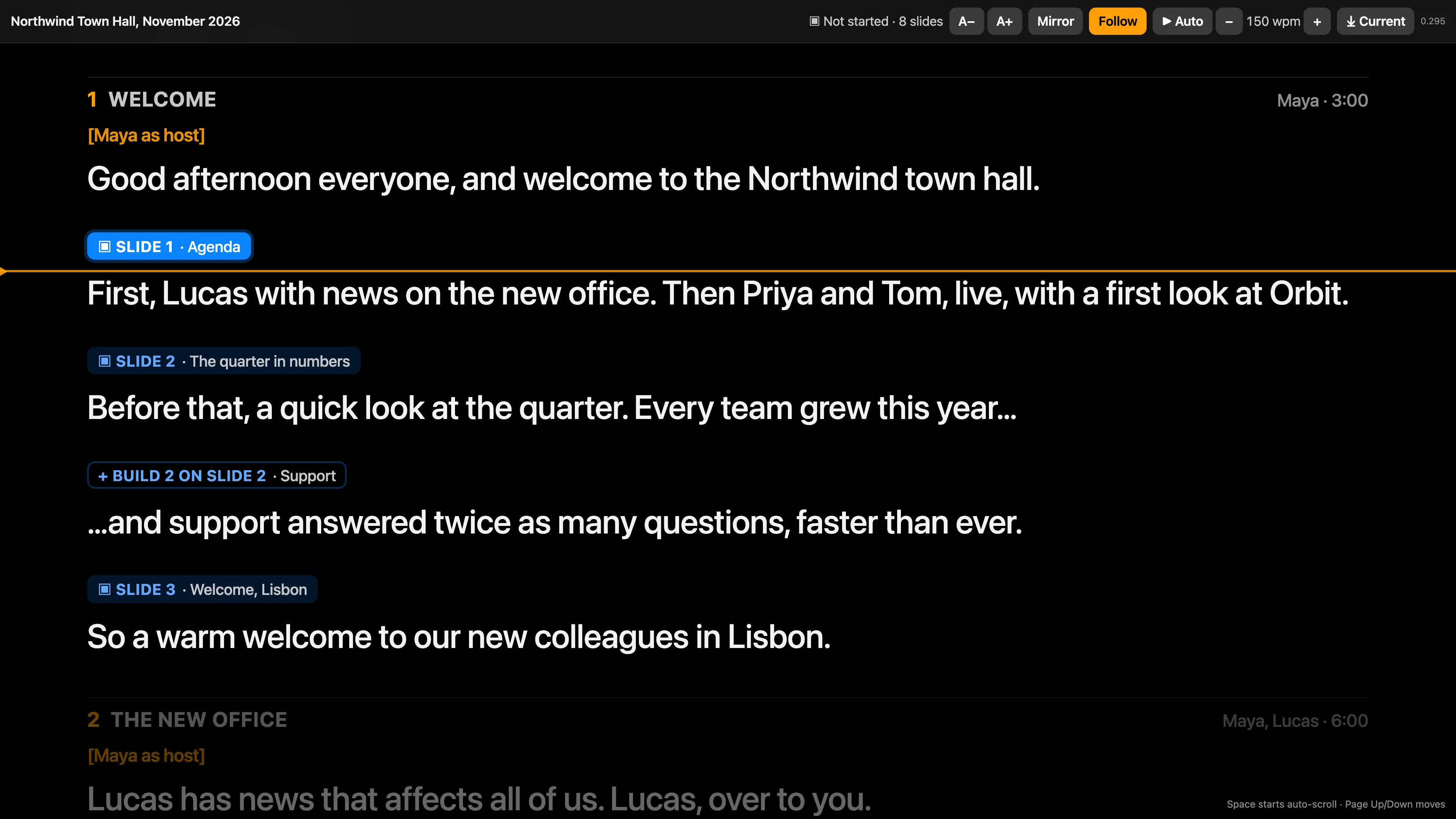
Section titled “Step 2: Set up the page”Make the browser full screen. Tap or move the pointer to show the top bar. Set the size with A− and A+, and click Mirror for beam-splitter glass. The page remembers both.
Step 3: Choose how it moves
Section titled “Step 3: Choose how it moves”| Way | How |
|---|---|
| With each Take | Follow on the page (F), or Follow Takes in the prompter bar |
| At a pace | ▶ Auto (Space) with the pace in words per minute; it stops at the end of each part |
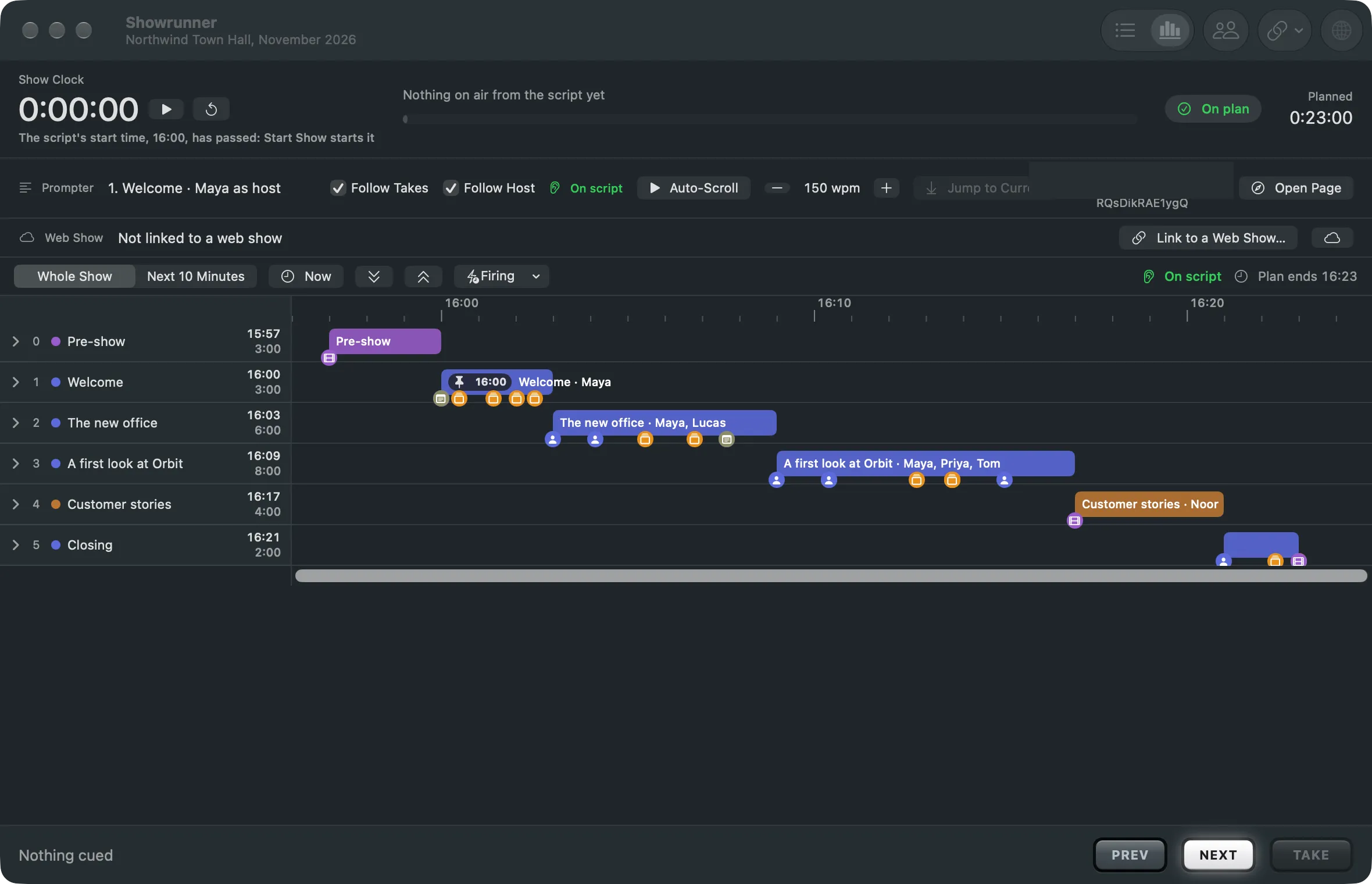
| By the operator | Auto-Scroll, the pace and Jump to Current in the prompter bar |
| By the presenter | A presenter clicker, Page Up and Down, or the arrow keys on the prompter device |
| By the host’s voice | Follow Host in the prompter bar |
Step 4: Turn on Follow Host
Section titled “Step 4: Turn on Follow Host”In the Showrunner window’s prompter bar, tick Follow Host. The bar shows “Listening…”, then “On script” while it follows.
Verify
Section titled “Verify”With Follow on, take the next part. Every open prompter page moves to it and shows the same place. On the Mac, the prompter bar names the part the prompter is at.
Related
Section titled “Related”Describes Live Producer 0.305 · 29 October 2026