
Show the program in a window of its own, or full screen on another display.
Put the program on a screen in the room, a confidence monitor or a projector. The Multiview window works the same way. See Multiview.
Before you start
Section titled “Before you start”- Connect the second display and set it up in macOS as a separate display, not mirrored.
- Open the show.
Step 1: Open the Program window
Section titled “Step 1: Open the Program window”Choose Window › Program Window (⌥⌘P), or click Program in the main window’s toolbar. The program opens in a window of its own.
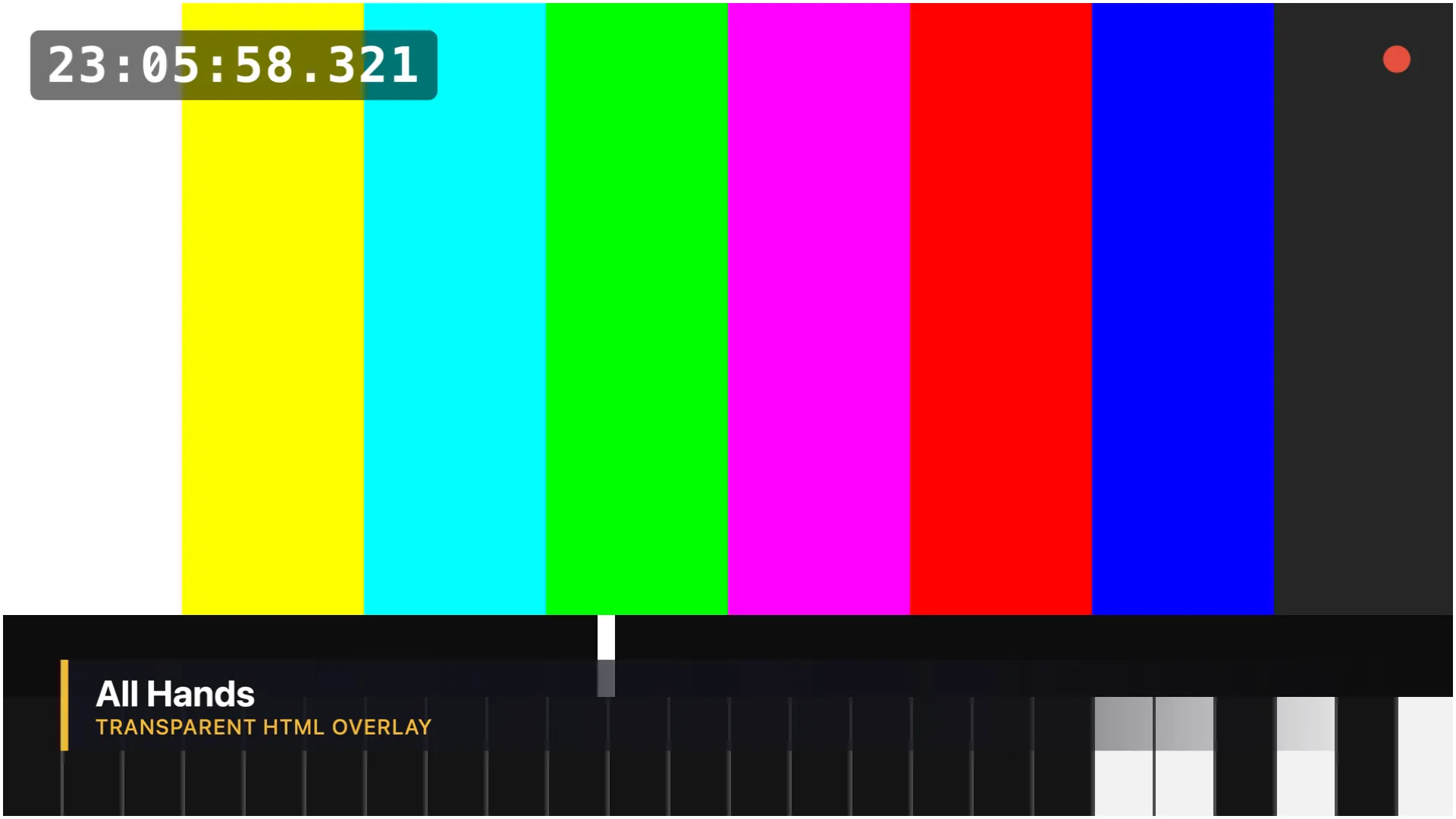
The window always keeps the program’s 16:9 shape: resize it and its height follows its width.
Step 2: Put it full screen on the display
Section titled “Step 2: Put it full screen on the display”Choose Window › Program Full Screen On and choose the display by name. The window moves to that display and goes full screen. The pointer hides there until you move it.
To keep a window instead, drag the Program window to the other display and size it there.
Step 3: Do the same for the multiview
Section titled “Step 3: Do the same for the multiview”For a monitor wall, choose Window › Multiview (⌥⌘V), then Window › Multiview Full Screen On and its display.
Verify
Section titled “Verify”- The display shows the program, and it changes when you Take.
- The picture fills the display, with no window frame.
The show remembers where the Program window was, so it comes back on the same display.
To leave full screen, use the window’s full-screen controls as for any Mac window.
Related
Section titled “Related”- Multiview
- The windows
- Live Producer Camera: the program as a camera in a call, without a display
Describes Live Producer 0.305 · 29 October 2026