
Start every checked target with one command, start or stop one target on its own, and end the stream. See Streaming.
Before you start
Section titled “Before you start”- The show has a show type with targets, or targets checked one by one, in Settings › This Show › Streaming. See Add a stream target.
- For YouTube or Vimeo, the event is set up on the platform and waits for your stream.
Step 1: Check what will start
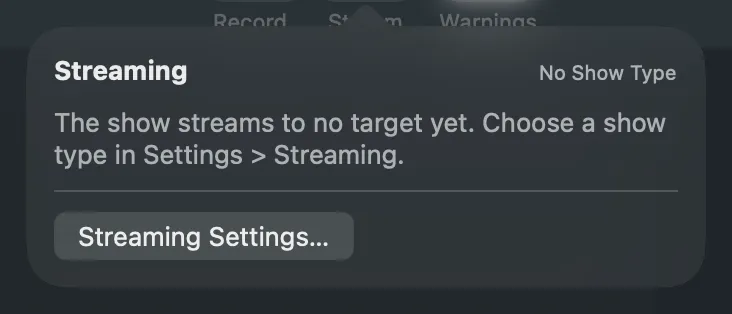
Section titled “Step 1: Check what will start”Click Stream in the toolbar. The popover names the show type and lists each target with its state. Streaming Settings… opens the show’s Streaming page.
Step 2: Start streaming
Section titled “Step 2: Start streaming”Choose Switcher › Start Streaming (⇧⌘B), or click Start Streaming in the popover. Every checked target starts. The toolbar’s Stream button shows the result in words, such as “Live 12:03”, “2 of 3 Live”, “Connecting” or “Stream Failed”.
To start one target, click its Start in the popover, or choose it from Switcher › Stream Targets.
Step 3: Watch the targets
Section titled “Step 3: Watch the targets”Open the popover while live. Each target shows its state, its kb/s and any dropped frames. A target that reconnects or fails says why underneath.
Step 4: Stop the stream
Section titled “Step 4: Stop the stream”In the popover, click Stop All…, or Stop… beside one target. You can also choose Switcher › Stop Streaming… (⇧⌘B), which opens the popover. The popover asks first:
Click Stop Streaming (or Stop All) to end it, or Keep Streaming. Return never stops a stream. Viewers see the stream end; starting again begins a new stream, and some services make it a new broadcast.
Verify
Section titled “Verify”The toolbar’s button reads Stream again, and each target in the popover shows Ready. Check the platform’s own page to confirm the broadcast ended.
Related
Section titled “Related”Describes Live Producer 0.305 · 29 October 2026