
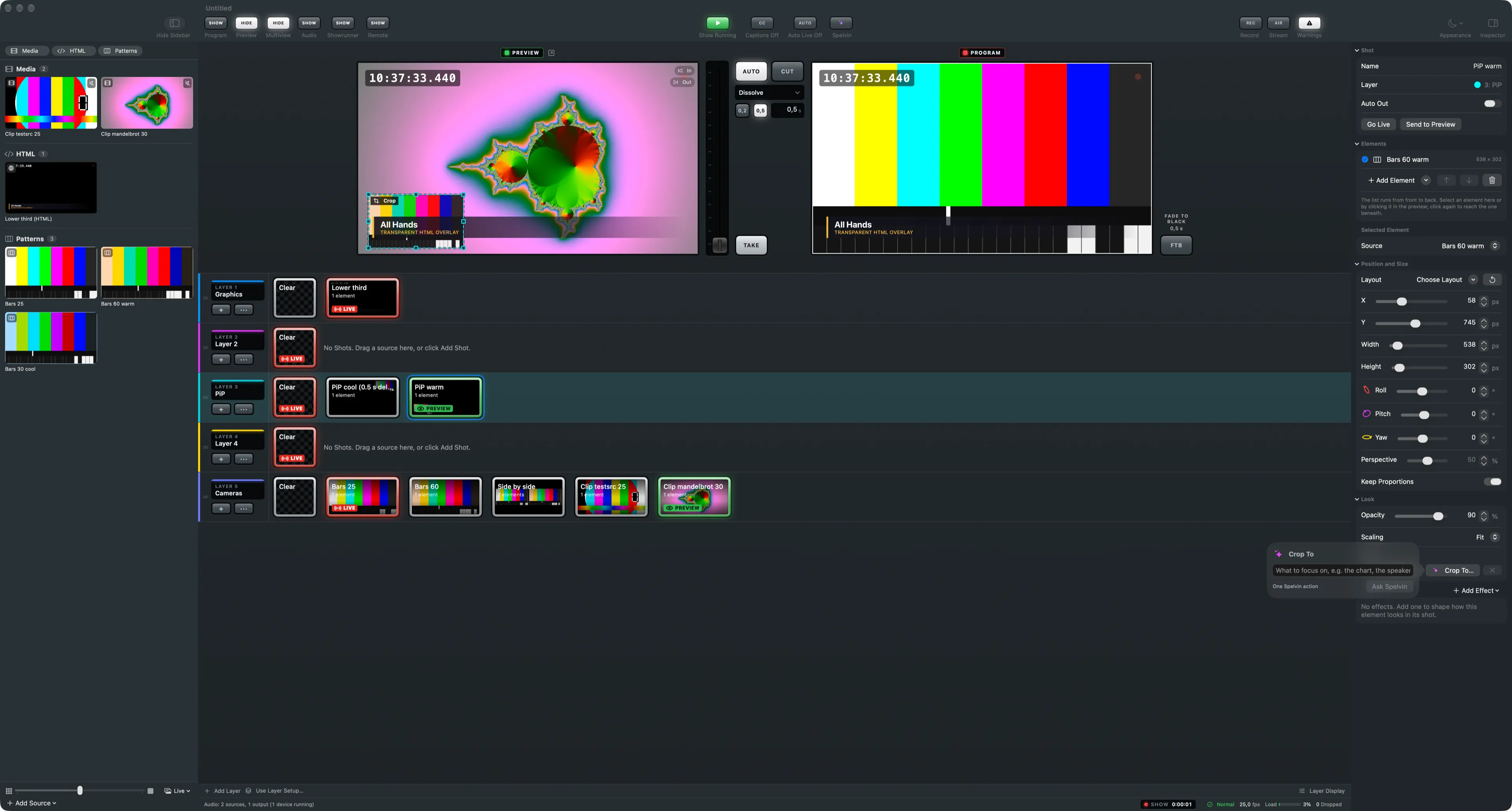
Crop To is the third way to crop an element, after dragging with Option and Auto Crop. You say in words what to keep, such as “the chart” or “the speaker”, and Spelvin finds that part of the picture. You see its proposal before anything changes.
Where you find it
Section titled “Where you find it”Select an element in a shot. In the inspector’s Look section, the Crop row has Auto Crop and Crop To…. Or choose Spelvin › Crop Selected Element To…. A field opens: type what to focus on and click Ask Spelvin.
What Spelvin sees
Section titled “What Spelvin sees”Spelvin gets a still of the element’s whole picture and your words. For a window of another app, it also gets the window’s parts as macOS names them, so a crop to one of them lands on it exactly. It is the only Spelvin task that sends a picture.
The proposal
Section titled “The proposal”The preview draws the crop as a dotted frame in Spelvin’s purple, with the whole picture faint behind it. A bar under the preview says what Spelvin found.
- Crop (Return) sets the element’s crop, as one undoable edit.
- Discard (Escape) leaves the picture as it is.
A turned or tilted element takes the crop the same way, but shows no frame. If what you asked for is not in the picture, Spelvin says so.
When to use it
Section titled “When to use it”Use Crop To when what you want is easy to name but fiddly to drag: one chart on a busy slide, one panel of an app’s window, the speaker in a wide shot. For the other ways to crop, see Crop a source.
Each Crop To counts one action, also when Spelvin answers that it is not there. See Actions and limits.
Read more
Section titled “Read more”Describes Live Producer 0.305 · 29 October 2026