
Put Live Producer Studio in Applications, open it the first time, and allow what macOS asks for.
Install Live Producer Studio on the Mac that runs your shows. Every permission macOS asks for, and why, is in Permissions.
Before you start
Section titled “Before you start”- A Mac with Apple silicon (M1 or later). Intel Macs are not supported.
- macOS 26 or later.
- 16 GB of memory is recommended.
- The Studio installer,
LiveProducer.dmg.
Step 1: Copy the Studio to Applications
Section titled “Step 1: Copy the Studio to Applications”Open LiveProducer.dmg and drag Live Producer into the Applications folder. Keep it there:
Live Producer Camera, the camera for video calls, installs only from the Applications folder.
Step 2: Open it
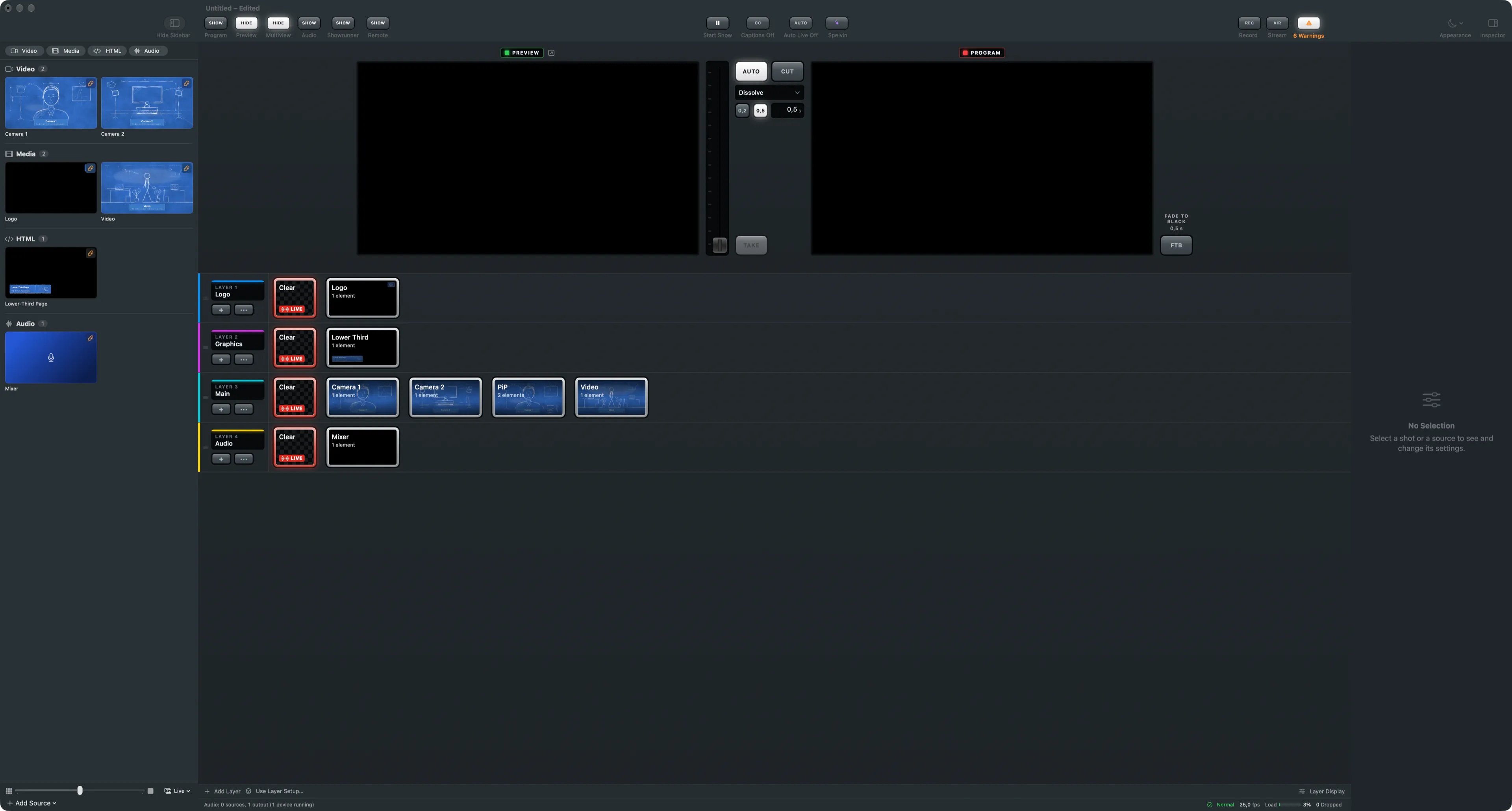
Section titled “Step 2: Open it”Open Live Producer from the Applications folder. The main window opens with a show, and you can switch right away. You do not need an account; the Studio works fully without one.
Step 3: Allow what macOS asks for
Section titled “Step 3: Allow what macOS asks for”macOS asks the first time the Studio needs something. Allow it:
| When | macOS asks for |
|---|---|
| A camera source starts | Camera |
| An audio input starts | Microphone |
| The phone remote or an NDI source is used | Local Network |
| Captions are turned on | Speech Recognition |
| A window of another app, or a web page, is captured | Screen Recording |
Step 4: Allow Screen Recording
Section titled “Step 4: Allow Screen Recording”Without Screen Recording, web pages update only about 12 times a second and windows of other apps cannot be captured.
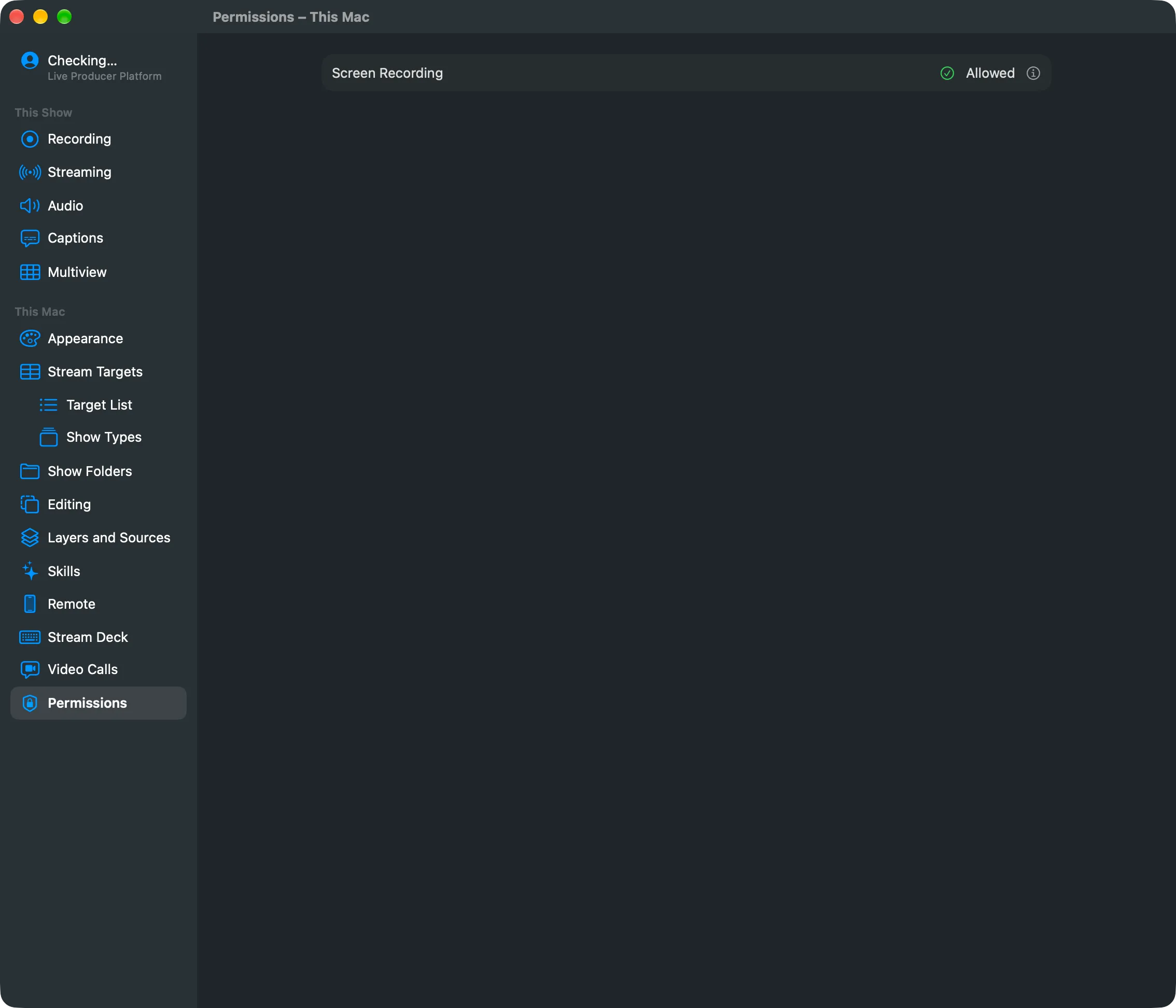
- Choose Live Producer › Settings… (⌘,) and click Permissions under This Mac.
- Click Request Access… and allow Live Producer in System Settings.
- Quit Live Producer and open it again.
Verify
Section titled “Verify”- Settings › This Mac › Permissions says Screen Recording is Allowed.
- Live Producer › About Live Producer shows the version.
Related
Section titled “Related”Describes Live Producer 0.305 · 29 October 2026