
Select an element in the preview, move, size, turn and crop it, and give it effects in the inspector.
Change where and how a source appears in a shot. The ideas behind it, from selecting to snapping, are in The editing canvas.
Before you start
Section titled “Before you start”- Select the shot you want to change. Edits go to the preview; the program follows on your next Take.
- For more room, open the preview in its own window: Window › Preview Window (⌥⌘E), or the button beside the Preview label.
Step 1: Select the element
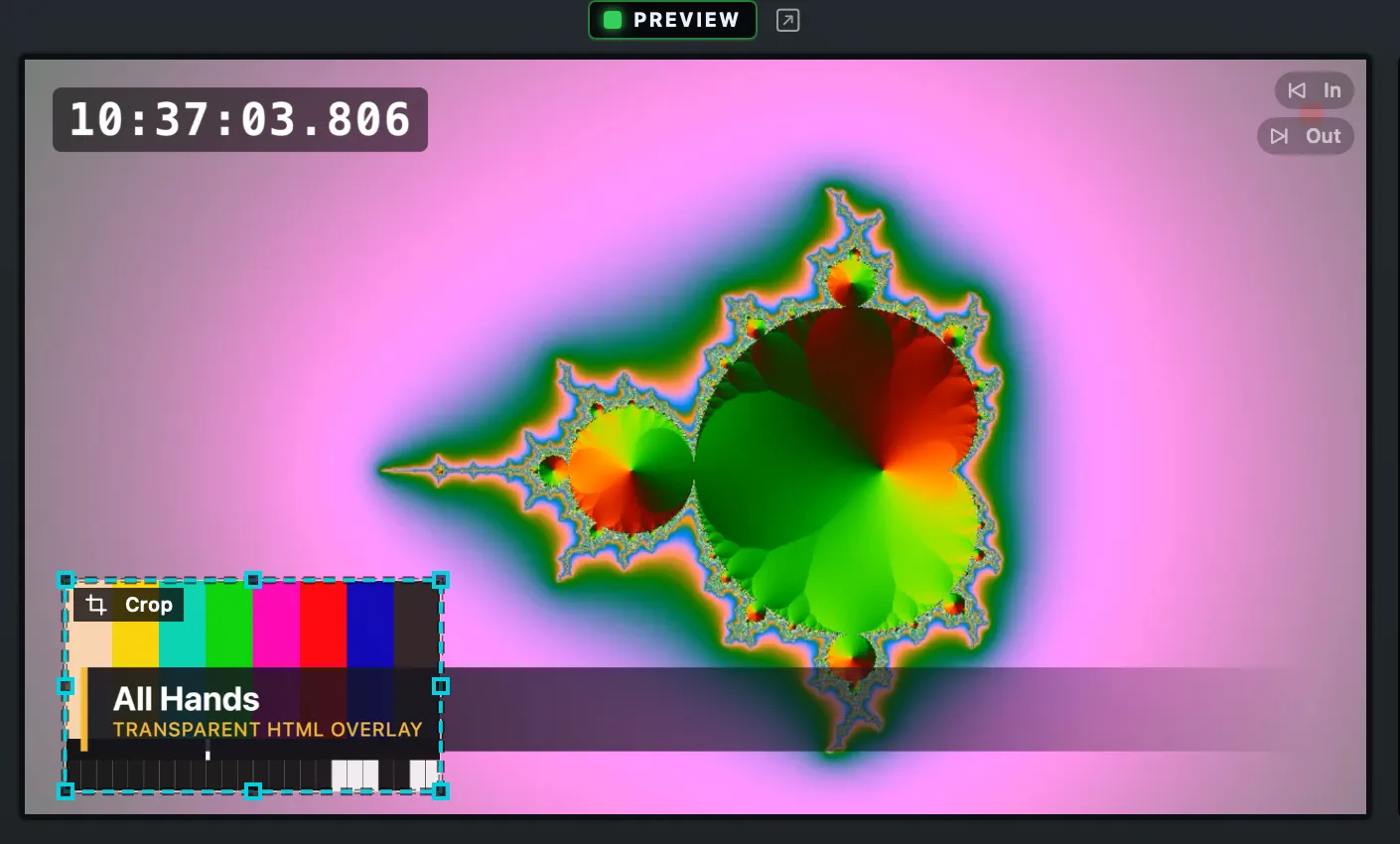
Section titled “Step 1: Select the element”Click the element in the preview. Click again in the same place to reach the element beneath it. The box takes its layer’s colour, and the inspector shows the element.
Step 2: Move and size it
Section titled “Step 2: Move and size it”- Drag inside the box to move it.
- Drag a corner to resize it. Hold Shift to switch Keep Proportions for this drag.
- Drag the round handle to roll it; hold Shift for steps of 15°.
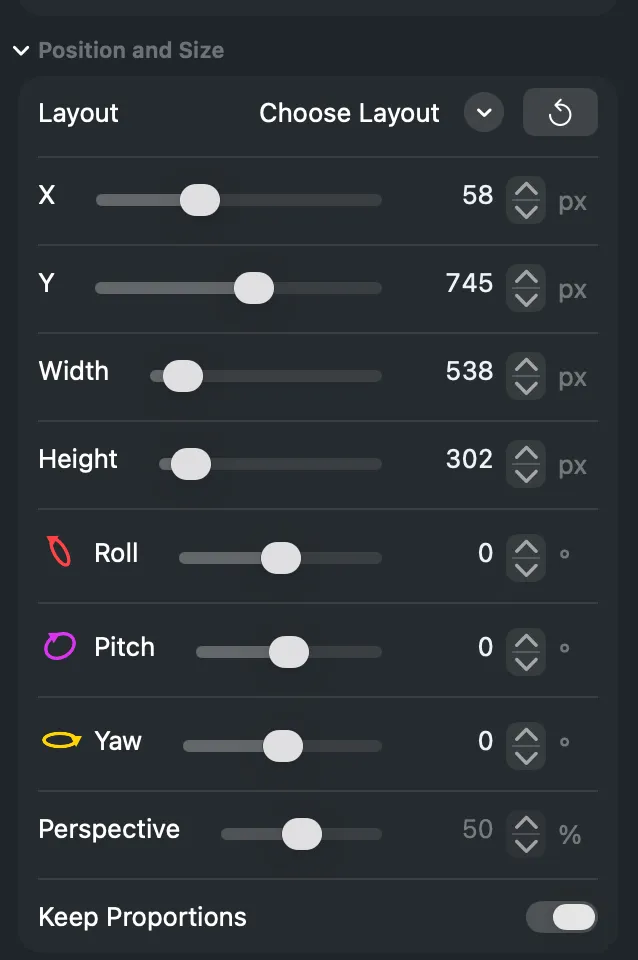
Or type the values in the inspector’s Position and Size: X, Y, Width, Height, Roll, Pitch, Yaw and Perspective. Choose Layout has presets such as Full Frame and Picture in Picture, Bottom Right.
Step 3: Crop it
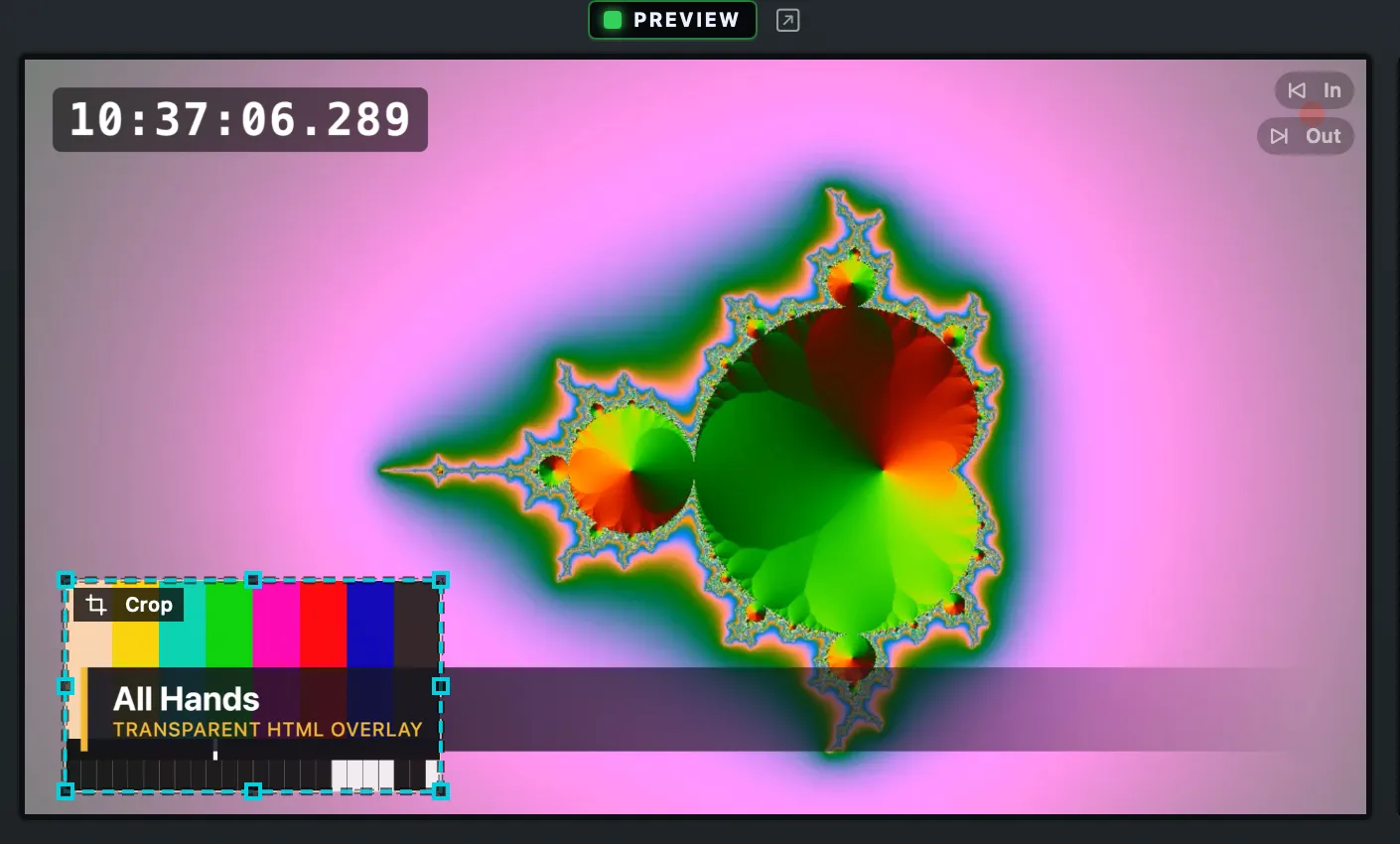
Section titled “Step 3: Crop it”Hold Option over the preview and drag an edge or corner of the picture; drag inside to slide the picture in its box. Or click Auto Crop in the inspector’s Look section to remove flat borders. Remove takes the crop away.
Step 4: Add effects
Section titled “Step 4: Add effects”In the inspector’s Effects section, click Add Effect and choose one, or choose Edit › Add Effect. Set its values; turn On off to compare without it. Edit › Remove Effects takes them all off the element.
Step 5: Take it
Section titled “Step 5: Take it”Press Take to send the changed shot to the program.
Verify
Section titled “Verify”- The preview shows the element where and how you want it.
- If the shot was live, its tile says EDITED until the Take; then the program matches.
- Edit › Reset Element Placement puts the element back to the full frame, centred and upright.
Related
Section titled “Related”Describes Live Producer 0.305 · 29 October 2026