
Add a video file to the show, set how it plays, and set its in and out points in a shot.
Add a video file as a source, choose how it plays, and choose where it starts in each shot. See Media clips.
Before you start
Section titled “Before you start”- Have the video file on this Mac.
- If the show has a show folder, the file is copied into it when you add it, unless Copy Files into the Show Folder is off in Settings › This Mac › Show Folders. See Show folders.
Step 1: Add the file
Section titled “Step 1: Add the file”Click Add Source at the bottom of the sidebar and choose Media File…. Choose the file. The clip appears in the Media group.

Step 2: Set how it plays
Section titled “Step 2: Set how it plays”Select the clip in the sidebar. In the inspector’s Playback section:
| Setting | Choose |
|---|---|
| Start When Its Shot Goes Live | on to wait on the start frame until the shot goes live; off to run all the time |
| At the End | Loop, Hold Last Frame or Fade to Black |
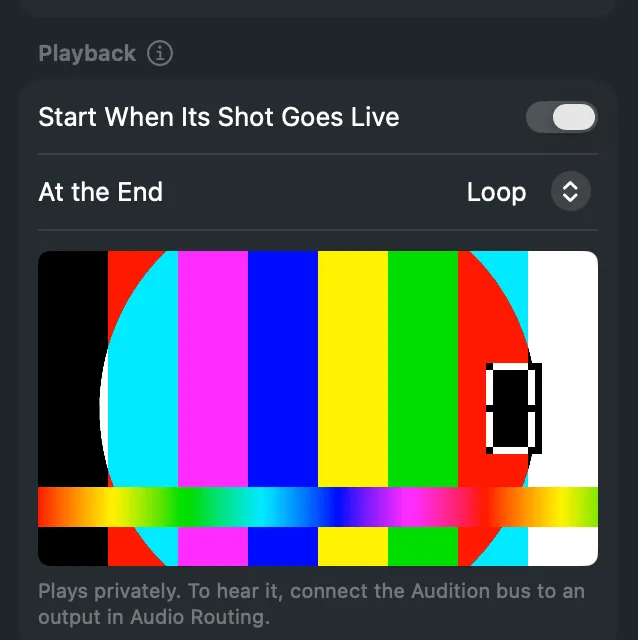
Step 3: Make a shot
Section titled “Step 3: Make a shot”Drag the clip’s tile onto a layer strip, or use New Shot in Layer in its context menu.
Step 4: Set the in and out points
Section titled “Step 4: Set the in and out points”Select the shot. In the inspector’s Clip section, type Starts At and Ends At as minutes:seconds:frames.
Or scrub in the preview: rest the pointer on the clip, move across it, and press I where it should start and O where it should end. The same commands are Switcher › Set In Point at Pointer and Switcher › Set Out Point at Pointer.
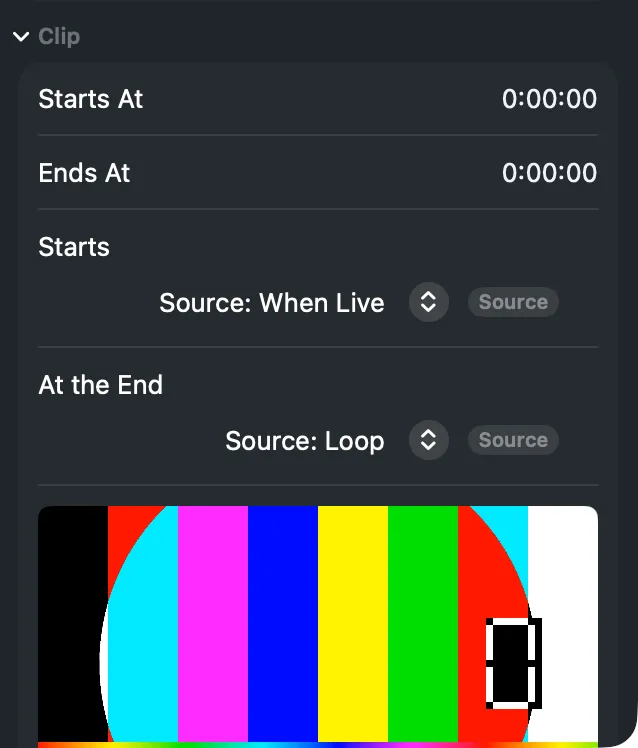
Starts and At the End in the same section let this shot play the clip differently from the source.
Verify
Section titled “Verify”- The preview shows the clip resting on its in-point.
- Take the shot: the clip plays from the in-point, and a countdown appears under the program monitor with what it does at its end.
Related
Section titled “Related”Describes Live Producer 0.305 · 29 October 2026