
Keep this show's layers, shots and sources as a setup that New Show and Use Layer Setup offer from then on.
Turn a show you built into a starting point for the next one. What a setup keeps is explained in Layer setups.
Before you start
Section titled “Before you start”- Open the show whose layers, shots and sources you want to keep.
- Sign in first if you want the setup on every Mac you use; see Sign in. Signed out, it is kept on this Mac, and signing in later adds it to your account.
Step 1: Open Save Layer Setup
Section titled “Step 1: Open Save Layer Setup”Choose File › Save Layer Setup…, or click Save Layer Setup… in Settings › This Mac › Layers and Sources.
Step 2: Name it
Section titled “Step 2: Name it”Type a name in Name. The sheet says what it keeps: the layers by name, how many shots and how many sources.
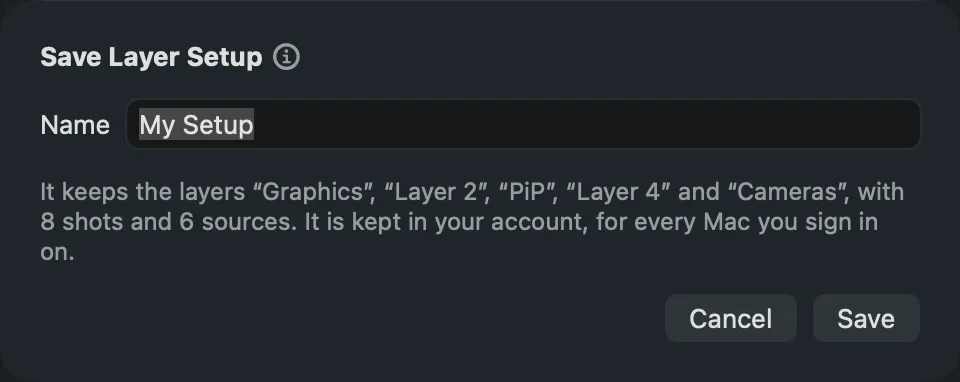
- “Standard” and “Blank” are the app’s own; the sheet asks for another name.
- A name you saved before says Replaces the setup “…” saved earlier. and the button reads Replace.
Step 3: Save it
Section titled “Step 3: Save it”Click Save (or Replace).
Verify
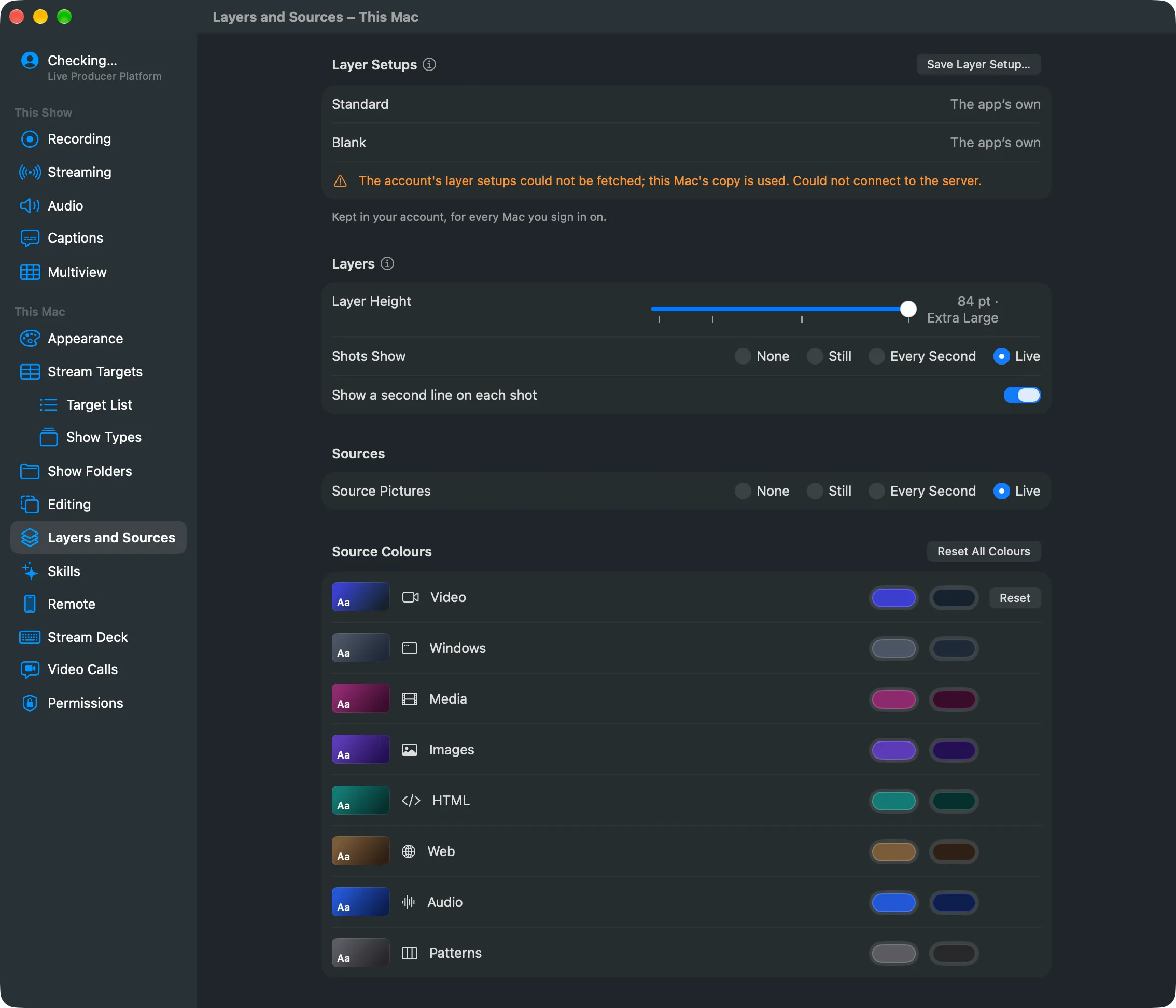
Section titled “Verify”- Settings › This Mac › Layers and Sources lists the setup under Layer Setups, with its layers, shots and sources counted. Rename it there by editing its name, or delete it with its trash button; shows made from it keep their layers.
- File › New Show… offers it under Start From.
Related
Section titled “Related”Describes Live Producer 0.305 · 29 October 2026