
Start a show from a script on the web, then build it in the Studio with the import sheet.
Turn a script into a show you can run: the web reads it into sections and parts, and the Studio builds the shots and lower thirds for it. See Scripts, sections, parts and cues.
Before you start
Section titled “Before you start”- You are signed in to Live Producer in the Studio. See Sign in.
- You have the script as Word, PDF, Excel or CSV, Markdown or text. Writing a new one? The web offers Download the example script, which the built-in rules read as it is.
- The show’s sources are in the Studio if you have them: the host’s camera, the window the live presenters come in, the slides’ input, the lower-third page. What is missing gets a stand-in you link later.
Step 1: Start the show on the web
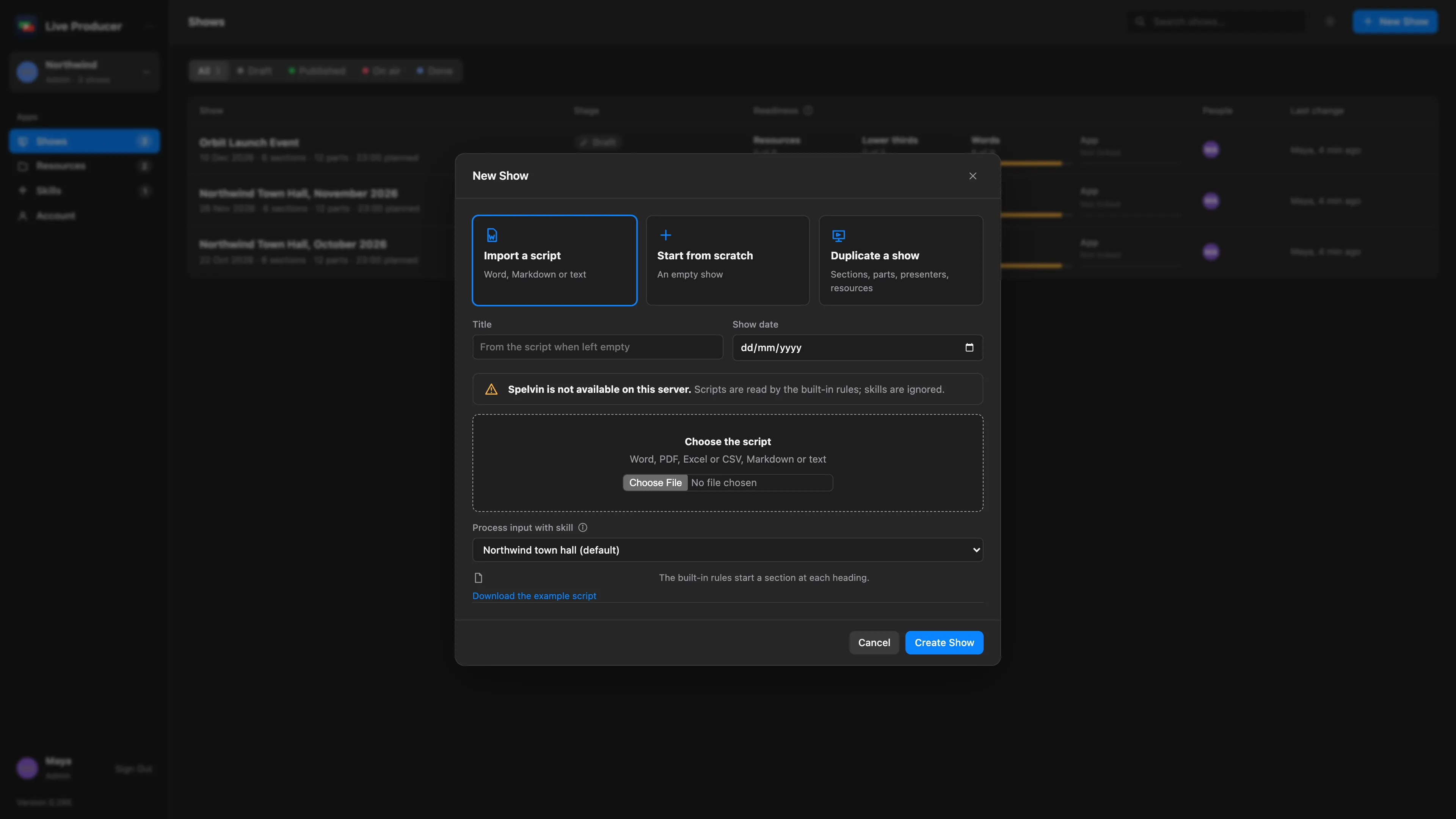
Section titled “Step 1: Start the show on the web”On Live Producer Platform, click New Show, choose Import a script, then Choose the script. Pick a skill under Process input with skill if your company has one, and click Create Show. See Create a show on the web.
Step 2: Check it and publish
Section titled “Step 2: Check it and publish”Look over the sections and parts the web made, correct them there, and click Publish Version 1. The Studio only takes published versions. See Publish a version.
Step 3: Link the show in the Studio
Section titled “Step 3: Link the show in the Studio”Open the show to run it in, or make one with File › New Show…. Choose Showrunner › Link to Web Show…. The Live Producer Platform window opens on Link to a Web Show. Pick the web show and click Choose Folder and Pull v1…, then choose where its folder goes.
Step 4: Fill in the import sheet
Section titled “Step 4: Fill in the import sheet”The sheet Build Show from the Web lists the sections and parts on the left. On the right:
| Group | Choose |
|---|---|
| Who Plays What | The source for Host Camera, Second Camera, Live Presenters, Slides and Poll |
| Shots for the Whole Show | Nothing: it lists the shots, lower thirds and clips it will make |
| Recordings | The Media Folder with the show’s movies; a recording picks the movie whose name contains its name |
| Layers | The layer for Picture Shots and for Lower Thirds, and the Lower-Third Page |
A role you leave on Placeholder, Link Later gets a stand-in source with a slate. Click Build Show.
Step 5: Link the stand-ins
Section titled “Step 5: Link the stand-ins”When the camera, window, page or file is there, link each stand-in to it from the sidebar. Every shot keeps working. See Link a stand-in.
Verify
Section titled “Verify”Open Window › Showrunner (⌥⌘S). The sections and parts are listed in order, and the web show bar says Up to Date · Version 1. The layer strips have the new shots, and the presenters’ lower thirds.
Related
Section titled “Related”Describes Live Producer 0.305 · 29 October 2026