
A web page source shows a live page from the internet: an overlay service, a poll, a scoreboard, a social wall. It sits in the Web group of the sidebar. A page from a file on this Mac goes in the HTML group instead; see HTML templates.
Size and background
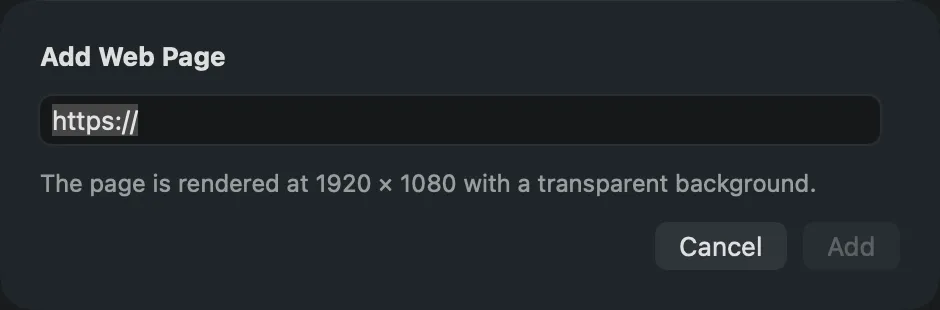
Section titled “Size and background”You add a page with Add Source › Web Page… and its address. The page is rendered at 1920 × 1080 with a transparent background, so a page made as an overlay sits over the layers behind it.
Clicking in the page
Section titled “Clicking in the page”Some pages need a click before they show what you want: a cookie notice, a sign-in. Interact with Page… in the source’s context menu or inspector opens the live page in a window of its own, above the app. Click in it as in a browser. The program keeps showing the page, every click included. Hide Page, the close button or Escape puts it out of sight again.
Reloading
Section titled “Reloading”Reload Page in the context menu or the inspector loads the page again.
Screen Recording permission
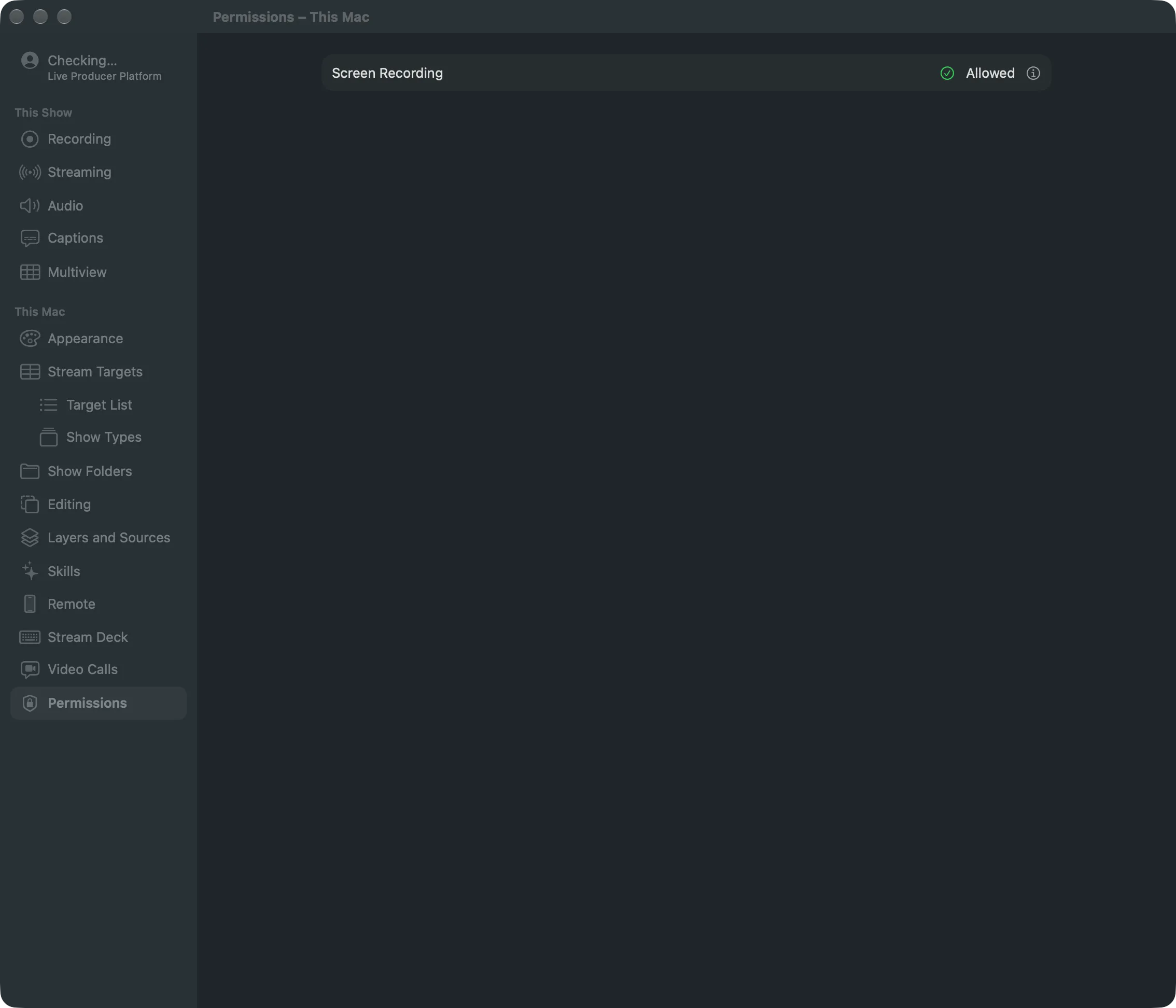
Section titled “Screen Recording permission”With Screen Recording allowed, web page sources are captured at full frame rate with transparency. Without it, they update about 12 times a second. Check it in Settings › This Mac › Permissions. After allowing access in System Settings, quit and reopen Live Producer. See Permissions.
Stand-ins for pages
Section titled “Stand-ins for pages”A show made from a script can carry a stand-in for a page, such as a poll. Link it with Link Page… in the Warnings window or Link to Web Page… in its context menu. See Stand-ins and linking.
Read more
Section titled “Read more”- Add a camera: the same steps add a web page from Add Source
- Link a stand-in
Describes Live Producer 0.305 · 29 October 2026