
Put a shot in the preview and take it to the program with Take, send it live at once, or cut without the transition.
Get a shot on the program, the usual way through the preview or straight away. See Layers, shots and sources for how preview, program and layers work together.
Before you start
Section titled “Before you start”- Open a show with shots on its layers.
- Check Auto Live in the toolbar: it should say Auto Live Off for the steps below. With Auto Live On, a single click sends a shot to the program and the preview rests.
Step 1: Choose shots for the preview
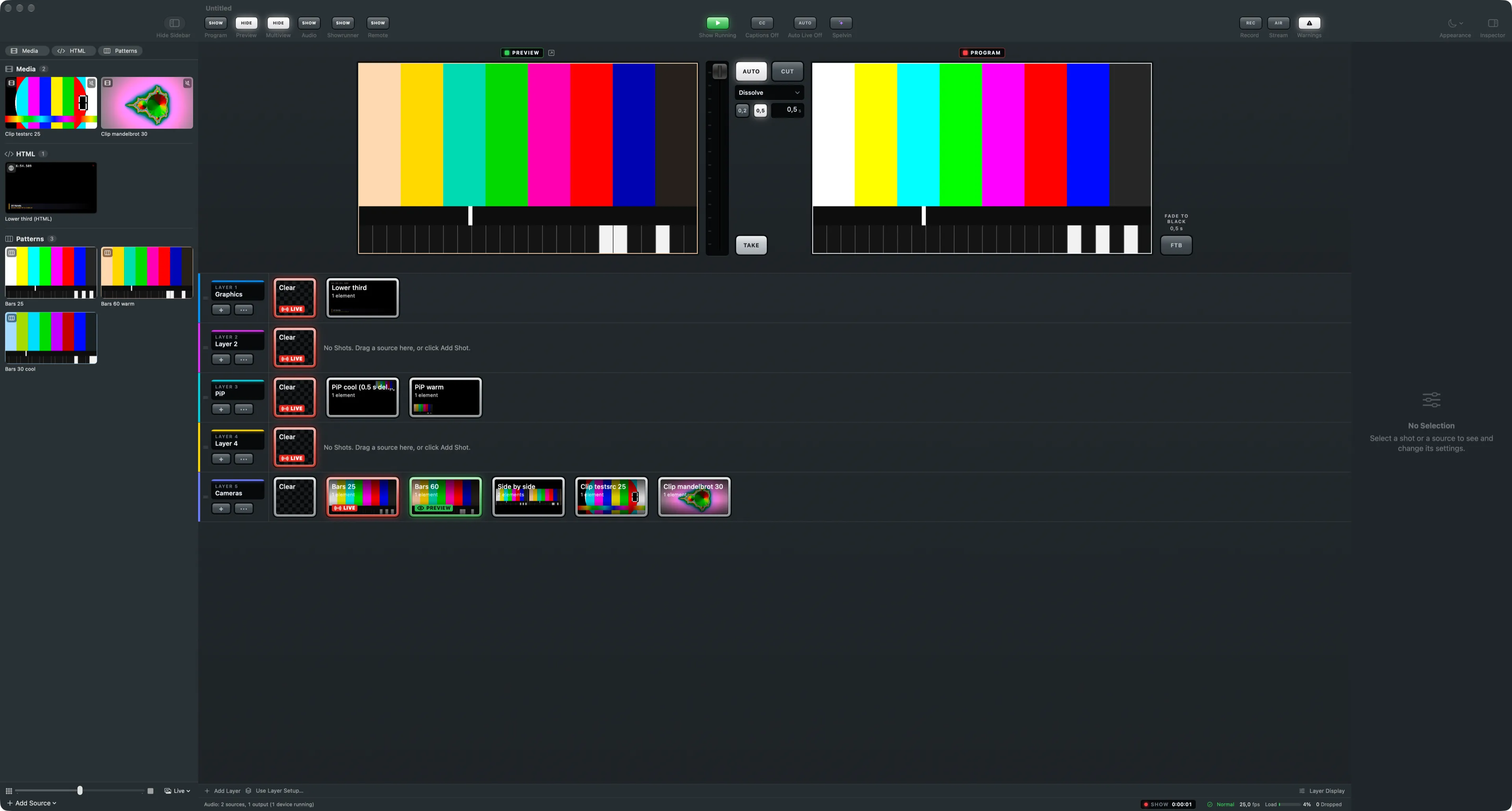
Section titled “Step 1: Choose shots for the preview”Click a shot in a layer strip. Its tile lights green with PREVIEW, and the preview monitor shows the program as it will be. Choose a shot on other layers too if you like: one per layer, or a layer’s Clear tile to empty that layer.
Step 2: Take
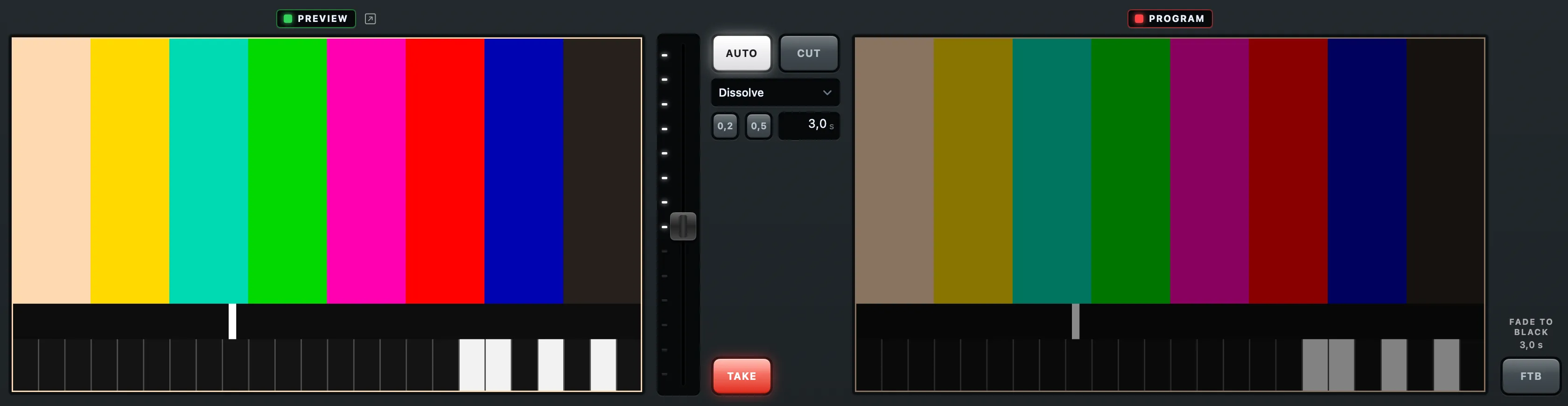
Section titled “Step 2: Take”Press Take, between the preview and program monitors, or press Return. Every layer’s choice goes to the program at once, with the show’s transition. The tiles turn red with LIVE.
Other ways to go live
Section titled “Other ways to go live”| To | Do |
|---|---|
| Take one shot live at once, with the transition | Double-click it, or select it and press ⌘Return (Switcher › Go Live with Selected Shot) |
| Cut, without the transition | Switcher › Cut Now (⌥Return) |
| Make every Take a cut | Choose Cut under Take With; see Choose a transition |
| Send the selected shot to the preview from the keyboard | ⇧Return (Switcher › Send Selected Shot to Preview) |
| Move the selection between shots and layers | ⌥⌘ with the arrow keys |
| Clear one layer at once | Switcher › Clear Layer and the layer, or double-click its Clear tile |
| Go live with a single click | Auto Live in the toolbar, or ⇧⌘L |
Verify
Section titled “Verify”- The program monitor shows the shots you took.
- Their tiles say LIVE, and the preview no longer differs from the program, so Take is dimmed.
- Change a live shot afterwards and its tile says EDITED: the program keeps the old version until you take it again.
Related
Section titled “Related”Describes Live Producer 0.305 · 29 October 2026