
Put a recording, video, lower-third page, photo or sound on the platform and link it to a show, so the Studio downloads it. To read how resources and versions work, see Resources.
Before you start
Section titled “Before you start”- You are an admin or a showrunner.
- For a show’s file: the show has the row you want to fill, such as a part’s recording or a presenter’s photo.
Step 1: Upload from the show
Section titled “Step 1: Upload from the show”Open the show and click the Resources tab. Find the row the file is for and click Upload. Choose the file and click Upload. The file becomes a company resource, linked to that row.
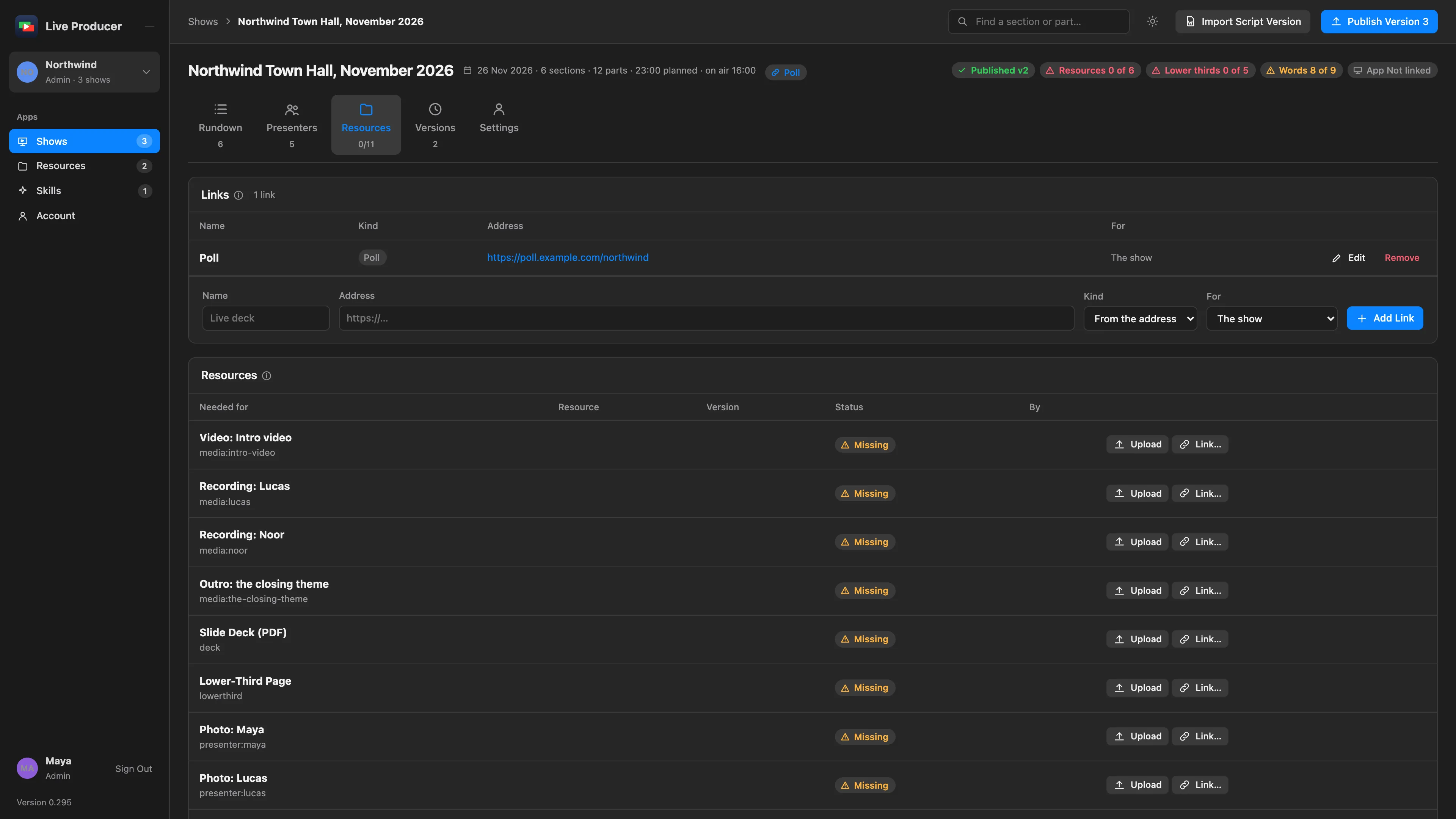
The same upload button sits on a tile under At Hand in the App on the Rundown tab, and beside a presenter’s photo on the Presenters tab.
Step 2: Or upload to the company’s resources
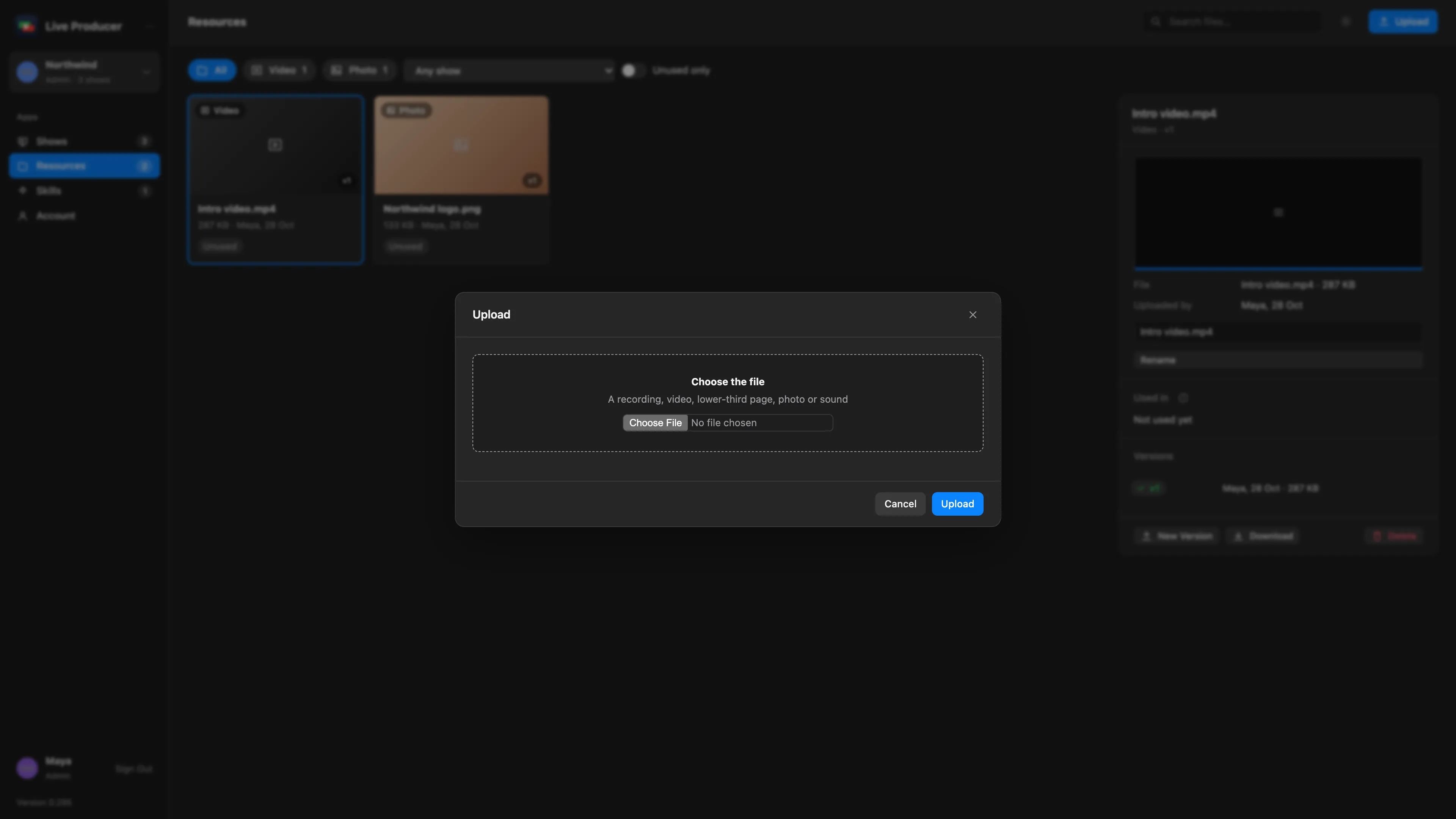
Section titled “Step 2: Or upload to the company’s resources”Click Resources in the rail, then Upload. Choose the file and click Upload. The file is in the company’s resources, not yet used by a show.
Step 3: Link it to a show
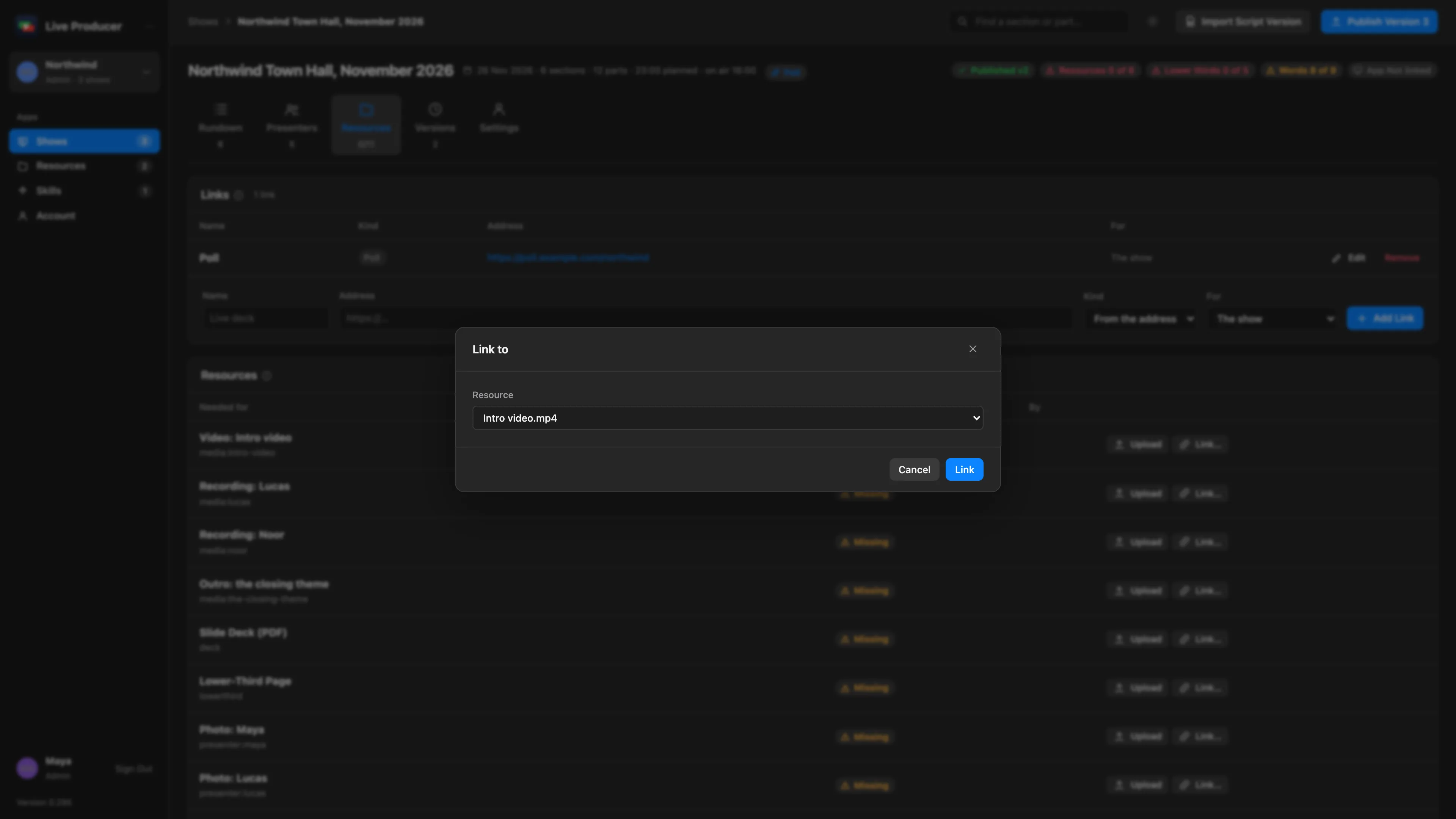
Section titled “Step 3: Link it to a show”Open the show’s Resources tab, click Link… in the row, pick the file under Resource and click Link. To undo a link, click × at the end of the row.
Step 4: Upload a newer version
Section titled “Step 4: Upload a newer version”On the Resources page, select the file and click New Version in its panel. Or click Upload on the show’s row again: when a file is linked already, the upload is its next version.
Step 5: Take it into the Studio
Section titled “Step 5: Take it into the Studio”On a Mac linked to the show, choose Showrunner › Download Web Files; with files waiting it says how many, for example Download 2 Web Files. The files go into the show’s folder.
Verify
Section titled “Verify”- The show’s row shows the resource and its version, no longer Missing.
- On the Resources page, the file’s panel lists the show under Used in.
- The show’s Resources readiness meter counts it.
Related
Section titled “Related”Describes Live Producer 0.305 · 29 October 2026