
A source is something to show, a shot places sources in the frame, and a layer holds shots, one of them live: the three ideas every page of the Studio uses.
The Studio builds the program from three things. A source is something to show or hear: a camera, a clip, a picture, a web page, a window, an audio input. A shot places one or more sources in the frame. A layer holds shots, and at most one shot per layer is on the program at a time. The program is all layers stacked, the first layer in front.
Sources
Section titled “Sources”Sources sit in the sidebar on the left, grouped by type: Video, Media, Images, HTML, Web, Audio and Patterns. A source is kept once in the show, however many shots use it. Drag a source onto a layer to make a shot of it. The Sources section explains each type.
Shots and elements
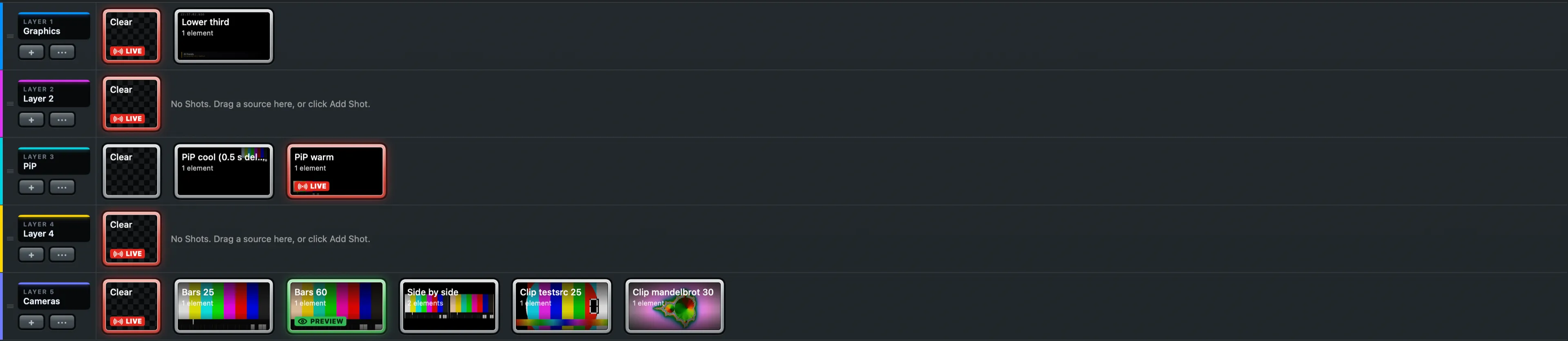
Section titled “Shots and elements”A shot is a tile in a layer strip. Each source in a shot is an element, with its own position, size, look and effects, set in the inspector or by dragging it in the preview (see The editing canvas). A picture in picture is one shot with two elements.
A tile tells its state in words as well as colour: PREVIEW (green) waits for the next Take, LIVE (red) is on the program, and EDITED (orange) is a live shot changed since it went live.
Layers
Section titled “Layers”Layers let several things be on air at once: a camera on one layer, a lower third over it on another, a logo on a third. Taking a new lower third replaces only the lower third. A show starts from a layer setup and can have any number of layers. Each strip’s ··· menu, its right-click menu and the Layer menu rename, recolour, size, move, merge and delete it. A layer’s name is a label only: every layer behaves the same.
The first tile of every layer, Clear, with a checkerboard, stands for “nothing on this layer”. It works like a shot: take it to clear the layer. It shows LIVE while the layer has nothing on the program.
Preview, program and Take
Section titled “Preview, program and Take”You choose shots for the preview, then Take sends every layer’s choice to the program at once, with the show’s transition. With Auto Live on, a click goes to the program straight away and the preview rests.
Edits are never live. Changing a shot that is on the program changes only the preview; the tile says LIVE and EDITED until the next Take sends the new version.
Auto Out
Section titled “Auto Out”A shot can leave the program by itself, as a lower third that stays five seconds. With Auto Out on in the shot’s inspector, the time in Out After (0.5 to 120 seconds, 5 by default) starts once the shot’s transition in is done. Then the shot goes with the show’s transition, as a Clear would. The live tile counts down beside LIVE.
How the strips look
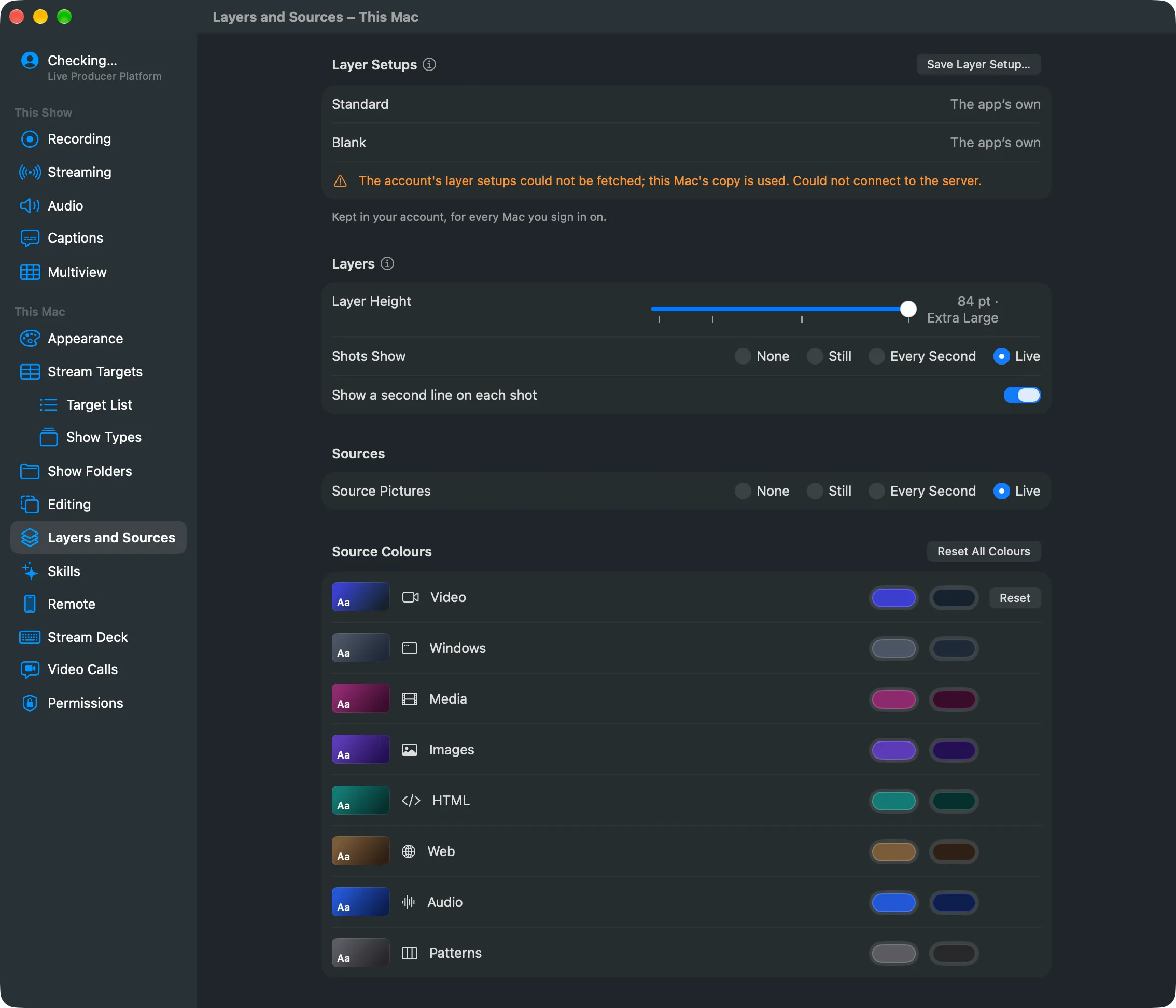
Section titled “How the strips look”View › Layer Height, the Layer Display button under the strips and Settings › This Mac › Layers and Sources set how tall the strips are and what the tiles show: None (the source type’s colour and name), Still, Every Second or Live. Drag a strip’s bottom edge to size that layer alone. These are this Mac’s settings, not the show’s.
Read more
Section titled “Read more”Describes Live Producer 0.305 · 29 October 2026