
A stand-in holds a place in the show for a camera, file or input that is linked on this Mac.
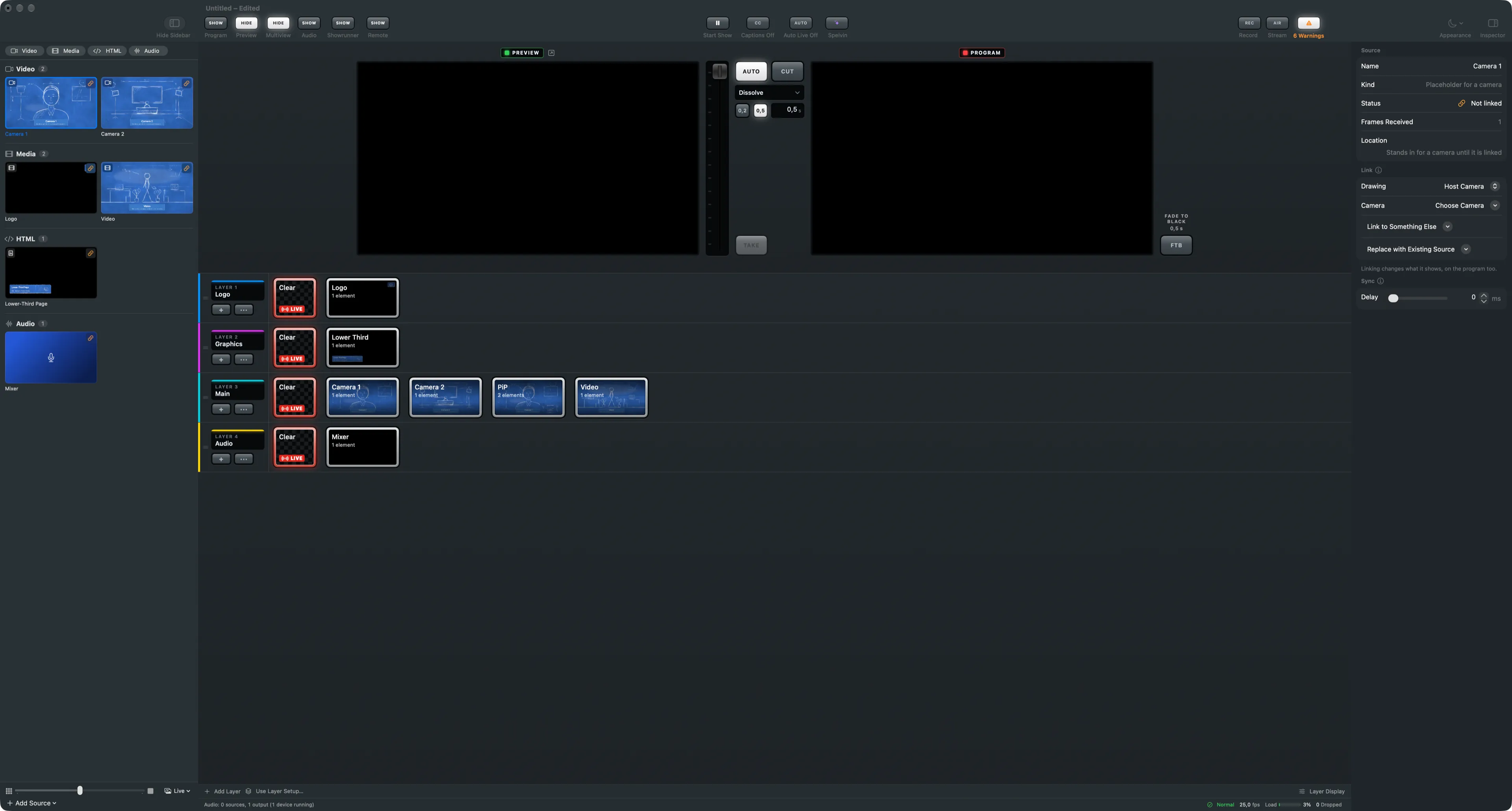
A stand-in is a source that holds the place of something not on this Mac yet: a camera, a window of another app, a media file, a web page, a lower-third page or an audio input. Shots and cues use the stand-in as if it were the real source. Linking it to the real thing changes what it shows everywhere, the program included.
Where stand-ins come from
Section titled “Where stand-ins come from”A show gets stand-ins when it is built before the equipment is there: a new show started from the Standard layer setup, a script imported in the Showrunner, a show pulled from the Live Producer Platform, or a change Spelvin proposes. The show is complete, with every shot in place; only the inputs are missing.
What a stand-in shows
Section titled “What a stand-in shows”Until it is linked, a stand-in shows a storyboard drawing of what will be there: the host camera, the slides, a lower-third band, and so on. The drawings are white pencil on blueprint blue, so you see at once what a shot is for and that it is not the real picture yet. Choose another drawing with Drawing in the inspector’s Link section. An audio input’s stand-in has no picture and stays silent until linked.
Linking keeps every shot
Section titled “Linking keeps every shot”A link replaces what the source points at, not the source itself. Every shot, cue and role that uses the stand-in keeps working. A file you link is copied into the show folder when the show has one, as any file you pick for the show.
You link a stand-in in one of three places:
| Where | What you get |
|---|---|
| The tile’s context menu in the sidebar | Link to … with the choice that fits, then Link to Something Else |
| The inspector’s Link section | the same choices, and Replace with Existing Source |
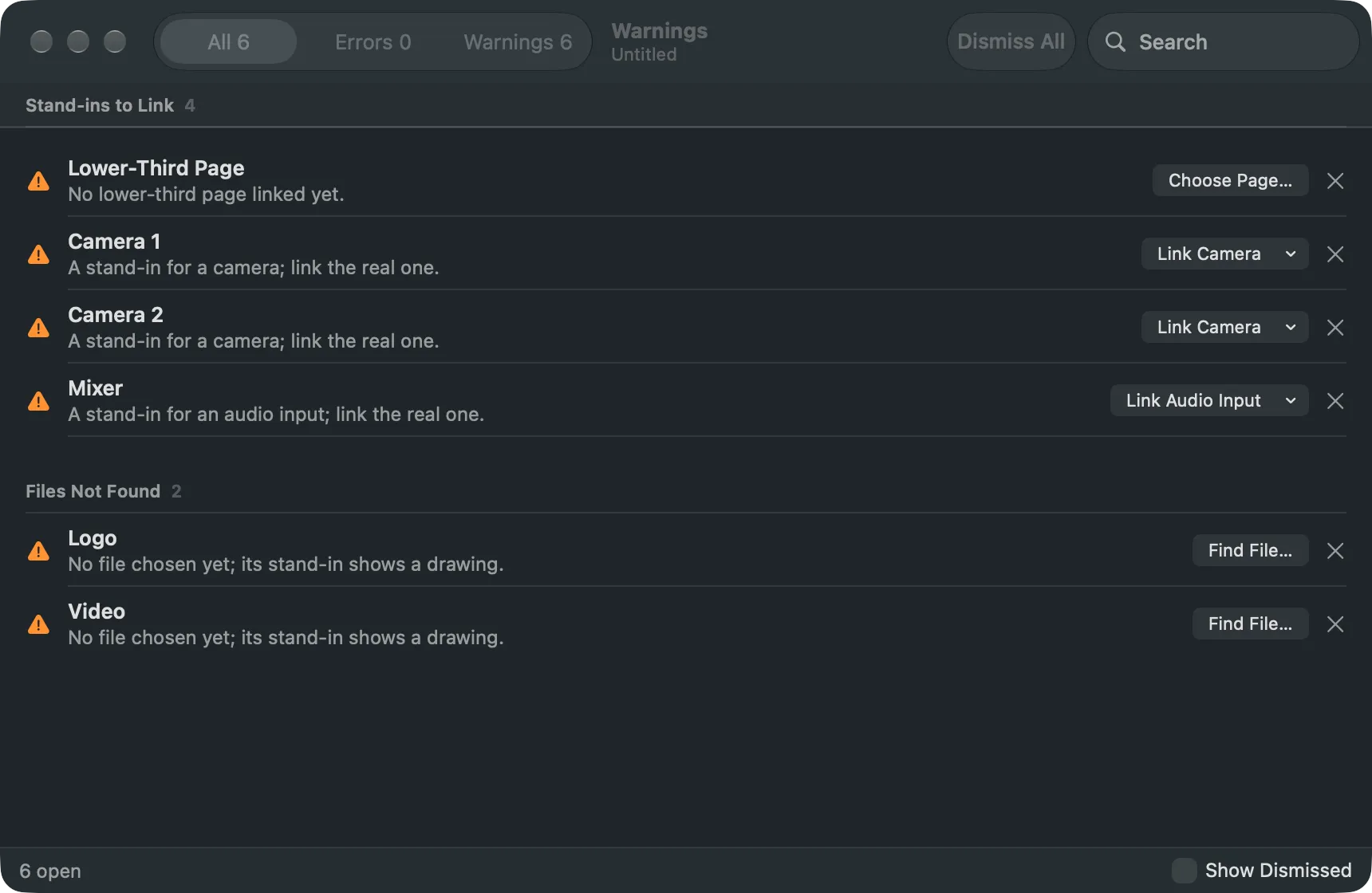
| The Warnings window | a fix button on the stand-in’s row, such as Link Camera or Find File… |
You can also drop a file from Finder on the stand-in’s tile. The file’s type decides what it becomes: a clip or sound, an image, a PDF or folder as a deck, or an HTML page.
Files not found
Section titled “Files not found”A media, image or deck source whose file has moved is treated the same way. Its tile shows the missing file, the Warnings window lists it under Files Not Found, and you link it again with Find File… or the inspector.
What the Warnings window says
Section titled “What the Warnings window says”Until a stand-in is linked, the Warnings window (Window › Warnings, ⌥⌘’) lists it under Stand-ins to Link, with one line on what it waits for. The warning leaves by itself once the stand-in is linked. See Warnings.
Read more
Section titled “Read more”Describes Live Producer 0.305 · 29 October 2026