
Start the clock, step through the parts, pick the shots and keep the prompter and the deck in step.
Run a scripted show from the Showrunner window: the rundown cues each part, you choose the shots and take them. See Scripts, sections, parts and cues.
Before you start
Section titled “Before you start”- The show is built from its web show and its stand-ins are linked. See Import a script.
- The prompter is open on the presenter’s device. See Open the prompter.
Step 1: Open the Showrunner
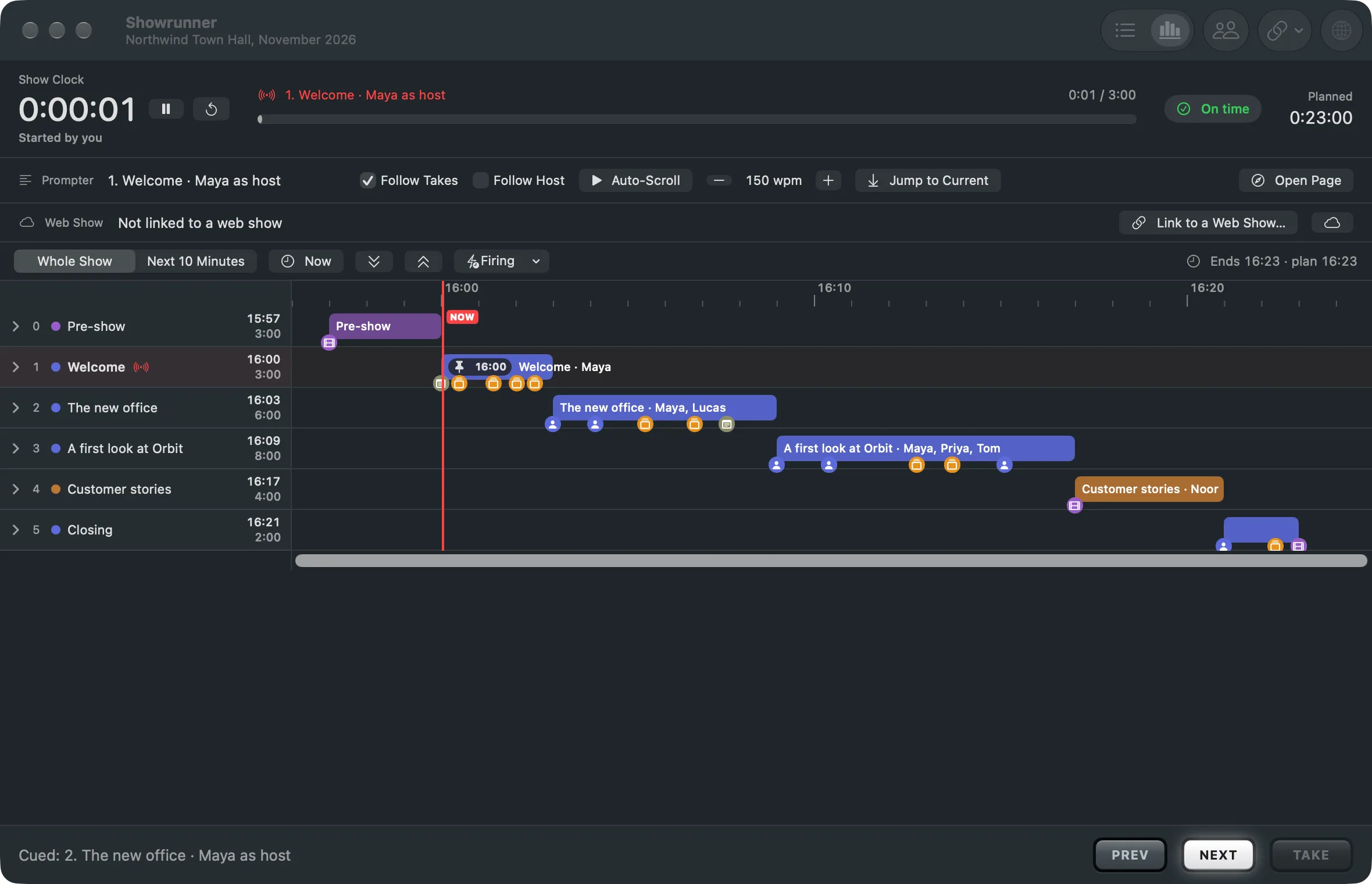
Section titled “Step 1: Open the Showrunner”Choose Window › Showrunner (⌥⌘S). Put it beside the main window or on a second display.
Step 2: Start the show
Section titled “Step 2: Start the show”Click Start Show in the toolbar or the clock strip, or choose Showrunner › Start Show. If nobody does, the show starts by itself at the script’s start time; a script without one starts with the first Take. The clock strip says which applies.
Step 3: Cue the next part
Section titled “Step 3: Cue the next part”Click Next Part (⌘]) in the bottom bar or choose Showrunner › Next Part. Previous (⌘[) cues the part before. Next Section (⌥⌘]) and Previous Section (⌥⌘[) jump a section. Clicking a part in the list cues it too.
A clip or recording part puts its own shot in preview, marked Cued by Script, ready to roll. For any other part, choose the shot yourself.
Step 4: Pick the shot
Section titled “Step 4: Pick the shot”Under At Hand, click a shot to put it in preview, or double-click to take it live at once. The live shot is marked PGM, the one in preview PVW. With Auto Live on, a click goes live, and Next Part does too.
Step 5: Take
Section titled “Step 5: Take”Click Take or press Return. The cued part goes on air, and its clock starts against its planned time. Double-clicking a part in the list takes it at once.
Step 6: Watch the time
Section titled “Step 6: Watch the time”The clock strip shows the section on air with its time against its plan, and a badge with how far behind or ahead of the plan the show runs, or On time. Before a section with a start time, it counts down to “On air at” that time.
Step 7: Keep the deck and the prompter in step
Section titled “Step 7: Keep the deck and the prompter in step”If the presenter clicks ahead or back, use Deck One Click On (⌃⌘]) or Deck One Click Back (⌃⌘[). If the prompter is off, click Jump to Current in the prompter bar.
Step 8: Run a part the other way
Section titled “Step 8: Run a part the other way”When a live part falls through, right-click it and choose Run the Recording Instead. For a clip part, Run Live Instead. For the next part, the Live and Recording switch in the first card does the same. This is a decision at the desk; the plan on the web stays as it is.
Verify
Section titled “Verify”The part on air is red with LIVE and the cued one green with NEXT. The phone remote shows the same on air and next. To see the show on the clock, choose Timeline in the toolbar.
Related
Section titled “Related”Describes Live Producer 0.305 · 29 October 2026