
Make a deck source from a PDF or a folder of images, and let the Showrunner turn its pages.
Put the show’s slides in a deck source, so the program shows the page the presenter is at. See Images and decks.
Before you start
Section titled “Before you start”- Export the slides from your presentation app as a PDF, or as a folder of images with one image per slide, named so they sort in order.
- Decide whether to export each build as a page of its own.
- Open the show in the Studio.
Step 1: Add the deck
Section titled “Step 1: Add the deck”Click Add Source at the bottom of the sidebar and choose Slide Deck…. Choose the PDF, or the folder of images. The deck appears in the Images group.

If the show already has a Slides stand-in, link it instead: right-click its tile and choose Link to Something Else › Slide Deck…. Every slide shot then uses the deck. See Link a stand-in.
Step 2: Say whether pages include builds
Section titled “Step 2: Say whether pages include builds”Select the deck. In the inspector’s Deck section, turn Pages Include Builds on if you exported one page per build. Pages shows how many pages the deck has.
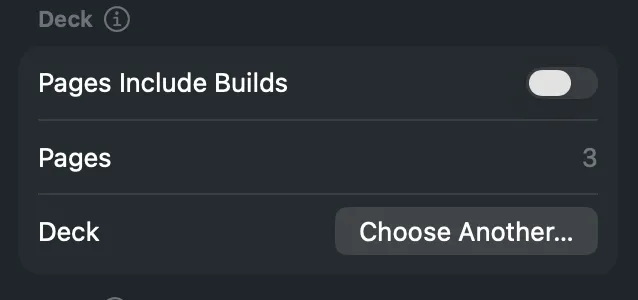
To use another file later, click Choose Another….
Step 3: Put the deck in a shot
Section titled “Step 3: Put the deck in a shot”Drag the deck’s tile onto a layer strip, or use New Shot in Layer in its context menu. A show built from a script already has its slide shots.
Step 4: Run the show
Section titled “Step 4: Run the show”Open the Showrunner and run the show. The deck follows the slide marks in the script as the prompter passes them. If it is one slide off, choose Showrunner › Deck One Click On (⌃⌘]) or Showrunner › Deck One Click Back (⌃⌘[).
Verify
Section titled “Verify”Take the deck’s shot. As the show moves past a slide mark, the program shows the next page while the shot stays live.
Related
Section titled “Related”Describes Live Producer 0.305 · 29 October 2026