
Add a place to stream to once, put it in the show types that use it, and every show of that type streams there. See The stream library.
Before you start
Section titled “Before you start”- Have the server address and stream key from the platform. In YouTube they are in YouTube Studio under Go Live › Stream; for Vimeo, in the event’s RTMP settings.
- For SRT, know whether this Mac sends to a receiver or waits for one, and the host, port and passphrase the receiver uses.
- Sign in first if the target should follow you to other Macs. See Sign in.
Step 1: Open the Target List
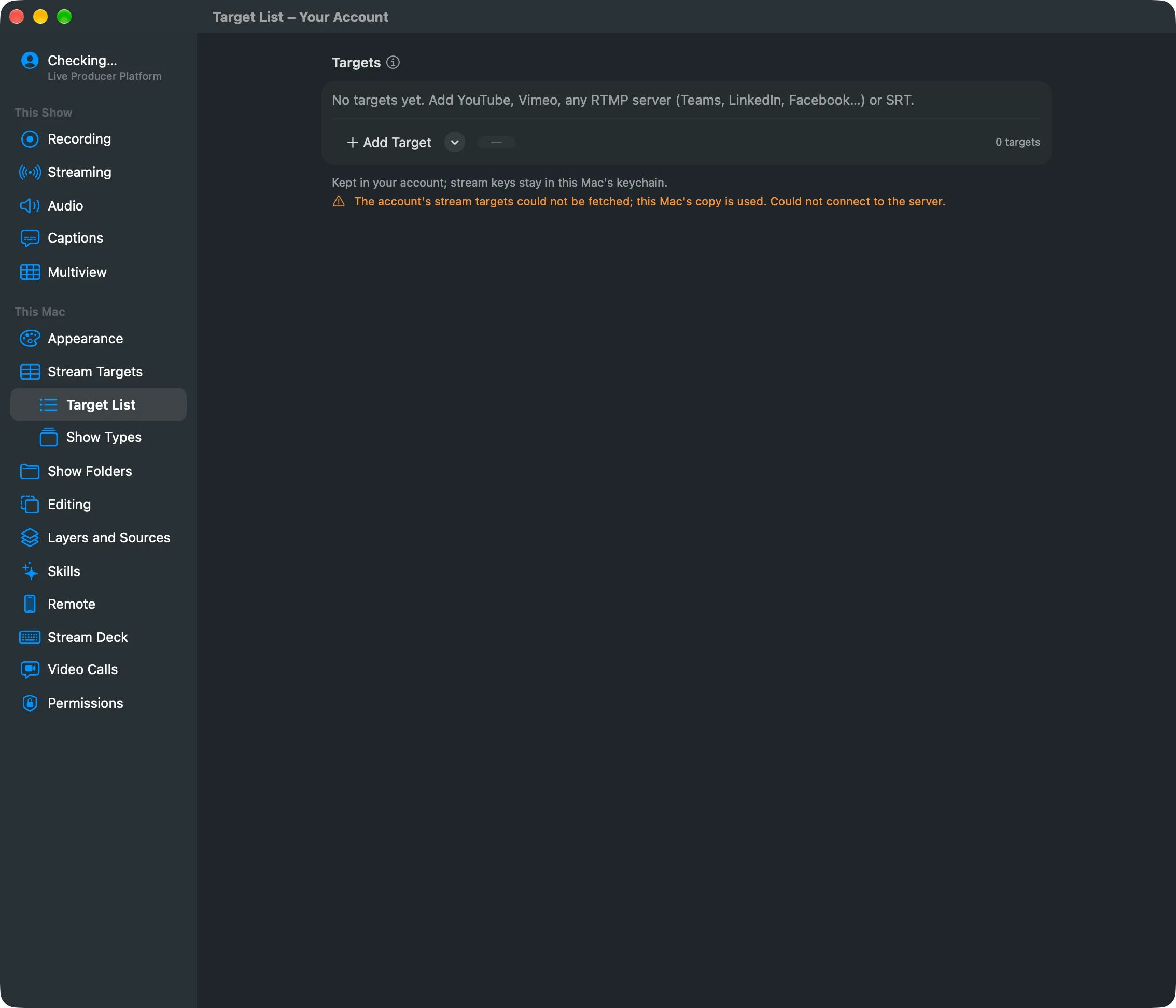
Section titled “Step 1: Open the Target List”Open Settings › This Mac › Target List (under Stream Targets). From the menu bar, Switcher › Stream Targets › Edit Stream Targets… opens the Stream Targets page above it.
Step 2: Add the target
Section titled “Step 2: Add the target”Click Add Target (+) under the list and choose YouTube, Vimeo, Custom RTMP or SRT. The new target is selected, with its details underneath.
Step 3: Fill in where it goes
Section titled “Step 3: Fill in where it goes”Type a Name. Then, for an RTMP service:
| Field | What to enter |
|---|---|
| Server | The ingest address. YouTube and Vimeo fill in theirs. |
| Stream Key | The key from the platform. Show reveals it. Leave it empty when the key is part of the server address. |
For SRT:
| Field | What to enter |
|---|---|
| Mode | Send to a Receiver (Caller) or Wait for a Receiver (Listener) |
| Host | The receiver’s address (caller only) |
| Port | The port the receiver listens on, or this Mac waits on |
| Latency | 20 to 8000 ms; both ends use the larger |
| Passphrase | Optional, 10 to 79 characters; the receiver needs the same one |
| Stream ID | Optional (caller only) |
The key or passphrase goes into this Mac’s keychain.
Step 4: Choose the sound
Section titled “Step 4: Choose the sound”Sound is Program Bus unless the target needs its own mix. Choose Bus Named “…” to send a bus of that name; each show supplies its own bus by that name, else its Program bus.
Step 5: Put it in a show type
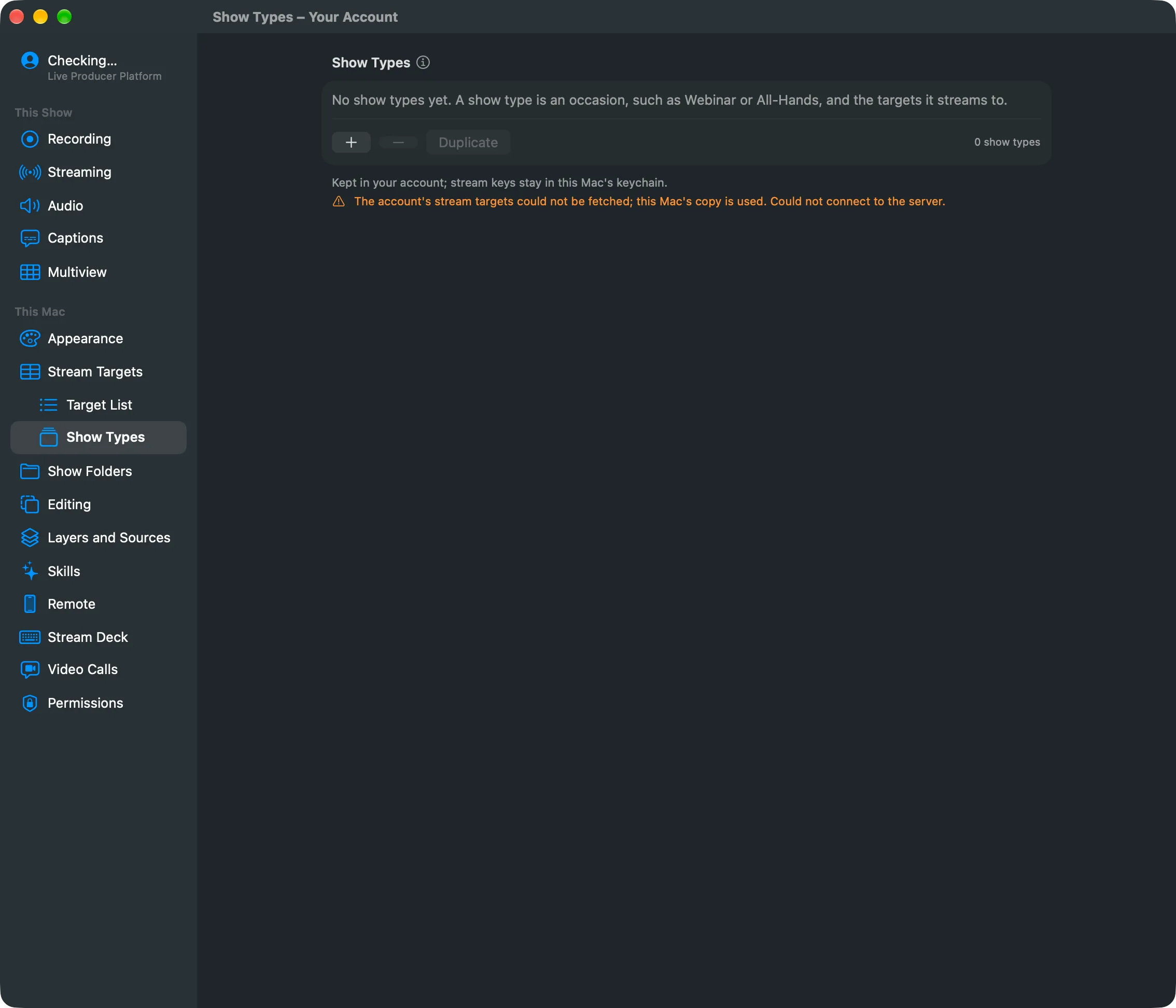
Section titled “Step 5: Put it in a show type”Under In Show Types, tick each show type that streams to it. To make a new show type, open Show Types, click Add Show Type (+), and type its Name. Under Streams To, tick its targets, and set its Encoding.
Step 6: Pick the show type in the show
Section titled “Step 6: Pick the show type in the show”Open Settings › This Show › Streaming and choose the show type in Show Type. To add a target to this show only, check it under Other Targets.
Verify
Section titled “Verify”Click Stream in the toolbar. The popover names the show type and lists the new target as Ready.
Related
Section titled “Related”Describes Live Producer 0.305 · 29 October 2026