
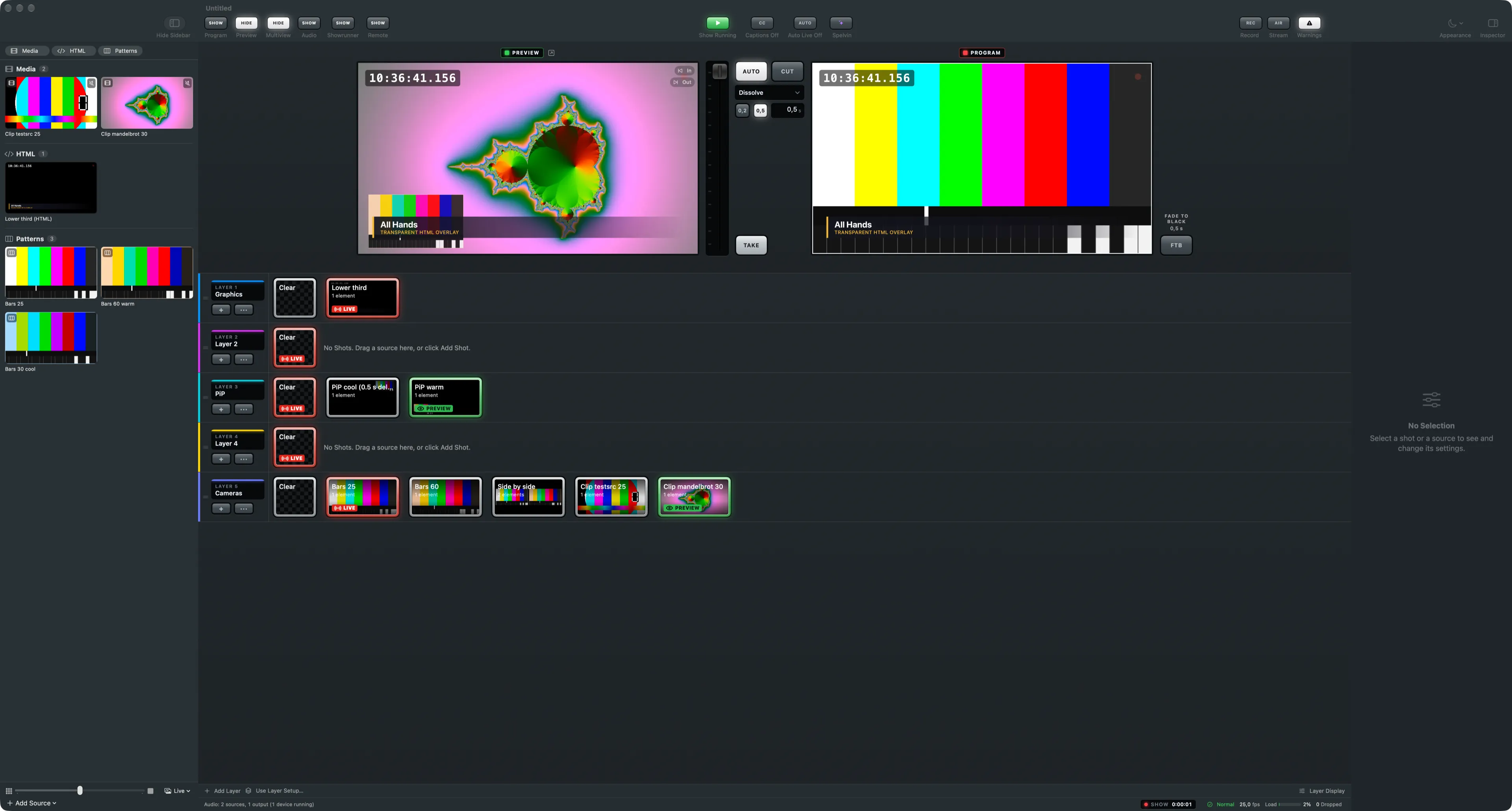
The toolbar, the sources sidebar, the preview and program monitors with the transition column, the layer strips, the inspector and the status bar.
The main window of Live Producer Studio, here with the demo show open in the Console look. Sources are on the left, the preview and program monitors above the layer strips in the middle, and the inspector on the right. Every command is also in the menu bar. Click a picture to see it full-screen.
The toolbar
Section titled “The toolbar”The show’s name sits above the toolbar, with Edited while it differs from its file. The items come in groups, each with its label under it:
| Group | Items |
|---|---|
| Windows | Program, Preview, Multiview, Audio, Showrunner, Remote: in the Console look each says SHOW or HIDE, what a press does |
| Show | Start Show (the show clock), Captions, Auto Live, Spelvin |
| Output | Record, Stream, Warnings; a performance indicator appears before Record when this Mac is under load |
| View | Appearance (System, Light or Dark) and Inspector |
See The windows for what each window is, and Warnings for the Warnings key.
The sources sidebar
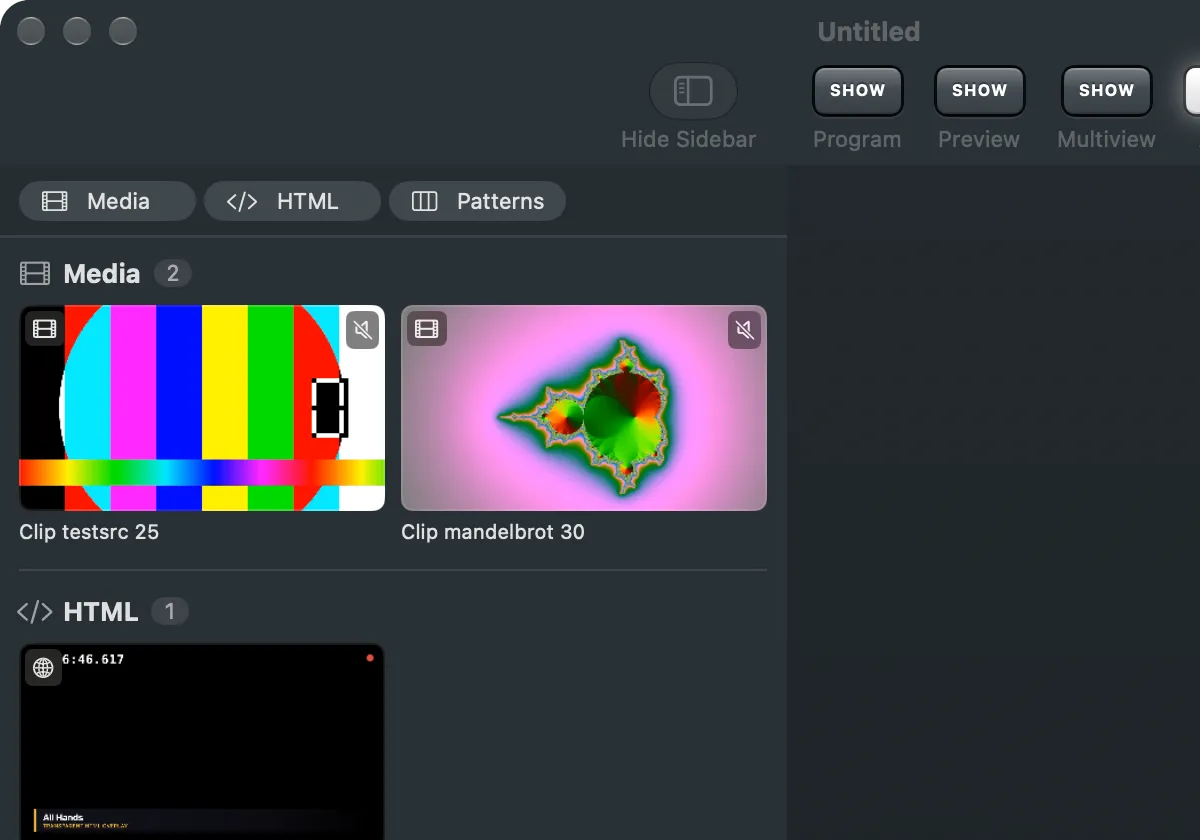
Section titled “The sources sidebar”Every source of the show as a tile, grouped by type: Video, Media, Images, HTML, Web, Audio and Patterns. The buttons at the top show or hide a type, the slider at the bottom sets the tile size, and Add Source adds one. Drag a source onto a layer to make a shot. See Sources.
The monitors and the transition column
Section titled “The monitors and the transition column”The Preview monitor on the left shows what the next Take sends; you edit shots on it. The Program monitor on the right shows what is on air. Between them, the transition column holds TAKE, Auto or Cut, the transition and its duration, and in the Console look the T-bar. Right of the program sits FTB, Fade to Black. Drag the divider under the monitors to resize them. See Transitions.
The layer strips
Section titled “The layer strips”One strip per layer, the first in front: the layer’s number, name and colour, its Clear tile, then its shots. Under the strips: Add Layer, Use Layer Setup… and Layer Display. See Layers, shots and sources.

The inspector
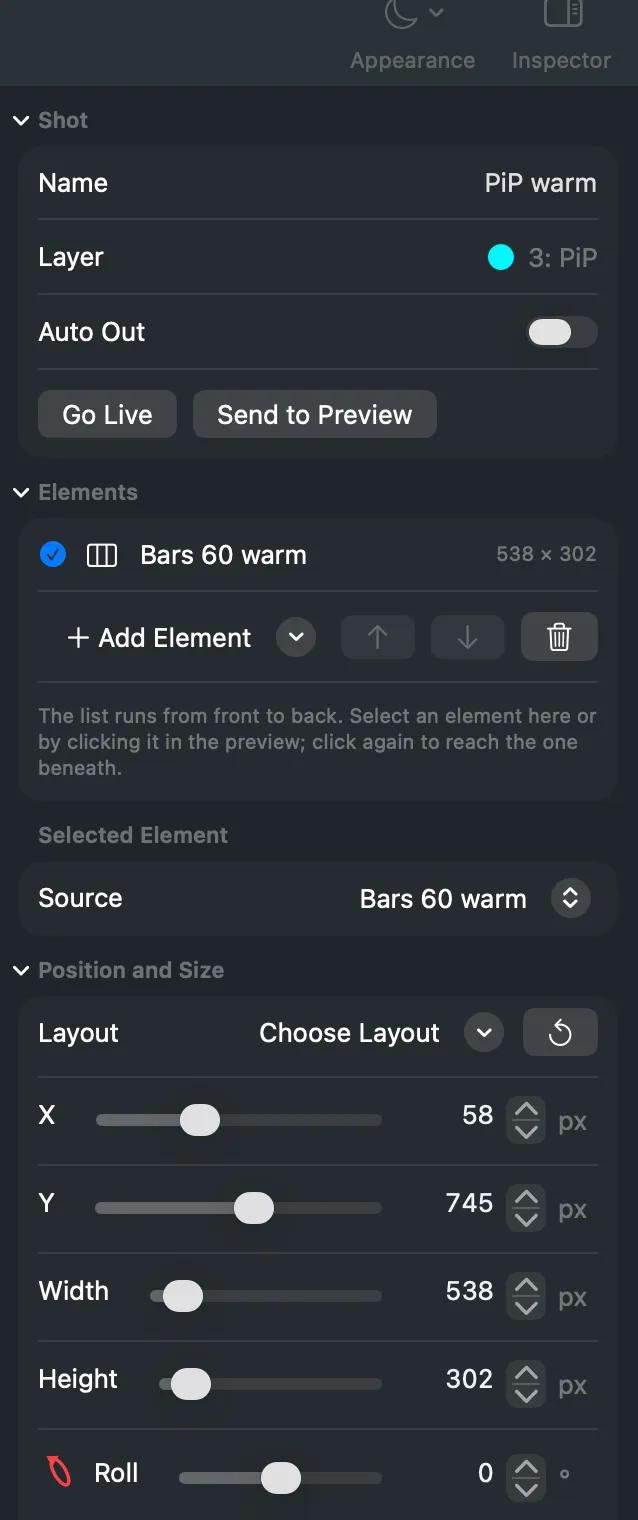
Section titled “The inspector”The settings of what you selected: a shot with its elements, position, look, effects and sound, or a source with its status and audio. With nothing selected it says No Selection. Show or hide it with the toolbar’s Inspector button. See The editing canvas.
The status bar
Section titled “The status bar”Along the bottom: the audio state, and how this Mac keeps up (the frame rate, the load and dropped frames). View › Show Status Bar (⌘/) shows or hides it.
The two looks
Section titled “The two looks”Console draws the switching surface as a studio vision mixer: shots as keys that light green in preview and red when live, layer names on small displays. Plain uses the Mac’s own look. Every control works the same in both. Choose under View › Look or Settings › This Mac › Appearance.
See also
Section titled “See also”Describes Live Producer 0.305 · 29 October 2026