
Fade the program and its sound to black and back, from the column beside the program, the menu or a Stream Deck key.
Take the whole program to black, at the start or end of a show or for a pause, and bring it back. How Fade to Black differs from a Take is explained in Transitions.
Before you start
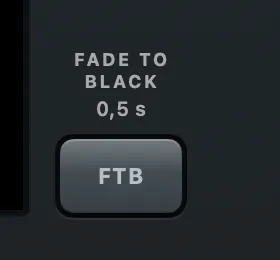
Section titled “Before you start”- The fade takes the show’s transition duration, shown above the key. Set it first if you want another; see Choose a transition.
- The program’s sound fades with the picture, also the sound sent into a call. The preview and your headphones on the Preview or Audition bus do not.
Step 1: Fade to black
Section titled “Step 1: Fade to black”Press FTB beside the program monitor (Plain: Fade to Black), choose Switcher › Fade to Black, or press ⌥⌘K. On a Stream Deck, the first key of the bottom row is FTB unless you changed the layout.
Step 2: Check it is black
Section titled “Step 2: Check it is black”The program monitor’s label says BLACK (Plain: “Program · Black” in red), the line under it says Black: FTB fades up, and the FTB key flashes red. The recording, the streams, the camera in a call and the multiview are black too.

While the program is black you can go on: Take, Go Live and the showrunner work as usual, underneath.
Step 3: Fade up
Section titled “Step 3: Fade up”Press FTB again (Plain: Fade Up, menu: Switcher › Fade Up from Black, ⌥⌘K). The program fades up to whatever is on it now. Pressed while it is still fading, it turns round from where it stands.
Verify
Section titled “Verify”- The program’s label no longer says BLACK or FADING, and the FTB key is dark again.
- The Program bus meters in Audio Routing move again.
Related
Section titled “Related”Describes Live Producer 0.305 · 29 October 2026