
The Settings window: Account, the panes saved with the show, and the panes that belong to this Mac, with a line on each and where it is explained.
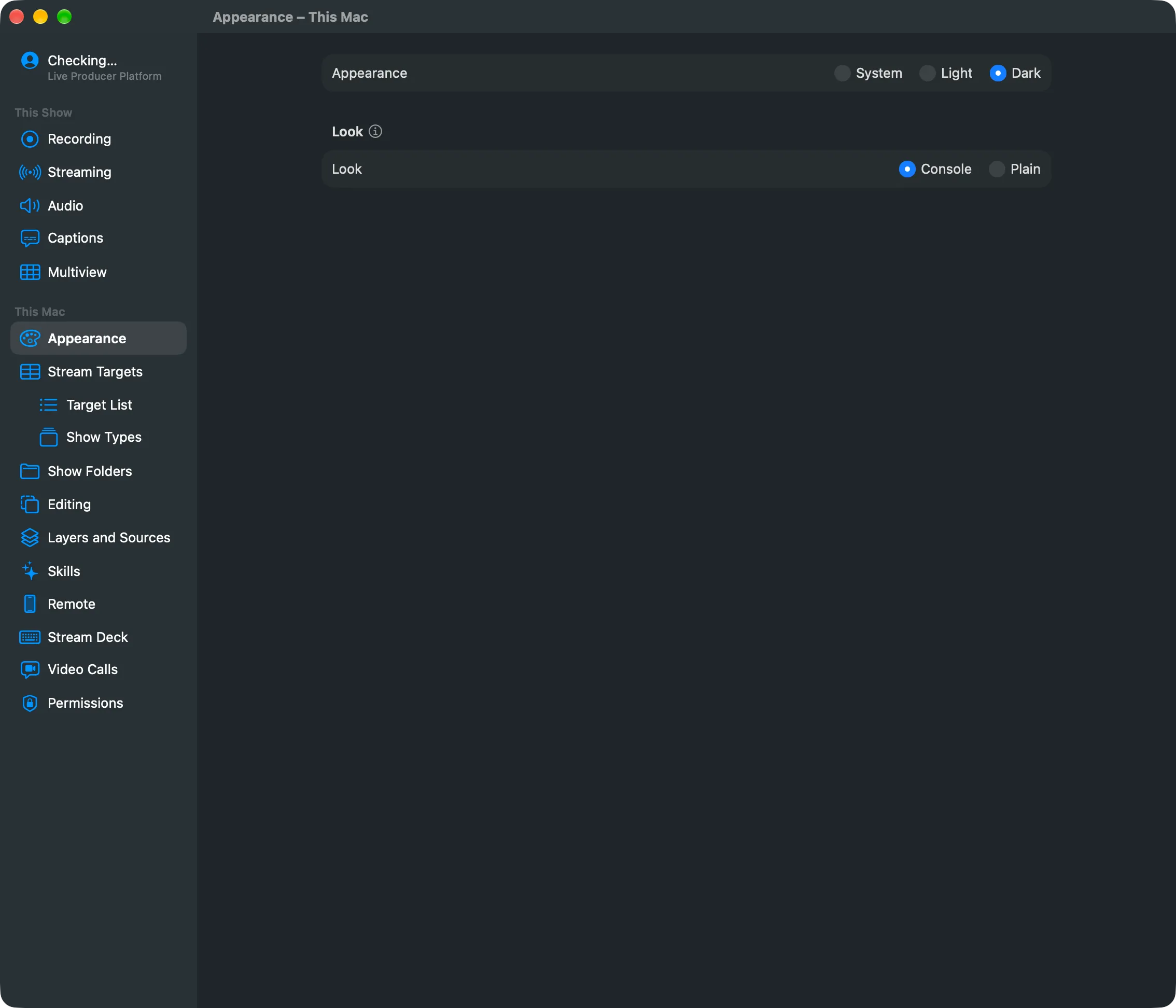
Open Settings with Live Producer › Settings… (⌘,). It reopens on the page you used last. The list on the left is split by where a setting is kept, and the window’s title says it too: Live Producer Platform for the account, Saved with the show for This Show, and This Mac (or Your Account for the stream library while you are signed in) for This Mac. Click the picture to see it full-screen.
Account
Section titled “Account”At the top: who is signed in, or Not Signed In. Sign in, see the Studio’s and the platform’s versions, and Spelvin’s actions left. See Sign in.
This Show
Section titled “This Show”Saved in the show file, so they travel with it.
| Pane | Holds | Read more |
|---|---|---|
| Recording | the program’s size, frame rate, bit rate and folder, and which cameras are recorded on their own (ISO) | Recording |
| Streaming | the show’s stream targets and encoding | Streaming |
| Audio | the mixer and its buses, and Show Audio Routing | Buses |
| Captions | captions on the program, language, size, wording file | Live captions |
| Multiview | what each box shows, and the overlays | Multiview |
This Mac
Section titled “This Mac”Kept on this Mac, for every show.
| Pane | Holds | Read more |
|---|---|---|
| Appearance | light or dark, and the look (below) | this page |
| Stream Targets, with Target List and Show Types | your stream destinations and the show types that group them | Stream library |
| Show Folders | where new shows go, copying files in, where recordings go | Show folders |
| Editing | pixels or percent, the grid, the speed of dragging a value | The editing canvas |
| Layers and Sources | layer setups, layer height, what tiles show, source colours | Layer setups |
| Skills | your company’s skills for Spelvin | Skills |
| Remote | the phone remote and prompter codes, whether remote control runs, and the token | Remote and token |
| Stream Deck | the connected Stream Decks, Edit Layout…, and the keys that need a hold | Layout and rows |
| Video Calls | Live Producer Camera, Mic and Return | Live Producer Camera |
| Permissions | Screen Recording access | Permissions |
Appearance and look
Section titled “Appearance and look”Appearance: System follows the Mac’s own setting; Light and Dark fix it. Every window of the app changes. Also under View › Appearance and the toolbar’s Appearance menu.
Look: Console draws the switching surface as a studio vision mixer, with shots as keys that light green in preview and red when live, and every window in anthracite (a cool grey in Light). Plain uses the Mac’s own look. Every control works the same in both. Also under View › Look.
See also
Section titled “See also”Describes Live Producer 0.305 · 29 October 2026