
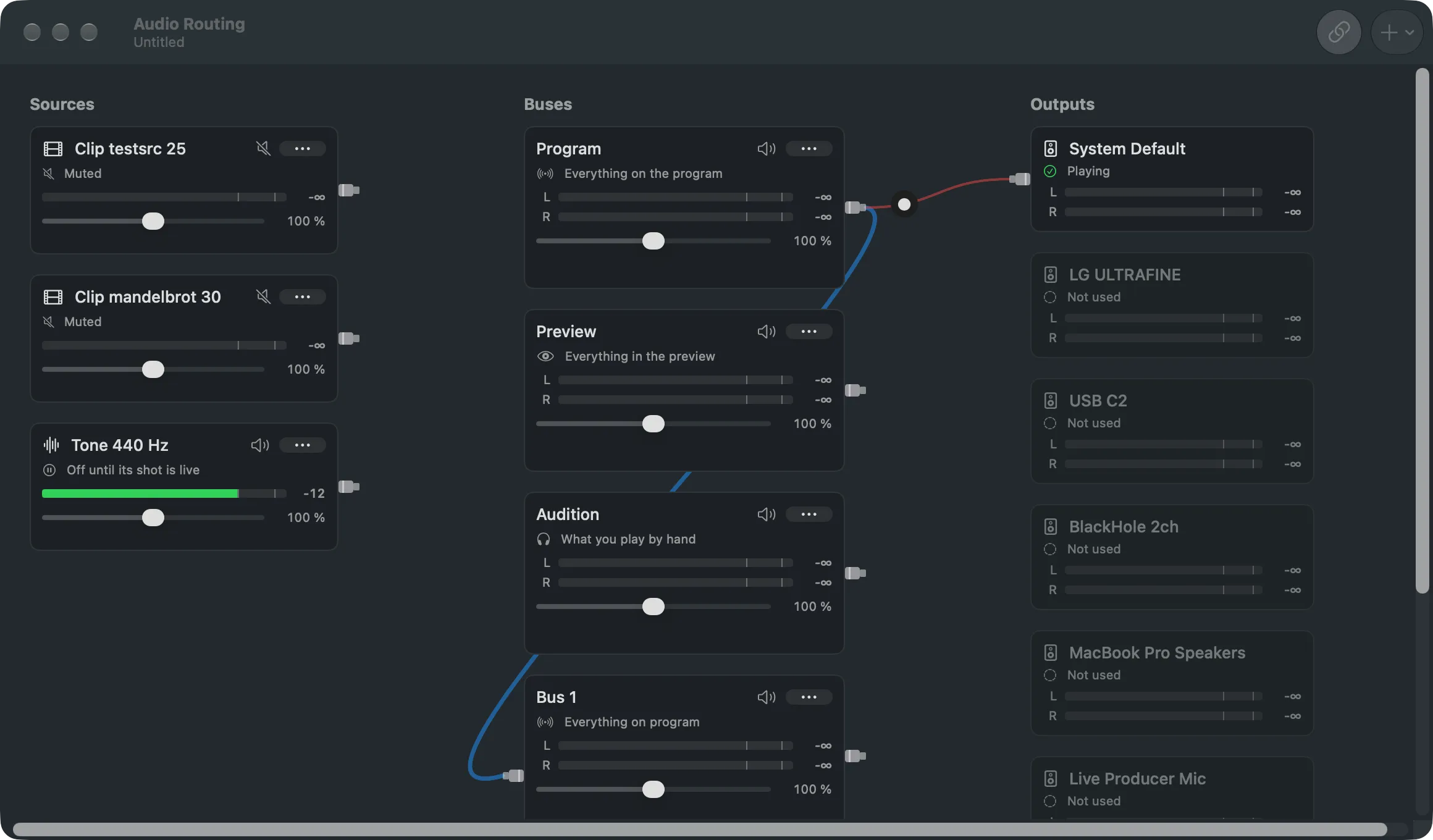
Sources, buses and outputs from left to right, with a live meter on each and cables between them.
The Audio Routing window draws the show’s sound as it travels, from left to right: sources, the buses they are heard on, and the output devices the buses play to. Open it with Window › Audio Routing (⌥⌘A) or Audio in the main window’s toolbar.
To see it beside the switcher, use the items under Switcher and Audio Routing Side by Side in the Window menu: thirds (⌃⌥⌘← and ⌃⌥⌘→) or halves.
The toolbar
Section titled “The toolbar”Audio Follows Video is the show’s default: a source with a picture is heard only while a shot that contains it is live. Add Bus adds a bus that takes chosen sources, or one that takes everything on program minus what you leave out. See Buses.
Sources
Section titled “Sources”Every source that carries sound has a card: its name, what it is doing now (On program, In preview, Listening privately, Muted or Off until its shot is live), a meter and a level slider. The speaker button mutes it. The … menu sets when it is Heard and, under Also Send To, which extra buses it feeds. A device with more than two channels shows a meter per channel, with the channels in use in bold. See Device channels.
Program, Preview and Audition are always there and fill themselves. Extra buses join them in the same column. Each card shows what fills it, a left and right meter, a level slider and a mute button. Its … menu holds Outputs and, for an extra bus, what it takes, what it follows, what it leaves out, Rename Bus and Delete Bus. See Buses.
Outputs
Section titled “Outputs”The output devices of this Mac, each with its state: Playing, Starting, Not used or Not connected, and a meter. Devices are watched: headphones plugged in show up at once, and a bus whose device was missing plays to it again when it returns.
Cables
Section titled “Cables”A cable turns green and thicker while sound passes through it. A cable from a source to a standard bus appears while the source is heard there. Click the dot on a cable you made to set its Send Level or Disconnect it.
See also
Section titled “See also”Describes Live Producer 0.305 · 29 October 2026