
Choose where each bus is heard: your headset, the room speakers, the microphone of a call, a stream. See Buses.
Before you start
Section titled “Before you start”- Connect the output device: headphones, a USB interface, speakers.
- For a call, have a virtual audio device the call app can use as its microphone, such as Live Producer Mic.
- Open the show.
Step 1: Open Audio Routing
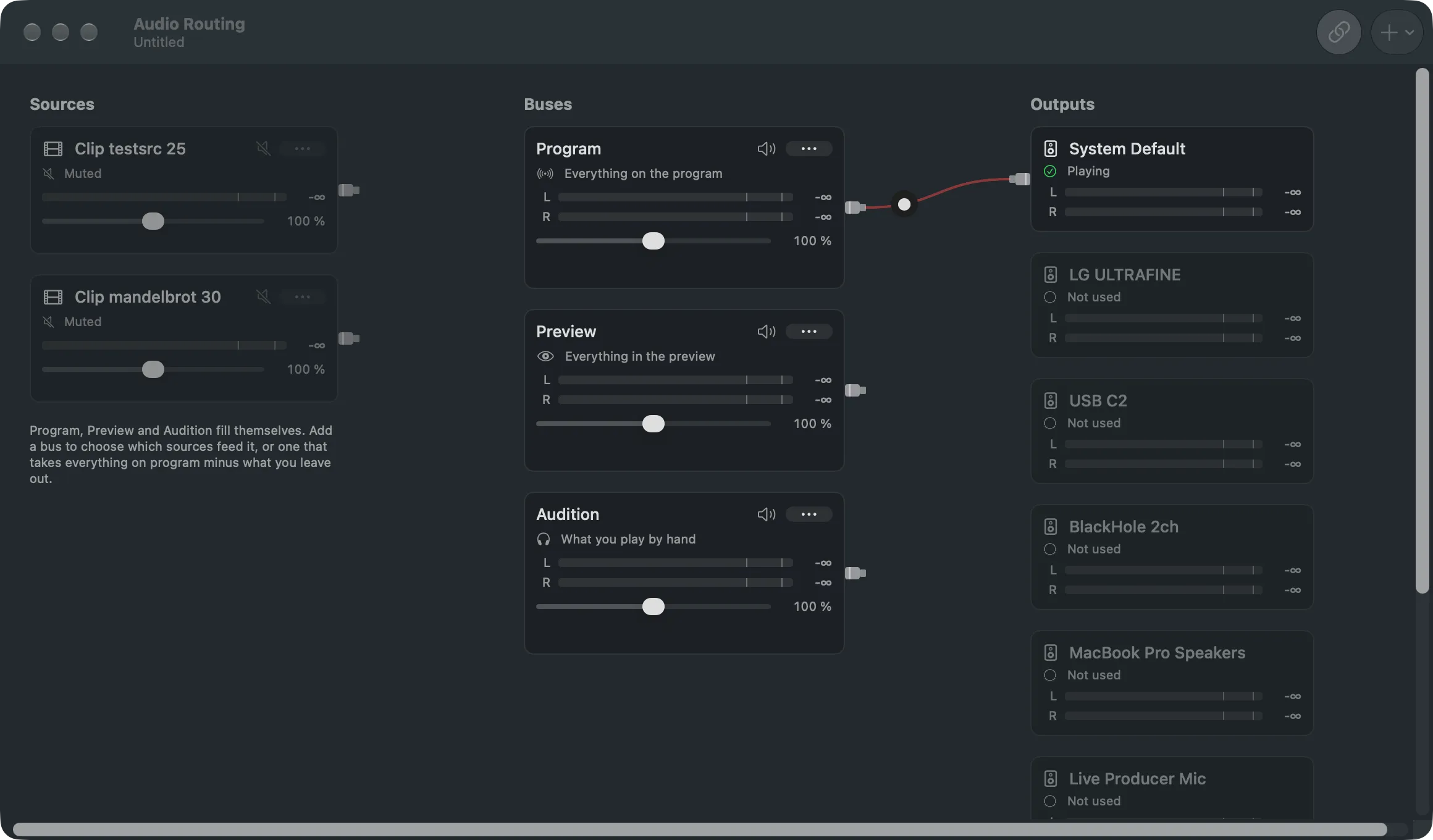
Section titled “Step 1: Open Audio Routing”Choose Window › Audio Routing (⌥⌘A), or click Audio in the main window’s toolbar. The output devices are in the right-hand column.
Step 2: Connect the bus
Section titled “Step 2: Connect the bus”Drag from the round port on the right edge of the bus’s card to a device card. Or open the bus’s … menu and tick the device under Outputs. System Default follows the Mac’s sound output.
A bus can play to several devices, and a device can take several buses. A typical setup:
| Bus | Output |
|---|---|
| Program | the room speakers and the call’s virtual microphone |
| Preview and Audition | the operator’s headset |
Step 3: Set the level
Section titled “Step 3: Set the level”Use the bus’s level slider, or its speaker button to mute it. Both act at once.
Step 4: Choose the sound of a stream
Section titled “Step 4: Choose the sound of a stream”A stream target plays the Program Bus unless you choose otherwise. In Settings, on the Target List page, select the target and choose its Sound: Program Bus or Bus Named “…”. See Stream library.
Disconnect
Section titled “Disconnect”Click the dot on the cable between the bus and the device, then Disconnect. Or untick the device under Outputs.
Verify
Section titled “Verify”- A cable runs from the bus to the device, and turns green while sound passes.
- The device card says Playing, and its meters move.
Related
Section titled “Related”Describes Live Producer 0.305 · 29 October 2026