
Plug in a Stream Deck, let the Studio use it, and keep Elgato's app out of the way.
Connect an Elgato Stream Deck so the Studio puts the show on its keys. You set it up in Settings › This Mac › Stream Deck. To read what the keys do, see Layout and rows.
Before you start
Section titled “Before you start”- You have a Stream Deck and its USB cable. Only the Stream Deck XL has been tried with Live Producer so far.
- No other app holds the Stream Deck: quit Elgato’s Stream Deck app and Bitfocus Companion. The Studio never quits them for you.
Step 1: Plug it in
Section titled “Step 1: Plug it in”Plug the Stream Deck into the Mac. The first Stream Deck you plug in is used at once, without asking. Its keys show the show.
Step 2: Open the Stream Deck settings
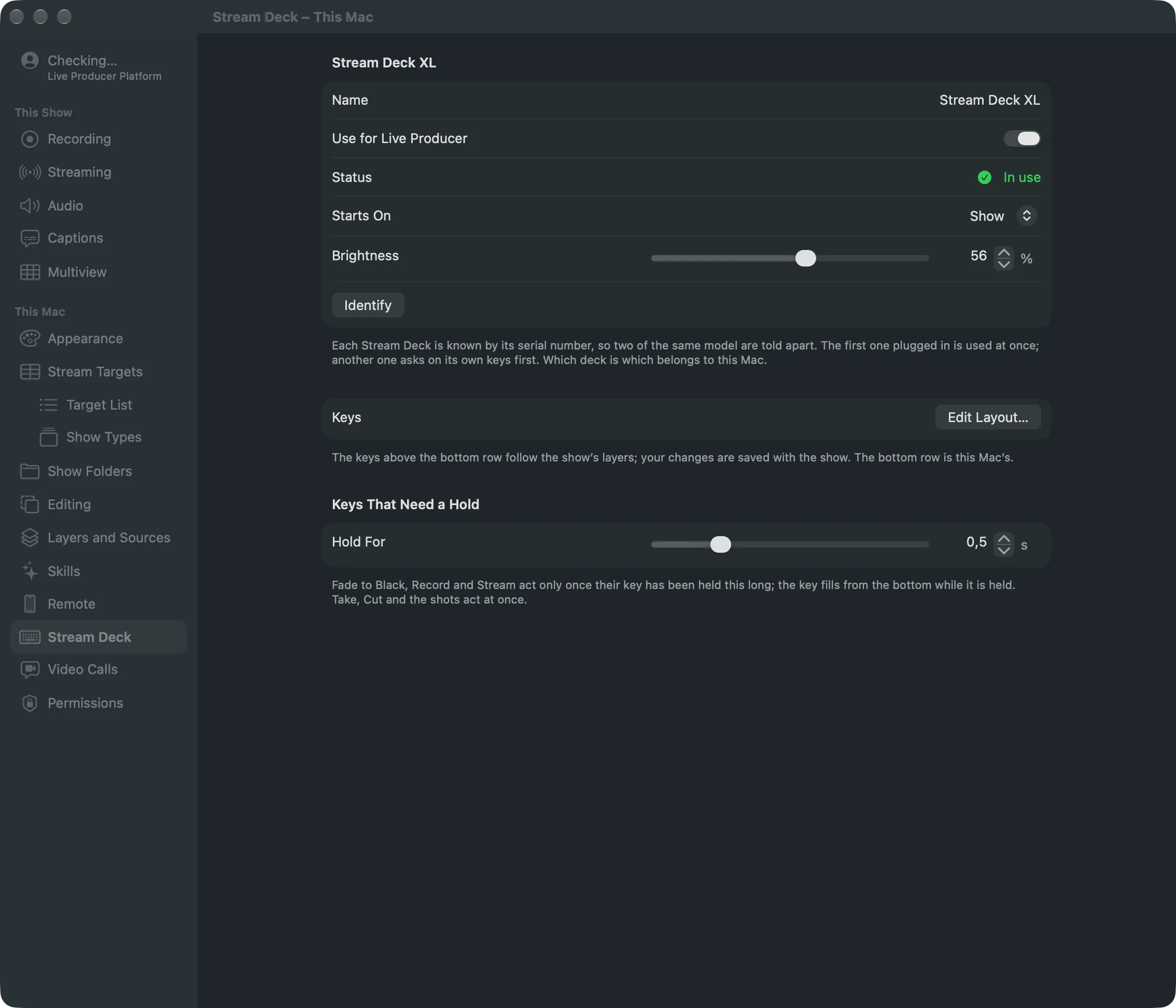
Section titled “Step 2: Open the Stream Deck settings”Choose Live Producer › Settings… (⌘,) and click Stream Deck under This Mac.
Step 3: If another app holds it
Section titled “Step 3: If another app holds it”If Elgato’s Stream Deck app or Companion is running, the page says so at the top. Quit that app, then click Try Again. The Studio also tries again each time it comes to the front.
Step 4: Use a second Stream Deck
Section titled “Step 4: Use a second Stream Deck”A second Stream Deck is never taken silently. Its keys ask first, and its Status reads Asking on its keys: press any key to use it. Press any key on it, or turn on Use for Live Producer in its section.
Step 5: Set it up
Section titled “Step 5: Set it up”Each Stream Deck has its own section, known by its serial number:
| Setting | Does |
|---|---|
| Name | What you call it, such as “Director”. |
| Use for Live Producer | Whether the Studio drives this Stream Deck. |
| Starts On | The page it shows when plugged in and when a show opens: Show, Showrunner or Output and Audio. |
| Brightness | The keys’ brightness. |
| Identify | Shows the name on its keys for a few seconds. |
Pressing a key lights the Stream Deck’s section with Key Pressed, so you can tell two apart. A Stream Deck that is not plugged in has Forget in place of Identify.
Verify
Section titled “Verify”- The Stream Deck’s Status reads In use.
- Its keys show the show’s shots with their pictures; the shot on the program says LIVE.
Related
Section titled “Related”Describes Live Producer 0.305 · 29 October 2026