
The company and its members, storage, Spelvin and billing; your profile and the apps signed in with your account.
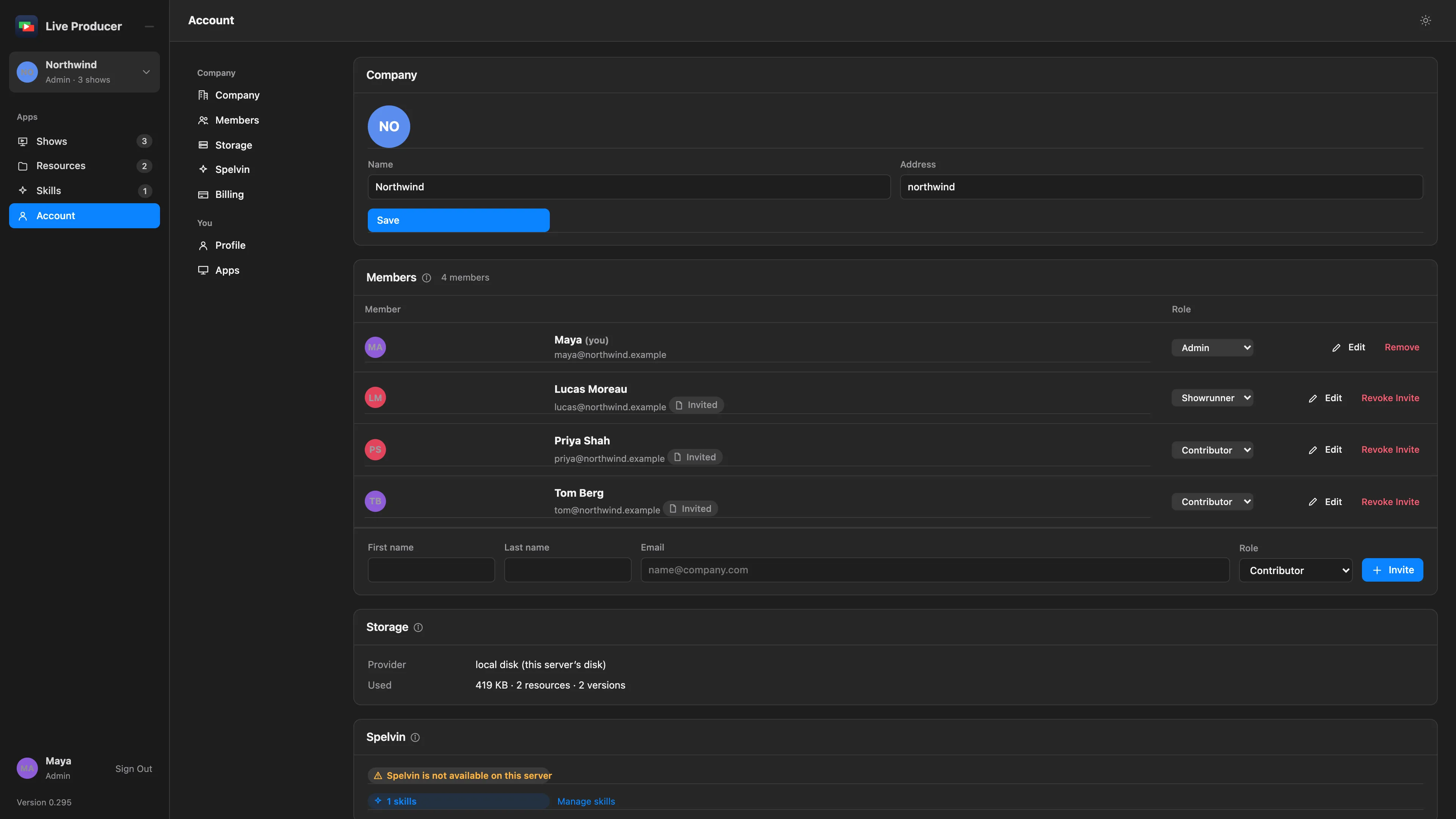
The Account page holds the company’s settings and your own. Open it with Account in the rail. The list on the left jumps to each card: Company, Members, Storage, Spelvin and Billing for the company, Profile and Apps for you.
Company
Section titled “Company”The company’s Name and its Address, the short name in its links. Only an admin can change the name.
Members
Section titled “Members”Everyone in the company, with their email and role. An Invited chip marks someone who has not signed in yet. An admin changes a role in the row, edits a name with Edit, and uses Revoke Invite or Remove. The line at the bottom invites someone new. See Invite people and Companies, people and roles.
Storage
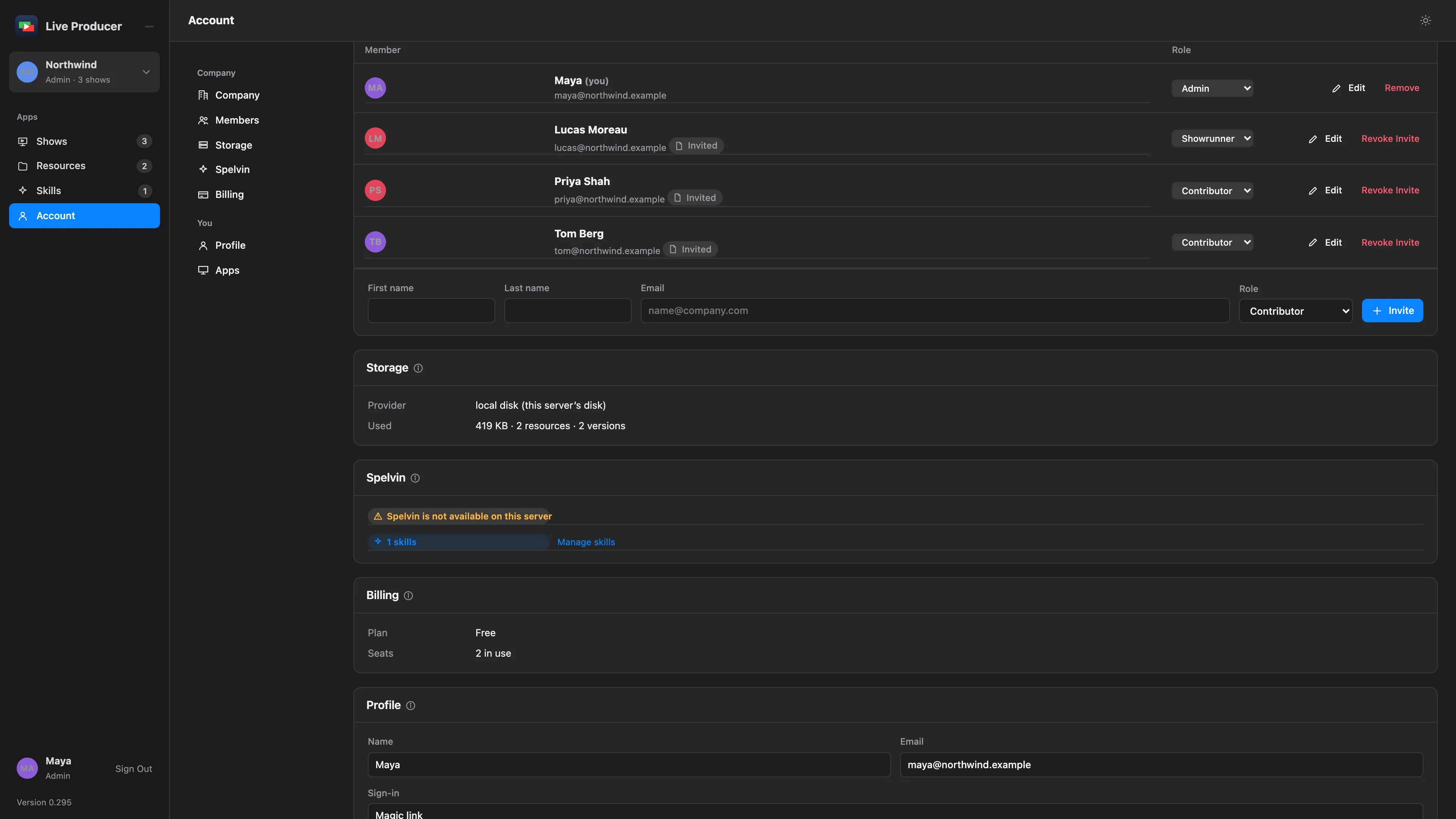
Section titled “Storage”Where the company’s resources are kept, how much space they use, and how many resources and versions there are. See Resources.
Spelvin
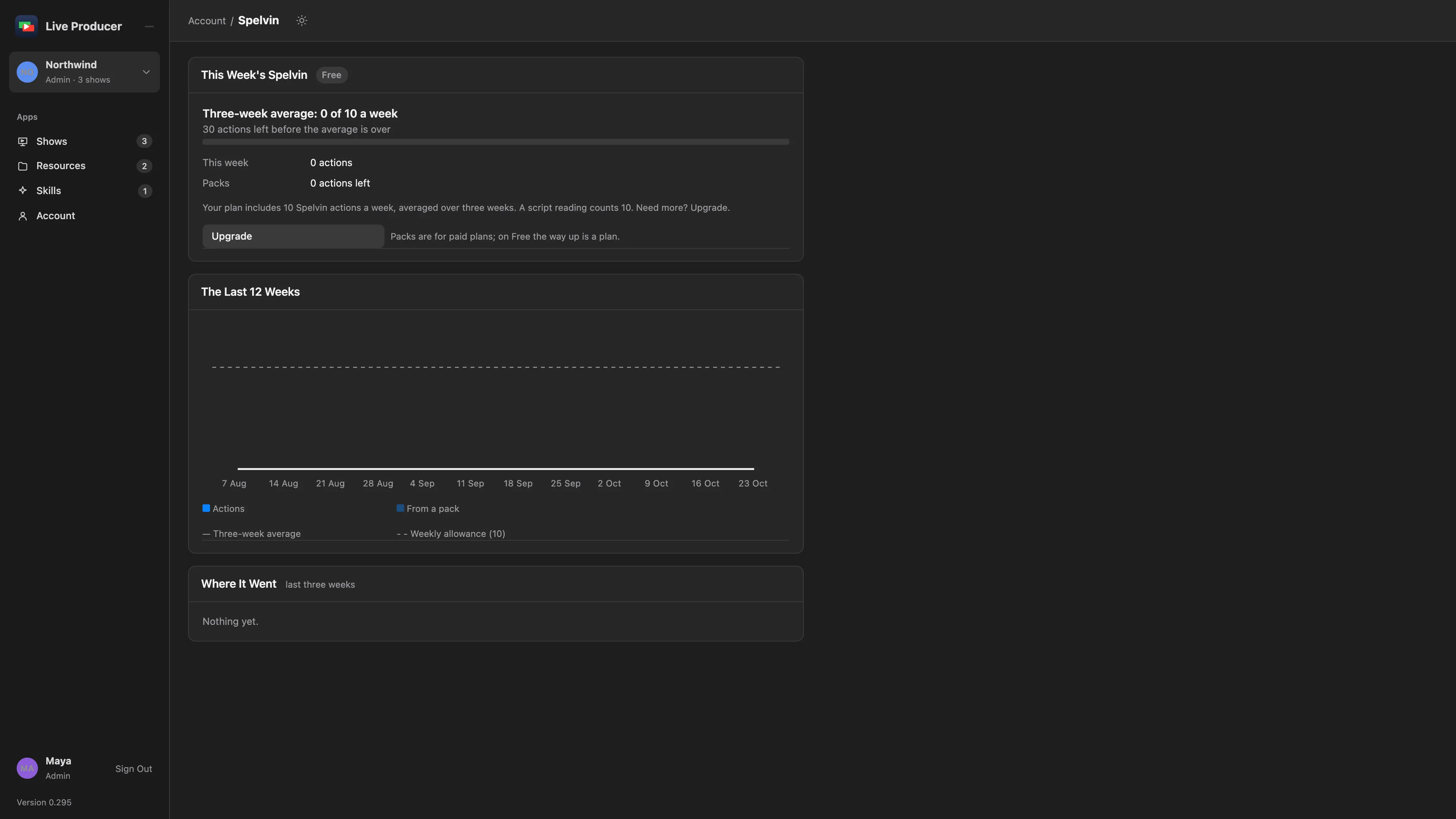
Section titled “Spelvin”Whether Spelvin reads your scripts, the three-week average of Spelvin’s actions with View Usage, and the number of skills with Manage skills. View Usage opens the usage page: this week’s meter, the last 12 weeks, where the actions went, and packs. See Actions and limits.
Billing
Section titled “Billing”The company’s Plan and the Seats in use. See Plans and billing.
Profile
Section titled “Profile”Your Name, your Email and how you sign in. Your profile is the same in every company you are in.
Every app signed in with your account: its name, the shows it linked, its skills, when it signed in and when it was last seen. Sign Out signs that app out. To add one, sign in from the Studio in Settings › Account. See Sign in.
See also
Section titled “See also”Describes Live Producer 0.305 · 29 October 2026