
Make a new show and its folder from Standard, Blank or a setup you saved, and choose where the folder goes.
Make a new show with its own folder, ready to fill. A show is one file with everything the switcher needs; see Shows and show files.
Before you start
Section titled “Before you start”- Opening a new show replaces the open one. If the open show is on the program output, the Studio asks before it clears the program, and it offers to save unsaved changes.
- A show that starts from a web show is made from the Live Producer Platform window instead; see Platform.
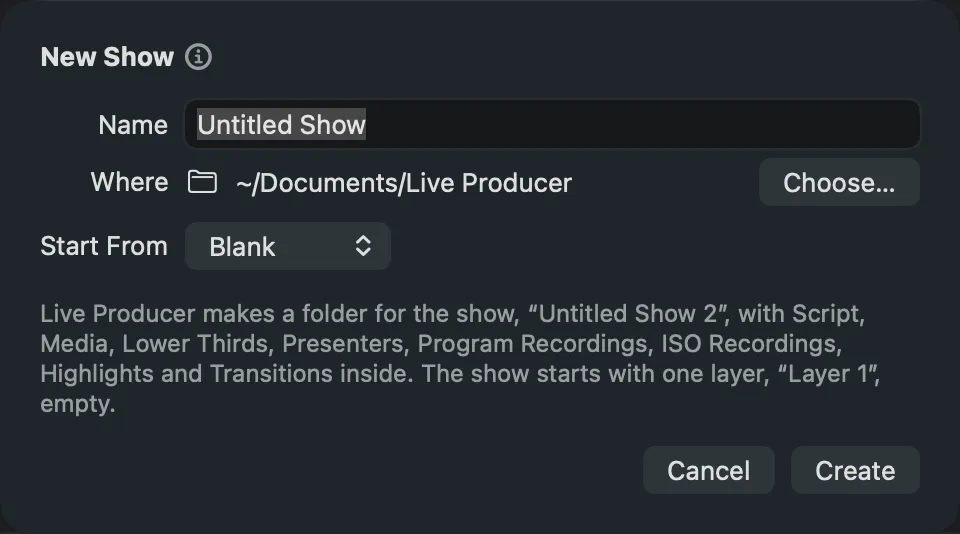
Step 1: Open the New Show sheet
Section titled “Step 1: Open the New Show sheet”Choose File › New Show… (⌘N).
Step 2: Name the show
Section titled “Step 2: Name the show”Type the show’s name in Name. It becomes the name of the show’s folder and of its show file. Leave it empty for “Untitled Show”.
Step 3: Choose where its folder goes
Section titled “Step 3: Choose where its folder goes”Where shows the place the Studio suggests: the last place you used on this Mac, or
~/Documents/Live Producer. To put it elsewhere, click Choose… and pick a folder.
Step 4: Choose what the show starts from
Section titled “Step 4: Choose what the show starts from”In Start From, choose a layer setup:
| Choice | The show starts with |
|---|---|
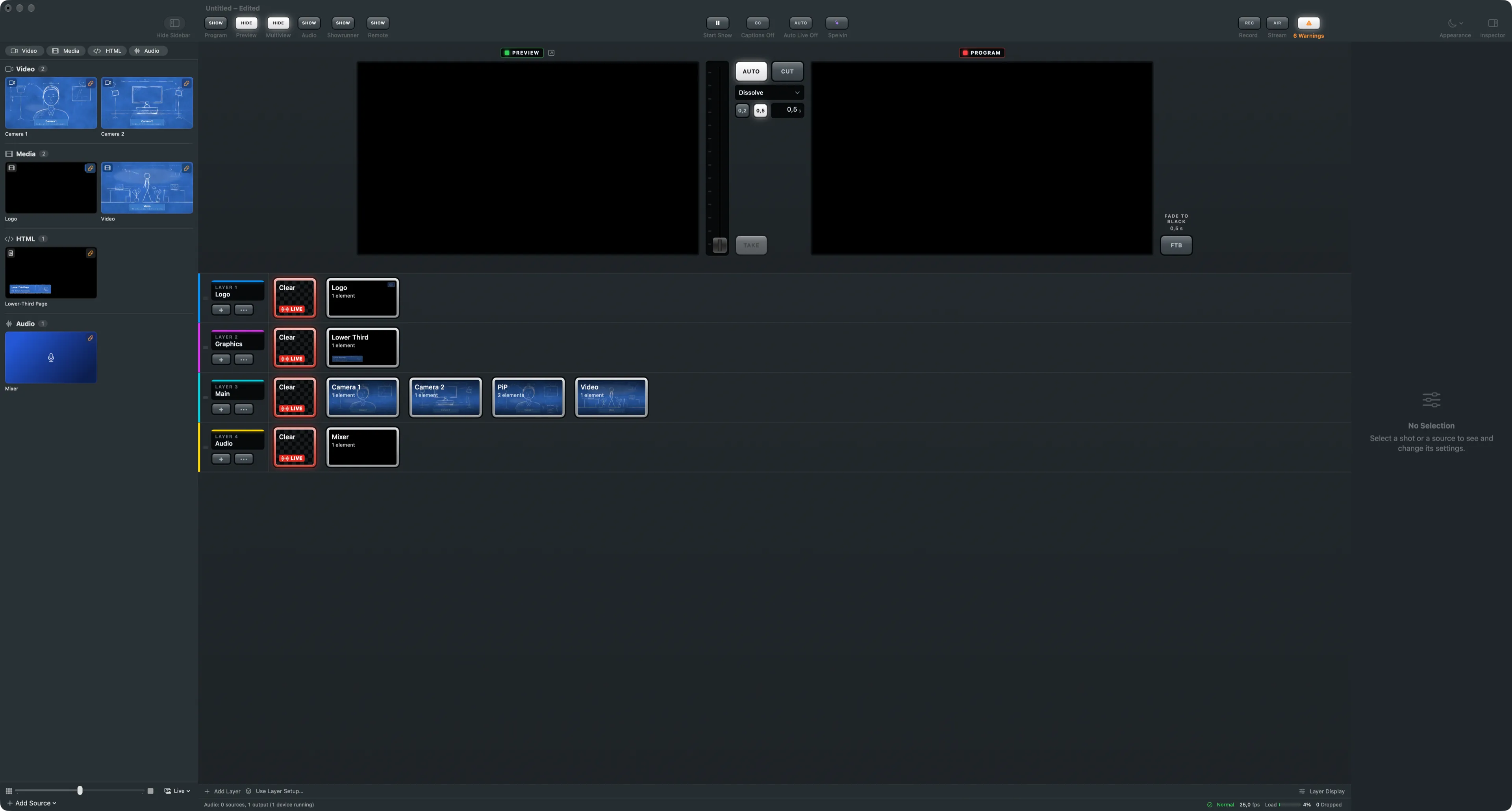
| Standard | the layers Logo, Graphics, Main and Audio, with shots and stand-ins to link to your cameras, files and inputs |
| Blank | one empty layer |
| a setup you saved | its layers, shots and sources |
The sentence under the form says what the choice makes. The Studio remembers your choice for the next new show on this Mac.
Step 5: Create it
Section titled “Step 5: Create it”Click Create. The Studio makes the folder with its subfolders and the show file, saves it at once, and opens the show.
Verify
Section titled “Verify”- The window’s title is the show’s name.
- File › Show the Show Folder in Finder shows the folder with Script, Media, Lower Thirds and the other subfolders.
- From Standard, the Warnings key counts the stand-ins to link.
Related
Section titled “Related”Describes Live Producer 0.305 · 29 October 2026