
Fill an open show from Standard or a setup you saved, beside the show's layers or in their place.
Put a ready set of layers, shots and stand-ins into the show that is open, for example after you started from Blank. What a setup holds and what Add and Replace do is explained in Layer setups.
Before you start
Section titled “Before you start”- Open the show you want to fill.
- To use your own setup, save it first from another show; see Save a layer setup.
Step 1: Open Use Layer Setup
Section titled “Step 1: Open Use Layer Setup”Choose Layer › Use Layer Setup…, or click Use Layer Setup… under the layer strips.

Step 2: Choose the setup
Section titled “Step 2: Choose the setup”Choose a setup in Setup: Standard, or one you saved. The sentence under it says what the setup has.
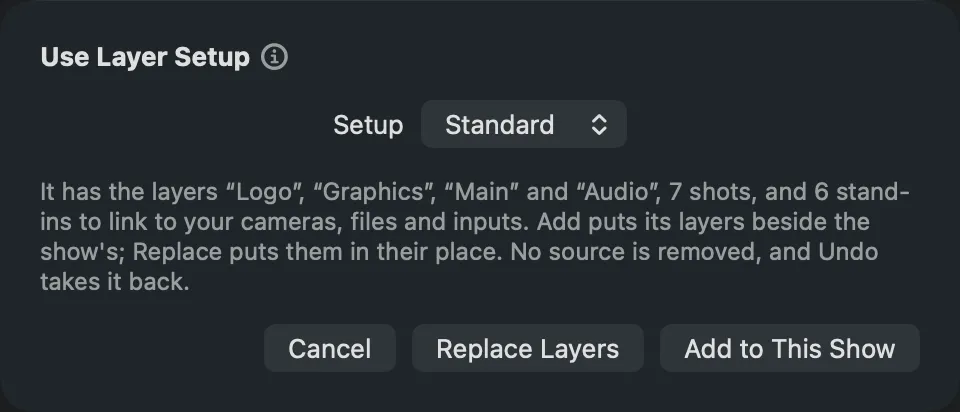
Step 3: Add or replace
Section titled “Step 3: Add or replace”- On a show without shots or sources, click Use. The setup goes in as it is.
- On a show that already has layers, choose:
- Add to This Show to put the setup’s layers beside the show’s. A layer with the same name gets the shots it lacks.
- Replace Layers to put the setup’s layers in place of the show’s.
No source is removed either way. Nothing on the program changes until your next Take.
Step 4: Link the stand-ins
Section titled “Step 4: Link the stand-ins”Standard’s sources are stand-ins that show a drawing. Link each one to your real camera, file or input; the Warnings key counts the ones left. See Link a stand-in.
Verify
Section titled “Verify”- The layer strips show the setup’s layers and shots.
- To go back, choose Edit › Undo: the whole setup comes out in one step.
Related
Section titled “Related”Describes Live Producer 0.305 · 29 October 2026