
A video file as a source: how it rests on its start frame, plays when its shot goes live, and loops, holds or fades at the end.
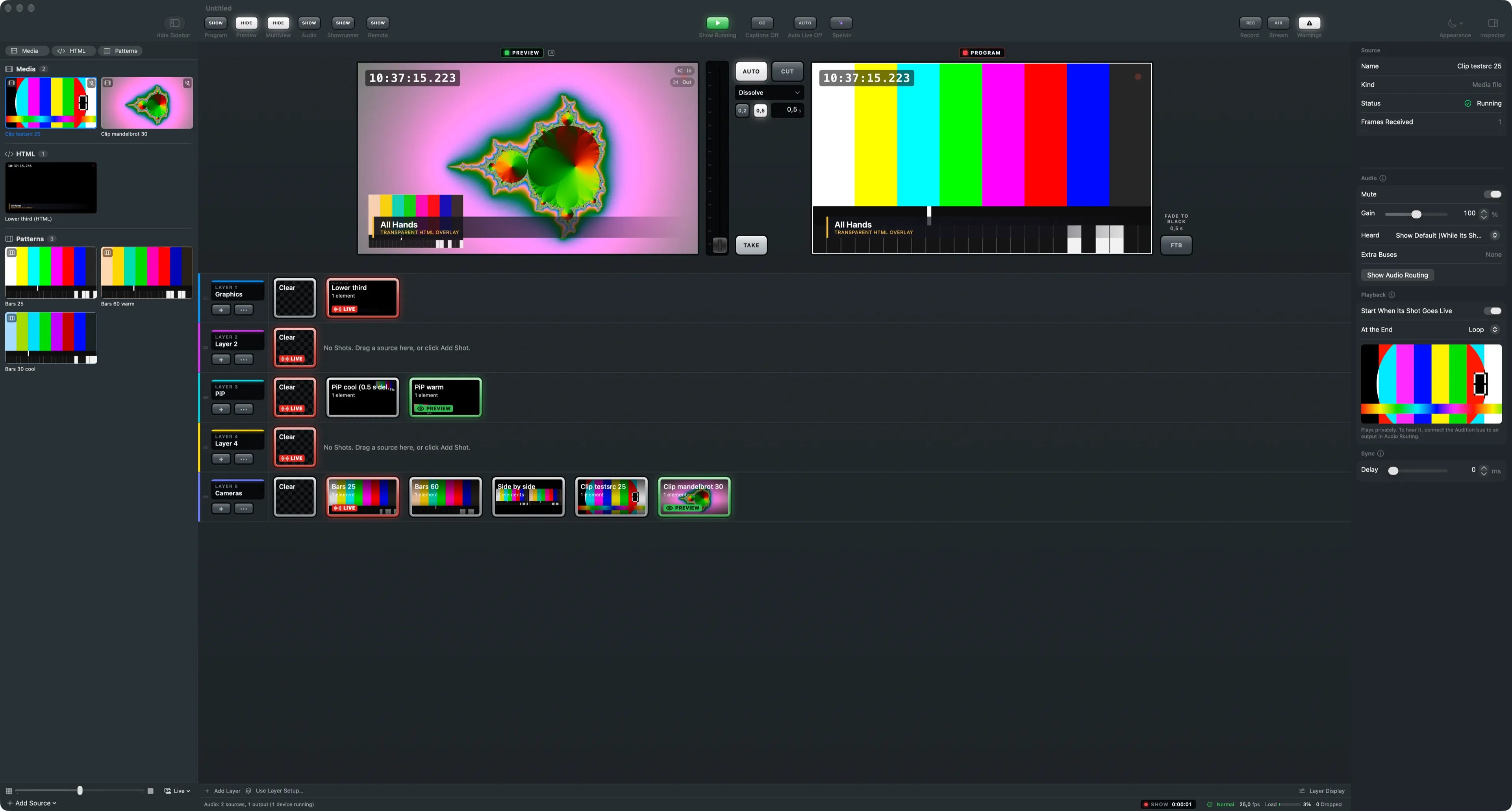
A media clip is a video file used as a source, in the Media group of the sidebar. By default it waits on its first frame and plays when a shot that contains it goes live.
How a clip plays
Section titled “How a clip plays”With Start When Its Shot Goes Live on, the clip rests on its start frame, in the preview too, and plays from there when its shot goes live. When it leaves the program it goes back to resting. Turn it off and the clip runs all the time, live or not.
At the End says what happens when the clip reaches its end:
| Choice | What the program shows |
|---|---|
| Loop | the clip starts again |
| Hold Last Frame | the last frame stays |
| Fade to Black | the clip fades out |
In and out points
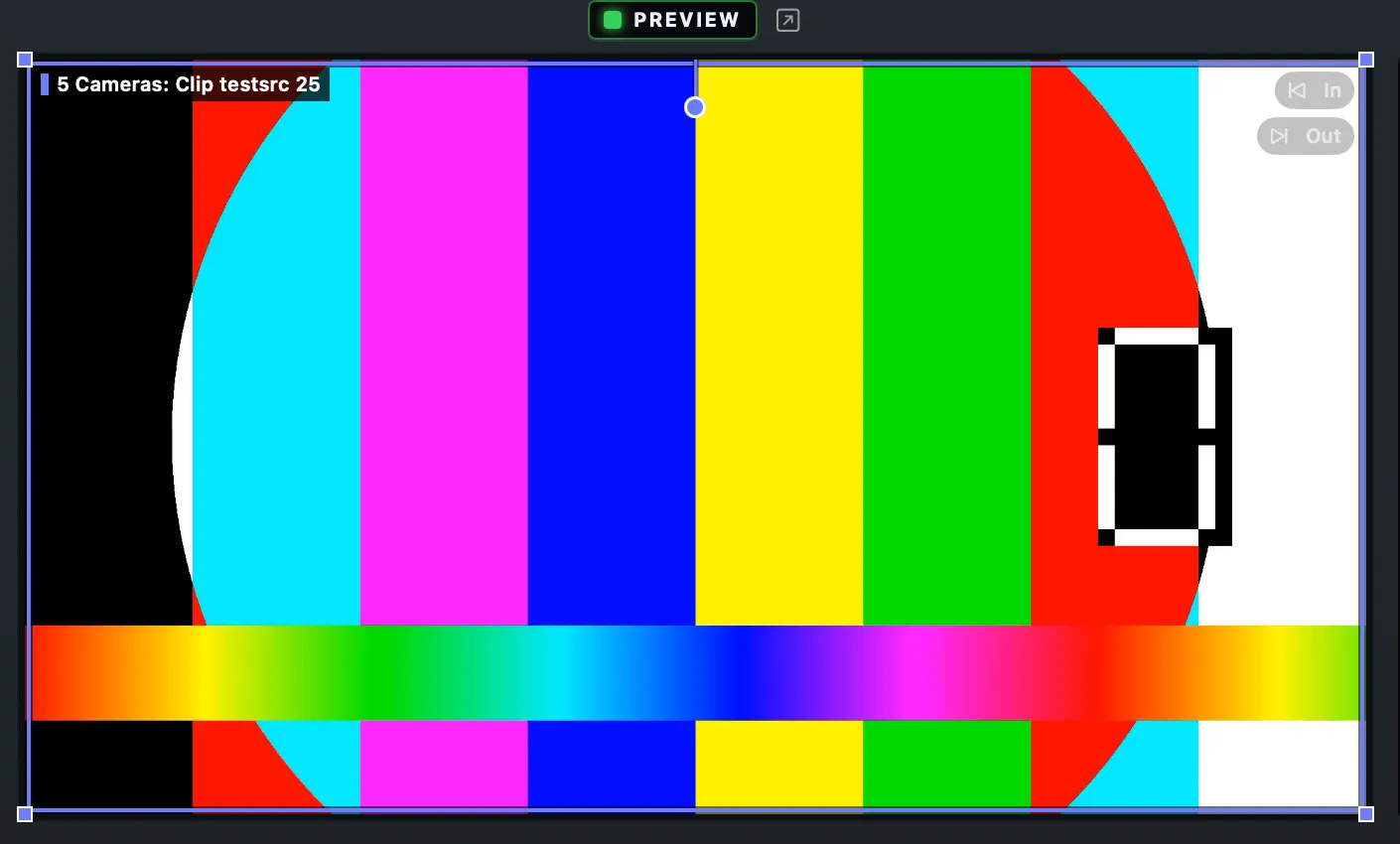
Section titled “In and out points”Each shot can start the same clip at its own place. The Clip section of a shot’s element has Starts At (the in-point) and Ends At (the out-point, where the clip loops, holds or fades). 0:00:00 in Ends At is the clip’s own end.
You can also set them in the preview. Rest the pointer on the clip, then move across it to look through the clip. Press I for the in-point and O for the out-point at the frame under the pointer. Press the key again on a point to clear it.
The shot or the source
Section titled “The shot or the source”Playback, sound, level and buses are the source’s settings unless a shot chooses otherwise. In the shot’s inspector an inherited value says Source; a value the shot sets has a button to go back to the source’s setting.
The countdown
Section titled “The countdown”A clip on the program shows a countdown under the program monitor, with what it does at its end. With several clips live, the one that ends soonest is shown.
Listening privately
Section titled “Listening privately”The inspector’s player plays the clip on the Audition bus only. Nothing you do with it reaches the program. See Listening privately.
Looking through a clip in the sidebar
Section titled “Looking through a clip in the sidebar”Rest the pointer on a clip’s tile, then move it from left to right to see the clip from start to end. Leave the tile through its top or bottom edge to keep that frame as the tile’s picture. Use First Frame as Reference in the context menu goes back to the start.
Read more
Section titled “Read more”Describes Live Producer 0.305 · 29 October 2026